The Agent
Ask about what’s on the page, or tell it what to make. It finds footage, tidies your Library, plans a whole job, makes shots and changes your edit, and asks before anything costs credits.
The Agent lives in the card, the box at the foot of most pages in Shotz, and right under the question on Home. Describe a shot and it makes it; ask anything and it answers. It sees what you’re looking at: the words on the page, the file open in the Library, the take you’re viewing, or the edit and its open timeline in the editor. When you say “this”, it knows what you mean. It also knows your credits, folders, brands, recent edits and what’s generating.
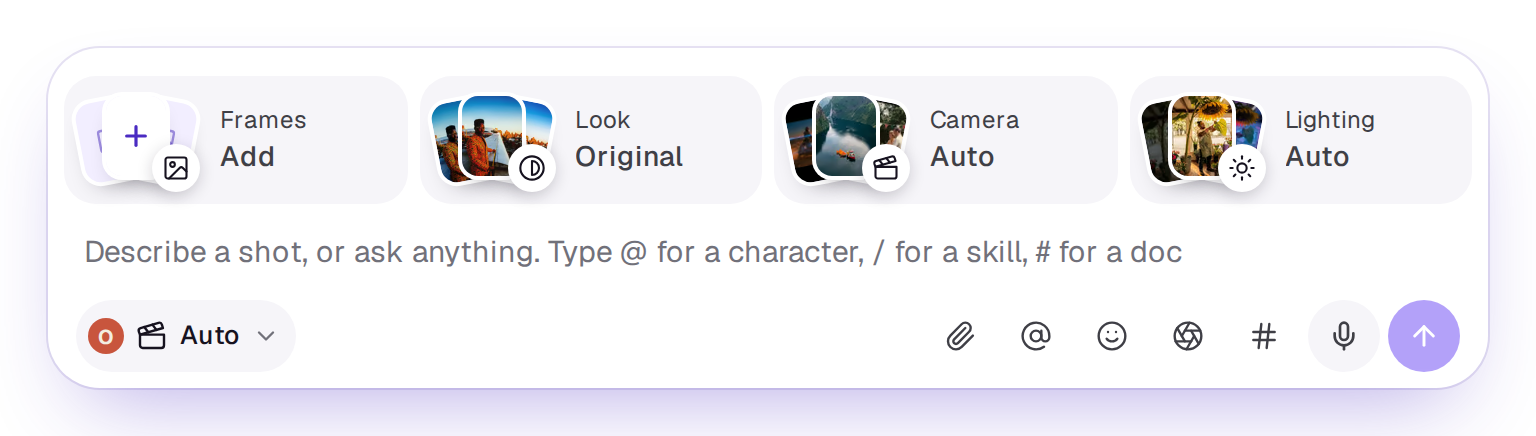
Opening and closing it
On a computer, the card is always at the foot of the page. On Home it sits under the question instead: each message you send there starts a new conversation and opens it on Create, with the card's settings (model, shape and the rest) carried over. The frames, references and voice you sent with the message stay with it, so the card on Create opens without them. Elsewhere, click in the card, or press ⌘J (Ctrl+J on Windows), and your conversation grows up above it. Opening one of the card’s own tiles, menus or pickers doesn’t bring the conversation up; it opens just that. Taking a pill off the card with its × doesn’t either. Click anywhere else on the page, press Esc or press ⌘J again to put the conversation away; it stays, and comes back with the next click in the card. While a shot is about to start with the conversation put away, a strip across the top of the card says so, with Stop.
On Settings the card waits as a single line, Ask the Agent, with ⌘J beside it. Click it, or press ⌘J, and the card opens as it does elsewhere.
Create in the sidebar shows the whole conversation on its own page, with your other conversations down the left, newest first, under Private (your own) and Workspace (chats everyone in the workspace reads and writes; see Chat with the Agent as a team). Search them with the magnifying glass at the end of the tabs, or choose More beside one for Pin to the top (Unpin once it’s pinned), Rename and Delete. Rename asks for a name of up to 80 characters; once you’ve named a conversation, Shotz doesn’t replace the name with one of its own. Deleting a conversation removes its messages and what the Agent took from them; anything it made stays in your Library. At the top of the open card, Your threads opens a menu of your earlier conversations. Pick one to carry on with it right there, with the card as you left it. In an edit or a design, the ones started there come first under This edit or This design, then Pinned and Recent, each with the first picture it made. The same Private and Workspace tabs are at the top, with search at their end. All threads in Create at the foot of the menu goes to the full page, which is where you pin, rename and delete them. Open full screen carries on there with this conversation, and the chevron (Put away) puts the conversation away.
In the editor, the card docks at the right of the edit: choose the sparkle in the top bar, beside Export. Drag its left edge to resize it, or double-click the edge to go back to the usual width. Its Your threads works the same way. See Generate a shot in an edit.
On a phone, tap Create in the tab bar, and the card opens in a drawer over the page you're on. It grows as the conversation does, up to about three quarters of the screen; drag its handle up, or tap the handle, to carry on full screen on Create. Your threads, at the top left of the drawer, slides in your conversations as a page inside it: pick one to load it there, or go back to return to the one you had. On Home the card is also right under the question. In the editor on a phone, it’s the Agent sparkle in the top bar.
Choose New chat (at the top right of Create) to start a fresh conversation; your last one is there the next time you open Shotz. An empty conversation on Create, or in the phone drawer on a page with nothing of its own to talk about, opens on every Agent skill as a picture, along an arc that goes round without end. Swipe or scroll sideways to turn it, or use the mouse wheel to move one tile at a time. The skill in the middle plays its clip. Tap one and its / skill goes into the card for you to finish; nothing is sent or spent. On a page with a file or an edit open, you get suggestions in words about that instead. Each conversation keeps its own card, so going back to one brings back the model, shape, frames and other settings you last sent with it. See The card and its settings.
A conversation is one piece of work, built a message at a time. The Agent remembers the files it made, found or read, and what you sent with each message, such as a start frame, references or elements. So “make him older”, “warmer” or “again” works on the shot it just made, without you pointing at it. Start a new chat for something unrelated. It also remembers what it looked up in its recent replies, such as the files it found, so “that one” works. In a very long conversation, the oldest messages are kept as a short summary of the brief, what you decided, what you turned down and what’s still open, so it doesn’t lose the thread. It can read back an earlier line word for word, and, unless you’ve turned it off (see below), it can look through your other conversations in the workspace, such as “the matcha ad”, to build on what it made there. When a conversation has more messages than are on screen, Show earlier at the top brings back the ones before.
What it remembers about you
Tell the Agent something you want every time, such as “TikTok is always 9:16” or “skip the directions, just make it”, and it can remember it. It only saves what you said yourself, never something from a file or a page. Under its reply you see Remembered: and what it saved, with Forget beside it. Choose Forget to take it back; the line then says Forgot:. You can also ask it to forget something, or to change what it remembered.
The Agent follows what it remembers in every conversation in that workspace, unless you say otherwise. To see the list, open Settings → Memory, under You. Each one has Edit and Delete. They’re yours alone: nobody else in the workspace sees them, and they stay in the workspace you told it in. You can keep up to 30 there, and leaving a workspace removes yours from it.
Choosing what it remembers
At the top of Settings → Memory, under Using memory, are two switches, both on to start with:
- Use memories: the Agent saves what you ask it to remember and follows it in every conversation. Off, it does neither. What’s already on the list is kept.
- Search past conversations: when you mention earlier work, the Agent can look through your other conversations here for it. Off, it doesn’t.
To clear the list, choose Delete all at the top right of What it remembers, then confirm. The Agent forgets every preference you’ve told it in this workspace. Your conversations stay.
An owner can turn off Agent memory in Settings → General. That stops both for everyone in the workspace. What each person’s Agent remembered is kept, unused, and owners never see it. While it’s off, Settings → Memory says so and the switches can’t be changed.
Facts everyone should share, such as your products and who they’re for, go in your brand’s Things to know instead. See Brands.
Closing the tab mid-reply
A reply carries on after you leave. If you close the tab, lose your connection or switch to another page while the Agent is answering, it keeps going and saves what it says. Open the conversation again and the reply is there, still filling in if it hasn’t finished. Opening the same conversation in another tab shows it too.
Cards that act on your screen, such as opening a page or starting a shot, don’t run again when you come back to a reply you’d already seen. A shot that starts on its own does so only in the tab you sent the message from; in another tab following the same reply, it waits for you to press Generate, and a card pressed in two tabs still makes one shot.
If something goes wrong on our side partway through, the reply ends with “I was cut off before I finished. Ask again and I’ll carry on.” What it said before that stays.
Making shots
Describe a shot and the Agent makes it with the card’s settings: the model, shape, length, number of takes and the rest. See The card and its settings. Up to 500 credits, it starts after five seconds, with Stop beside it, and nothing’s spent until then. Over 500, it shows the shot with its price and waits for you to press Generate. It also waits when the Agent changed what the card priced, such as by splitting the video into Shots or running it on a model other than the one on the card. A shot made from a voice track, such as a talking photo, or from a Library video always waits for you to press Generate, whatever it costs, because its price depends on the length of that file. It’s one card from send to result: while it counts down, its header says Starting in 3 seconds, what it makes and its price, with Stop at the right and a line running out along its top, and its tiles are already there in the shape you asked for. Then the same card says Making, the tiles shimmer, and the takes land in them. The takes come in inside the conversation as they’re made, and land in your Library. On a computer, click a video and it plays right there in the conversation, with sound and its controls. Choose the corner button (Open), which shows when you point at it, to open it over the page, so the conversation stays where it was, with its prompt and Reuse prompt to put that prompt and the settings it was made with back in the card, Edit in Studio, share to the community and download. A picture opens over the page when you click it. Use the arrows to move between the takes from the same card, and close it to go back to the conversation. On a phone, tap a take and it plays full screen over the conversation, and you can swipe between the takes. It has Edit in Studio, Tools and Share at the foot, the same tabs as on a computer when you swipe up, and Download and Share to the community in ⋯. Reuse prompt under Prompt puts its words and settings back in the card. Choose Saved beside Library in Details, on a phone or a computer, to leave the conversation for the file.
Your words win over the card. Ask for “an image of…” or “a photo” while the card is set to video and you get a picture; ask for “a video of…” or say “animate it” on a picture card and you get a video. Name a model, such as “on Kling”, and it uses that one. The card says what it switched, such as that it was set to a video and this makes a picture. When the kind changes and you didn’t name a model, Auto picks one for it, and a shape or length the card had left on Auto is worked out again for the new kind. Settings only a video takes, such as an end frame or sound, are left off a picture.
On the Free plan, the Agent makes your pictures on FLUX.2 klein, the free model, while you have free images left today, and says so. The card shows Free in place of a price. On any plan, when a picture costs more credits than you have, it makes it on FLUX.2 klein instead while you have free images left, as long as that model can take everything attached, and says so. It uses another model if you pick one you can pay for or ask for one by name, and videos, voiceovers and music still cost credits. See How credits work.
Skills
Type / in the card to add a skill to your words, as many as you like. Shot skills, such as a crash zoom, go into the shot’s prompt. Agent skills (Storyboard, Casting, Production design, Reference research, Reference to campaign, Localisation, PDP assets, Reframing, Ad variations, Script, Previs, Motion graphics, Shot list, Treatment, Hook lab, Rough cut, Cut-downs, Sound design, Music video and Content series) are bigger jobs the Agent works through with you in stages. Your team’s own skills are in the / list too, first. You can keep a conversation that went well as one: ask the Agent to write it up, or choose Save as a skill on Create (owners and editors only). You check the draft and press Save skill before your team can use it. A message that names one of these never starts a shot on its own: the Agent asks for what only you know, then shows a plan, and waits for you to press the button. On the Skills page, tap an Agent skill to read what it does, then choose Use in Create to put it in the card. See Use a skill.
Asking for the brief
A single shot or picture you’ve described is a brief already, so it’s made. An ad, a film or anything with a story needs more, and the Agent works like a creative director with you as the client. It doesn’t guess what only you know: what you’re selling or telling, who it’s for, where it will run. If your request is thin, such as “plan a 15 second ad”, it asks first, and nothing is spent.
The questions come as a card, up to three, each with up to four answers to tap. They’re drawn only from your elements, brand and Library, never made up. When it has nothing of yours to offer for a question, such as what the ad is for in a workspace with no products, that question is just a field to type in.
Every question also ends with Something else. Choose it to type an answer of your own in the row, then press Enter to send. With one question, tapping an answer sends it. With several, tap one answer for each, then choose Send answers; tap a chosen answer again to take it back. If a question is a field only, or you’re typing in one, the card has a Send button (or Send answers with several questions). You can also type your answer in the card at the foot of the page instead. Once you’ve answered, or sent something else, the card stays as a record and its buttons turn off.
Next it pitches two or three directions, each with its hook and why it fits, and asks which you’d like. Pick one, mix them or push back. Then it writes the script shot by shot, with the references under it: each character, place, product and the look, saying which it will make from your elements and which it will make new, and asking if you have photos of any of the rest. It checks the script with you before it offers a plan.
If you give it a full brief or script, or say “just make it” or “you choose”, it skips the questions, says what it assumed and goes straight to the plan.
Building on an earlier shot
When your words build on something, such as “the same shot but the bottle tips over” or “a crash zoom into that car”, the Agent attaches it. An image becomes the start frame, images of a character, product or place go in as references, and elements you tag come along. The card says what it was made from, such as Starts from "Bottle", or With 2 references. If the model on the card can’t use everything attached, the Agent runs the best-ranked model that uses the most of it, and says so. If every model would still leave something out, the card says what, and waits for you to press Generate instead of starting on its own. A shot that asks for more than 8 elements, or 30 references, isn’t made until you narrow it down. In a plan, a step whose model can’t take what it names isn’t offered.
If you describe several shots in one video, such as “a wide, then close on her face”, the Agent sets them as Shots in the card, and the video lasts as long as they do together. If the model on the card can’t cut shots, it runs a model that can and says so. Shots that add up to more than the model makes aren’t started; the Agent shortens them.
If you build on a video, it isn’t made as a new shot, since the model would know nothing about it. It shows Change the clip for that video instead: the same footage, with what you asked for changed. It waits for you to press it, and nothing’s spent until then. See Change a video with a prompt. A start frame or references can’t go with it, and the Agent says so. For a video longer than the clip tool takes, name the part, such as “make it snow from 0:30 to 0:40”, and it changes just that stretch; if you don’t say which part, it asks.
If your words build on a shot and nothing is attached, the Agent doesn’t make something unrelated. It looks for the file in your conversation, or asks which one you mean.
The same goes when a file is open on the page, or you just made one in the conversation, and you ask for a change without naming it: “make it warmer”, “again but at night”, “make him smile”. The Agent treats that as a change to that file, not a new shot. A photo is made again from itself with only that changed, and a video is changed with Change the clip. If you want something new that doesn’t build on it, say so, such as “a lighthouse in a storm”, and it makes a new shot. When it can’t tell which you mean, it asks.
What it does at once
These cost nothing, so it just does them and tells you what it did.
- Find footage. “Where does the red board show up?” It searches the Library, including moments inside your videos, and shows what it found. Choose one to open it over the page you’re on, from the moment it found when it’s a video. It can also find files by your own Library fields, such as “the approved shots of SKU 4410”. When it looks something up for its own use, it doesn’t fill the conversation with pictures.
- Look things up. What’s generating, why a take failed, what’s in a file’s transcript, which edits you have.
- Count and add up. “How many shots did I make this week?”, “Which model fails most for me?”, “How many credits did each of us use in September?” It works out the exact numbers across your whole workspace, by day, model, person and more, in your own time zone.
- Tidy the Library. Rename a file, rewrite its description (only in words you’ve given it) or tags, and sort files into folders. It can also fill in your Library fields on one file or on many at once, such as “mark these approved”. It changes only the fields you mention, and only for editors and owners.
- Start an edit. “Make an edit from my last three clips.” It makes the edit with the files on the timeline and opens it. With no files, it makes an empty edit. An edit or design it makes or opens in a reply is the open one from then on, so it carries on in the same message, such as cutting by words, adding captions, cutting to the music, grading, watching it or saving a project note, without asking you to open it first.
- Make a design. “Make a 4:5 post for the spring drop with the rooftop shot and a lime sticker.” It makes the design with its layers from files you have and opens it, and grades the pictures as it goes, such as brighter, more contrast or richer colour. If it needs pictures that don’t exist yet, it makes those first. It doesn’t stop to ask you to open the design or move sliders yourself: it carries on with it in the same reply until it’s what you asked for. See Studio.
- Change your design. With a design open in Studio: “Give it the Film look at half strength”, “Put it in a white border”, “Make the background lavender”. It sees the page as a picture and where each layer sits. Looks, sliders, frames, colours and text are free and happen straight away, as one step you can undo, and so is layout: moving, sizing and fading a layer, turning an image or video, lining layers up, changing the stack (the background colour stays at the back), hiding, locking, renaming or duplicating a layer, a template, and laying the page out again in another shape. It can also grade a photo in detail, with curves, the three colour wheels and colour by range, as Curves and colour does (it shows only where your browser has WebGPU), and crop or flip a picture, which you can widen again later. Text is sized by its text size, and a shape takes a new colour. After a layout change it can look at the page again and fix what’s off before it says it’s done. Anything that costs credits, such as upscaling, removing the background, an AI background, a Magic effect, someone else in the picture (Recast), new light, a new camera angle, a recolour, splitting the image into layers, or a change to only the areas you picked with Select, comes as a card: up to 500 credits it starts after five seconds with Stop beside it, and a dearer one waits for you to press Make it. It sees every page of the design but changes only the open one; to change another, open it first, and it can open it for you.
- Change a design’s pages. “Add two more pages in Story”, “Duplicate page 2”, “Put them in a new order”, “Delete the last one”. It adds blank pages, copies a page next to the original, deletes one that isn’t open (a design keeps at least one) and reorders them, all free and at once, and can open a new page to keep working on it.
- Export your work. “Export it at 1080p with captions.” It renders the open edit or design in your browser, as Export does, and keeps the file in your Library under Exports. For an edit that’s the video, at 720p, 1080p (the default) or 4k, with or without captions burned in, or just the sound. For a design it’s the open page as a PNG. A card says Exporting while it works, then Exported with Open it. A long cut takes as long as Export does, so keep the editor open. It does this when you ask for the file, or to caption, dub, upscale or score a finished cut. Exports are kept for your own edits once you’re signed in.
- Bring in a file from a link. Paste a public link to a picture, video or sound file, up to 100 MB, and it puts the file in your Library. It reads a link to the file itself, not a web page, and only a link you typed in that message, never one it found on a page or in a file. A video takes a minute more to be ready for tools.
- Open a tool for you. “Compress this video” or “Run these through a batch.” It opens the tool on the Tools page with the file, or the files, already in, so you check it and go on. Each tool shows its price before anything is made. It does this for tools that run in your browser or need you there, and for Remake an ad, where it can fill in a saved ad, what to keep and what to change.
- Deal with feedback. With an edit or design open, “Go through the comments.” It reads the conversations on it, yours, your team’s and reviewers’ from its review link, with where each sits, then makes the changes and marks the ones it dealt with resolved. It treats what people wrote as feedback to act on, never as instructions to itself. If you can only comment, it can read them but not resolve them.
- Make and change elements and brands, when you ask. It can make an element from Library photos of one subject, and change an element’s name, description, tags or voice. On Pro and Team it can change a brand’s line, look, voice, sound, colours, rules and things to know. It does these only when you ask, in your words, never from what’s on a page or in a file. See Elements and Brands.
- Stop a take. “Stop that one.” It stops a take that’s still waiting or being made, only when you ask. Its credits come back if the model hadn’t started it, though that can take a little while to be confirmed; once a model has it running, stopping keeps the charge.
- Change your edit. In the editor: “Tighten the start”, “Add my latest takes to the end”, “Add a title that says Morning, unfiltered”. It makes the changes on the timeline straight away, as one step, and lists what it did. The section on the Agent in the editor, below, lists what else it can change. It can grade clips too: “Make it all warmer”, “Put Film on every clip”. It uses a look or a colour slider on the clips you name, else the ones you’ve picked, else every video and picture, and it’s free. When it adds files in the middle of a track, the clips after that point move along to make room, unless you ask it to lay them over what’s there. Choose Undo these to put it back, then Redo these to bring it back again, or press ⌘Z and ⌘ Shift Z. You can also ask it to “undo that” or “put it back”. It steps back only its own changes, newest first, and only while nothing else has been changed since; otherwise it tells you to use Undo (⌘Z).
- Write and work from docs. “Write a brief for the spring launch.” It writes scripts, briefs, treatments and shot lists in the chat, and never makes a doc, a board, an edit or a design unless you ask for one. Under a long reply, Save as doc keeps the writing as a new doc, and for a storyboard or shot list Put on a board puts each shot on a new board as a note; once made, the button opens it. Before something very long, such as a full script, a treatment or more than about 15 shots, it asks whether you want it in a doc or in the chat. Say “put it in a doc” and it writes a doc straight away, shown as a card you press to open. Away from Create, that doc also opens on its own; on Create it stays as a card in the chat. With a doc open, or named in the card with #, it reads it with every message and can change it as you watch. See Docs.
- Lay out a board. “Put these references on a board.” When you ask for one, it makes a new board in sections and opens it, with Open the board on its card. It can also change a board that exists, the open one or any other in the workspace: “Add a section for props”, “Take the grey frames off”, “Swap in the new frame for shot 3”. Anyone with the board open sees the change land, and what they're moving is kept. It only suggests changes if you can only comment in the workspace. See Boards.
- Translate a timeline. “Make this in Spanish and French.” Each language becomes a new timeline right after the original in the same edit, named after it, such as “Launch · Spanish”. Every title, caption and text layer is translated, in your brand’s voice when you have one. The footage, layout and timing are copied as they are, so voices stay in the original language; to change them, ask for Dub on the clips with speech. It needs words on screen to translate, and does up to six languages at a time. It’s free.
- Make shots on a board. With a board open, pick a few things and describe a shot: it's made from what you picked and lands on the board beside it. Ask about the board too: “Which of these takes is closest to the look?” See Boards.
- Work from Inspiration. Choose Use in Agent on an ad or video in Inspiration and it sits on the card as a pill that starts with Like, until you send your next message or take it off. Ask for what you want and the Agent borrows what works in it, never the ad itself. It can also search Inspiration, read what works in your saved ones and save one for you.
- Know which edit you mean. Name an edit or design from the paperclip’s Studio tab and it goes into your words as a chip, so “trim the intro of” that edit is clear. The Agent sees its name, whether it’s a video edit or a design, and when it last changed, and can open it. See References, and drawing on them.
- Open a page. It takes you there and says where you are.
- Set up an ad or a carousel. “Make a UGC ad for my serum, five hooks.” It opens the UGC ad or the Ad creator on its first step with your product, the brief and the other choices already in, such as the creator, length and hooks, or the kind of ad and how many. It needs a product element or a Library image of the product, and asks for one if it doesn’t have it. Check each step and go on; the tool writes the script or copy and shows the price before anything is made. Ask for a carousel and it opens the Carousel maker with what it’s about, a link to a page or a Library video to write the slides from.
- Block out a shot in 3D. For a camera move, scale or timing a prompt alone can’t hold, ask for a Previs. It builds the shot from simple grey shapes with the camera moving as you describe, and plays it on a card in the conversation, 4 to 15 seconds long, in 16:9, 9:16 or 1:1. Watching it and asking for changes, such as a lower camera or a slower step, is free. Choose Make it real to turn every shape into the real thing, keeping the camera, framing, timing and motion. The button shows the price. It renders the previs in your browser (Chrome, Edge or Safari 17), adds it to your Library and starts the change, and the result lands in your Library in a few minutes. Save previs keeps just the 3D version in the Library. It keeps the motion but not a likeness, so for a face or a product that has to look exact, it suggests a shot made from your element instead. The Agent never presses Make it real for you, and it only offers previs where the Seedance 2.5 Edit model is available.
- Make a motion graphic. For a title card, lower third, logo reveal, kinetic type, a number counting up or an end card, ask for Motion graphics. Tell it the exact words, what it’s for and how long, and it designs and animates it, in your brand’s colours and type when the workspace has a brand. It checks frames of its own work for anything cut off or crowded before it answers. It plays on a card in the conversation, 1 to 20 seconds long, in 16:9, 9:16, 1:1 or 4:5, and asking for changes such as bolder, slower or shorter is free. Choose Save to Library to render it as a see-through video in your Library. It’s rendered in your browser, so use Chrome or Edge. In a video edit the card also has Add to edit, which lays it over your footage at the playhead, on the top video track if you have more than one and it’s free there, otherwise on a new track above, without moving anything. It’s one undo step. You can render up to 20 an hour.
- Set up a shot. When you ask it to set a shot up rather than make it, it fills the card in the same conversation with the prompt, model, shape and length as you watch, and you send it yourself. It doesn’t start a new chat. Choose Set it up again on its card to redo it.
The Agent in the editor
With an edit open, the Agent sees the cut itself, not only a list of clips. With each message it reads what each clip plays, its volume and speed, the words a title says, and what’s said on the timeline, in timeline time. It sees small frames at the playhead, either side of the nearest cuts and across what just played, and a contact sheet of the whole cut with one numbered frame from each shot, so it knows the film’s look, places and subjects and not only what’s near the playhead. For a clip you made on Shotz, it also knows the prompt and model that made it. It reads the sound too: levels, music close to a voice in volume, near silences and the music’s beats, bars and sections. It also reads the camera’s movement in each video clip, such as a pan, tilt, push in or pull out, and when it settles. A person moving in a still frame doesn’t count as the camera. It notices cuts that land in the middle of a move and may suggest trimming to where the move ends, but cutting on a move is often what you want, so it treats this as a preference, not a rule. It measures this in the background while the Agent is open and the cut isn’t playing, so a long edit may take a moment to be fully read. Say “that bit” and it knows you mean what just played. It also knows the edit’s files and what’s on its timelines.
Ask for a shot while an edit is open and it makes the next shot of the film, not a stand-alone one. It carries the cut’s subject, place, light and colour into the prompt and sends the last frame of the clip the shot follows as a reference. Say where it goes: after the last shot, at the playhead, or only into the edit’s Media; without a word, it lands at the playhead. See Generate a shot in an edit.
Besides trimming, splitting, moving (to another track too), titles, transitions and looks, it can:
- Cut by what’s said. “Cut the part where I say ‘as I mentioned’”, “Take out the ums”, “Shorten the pauses”, or a stretch by its times. Like Transcript, it takes the stretch out of every unlocked track and closes the gap, so picture, sound and captions stay together.
- Change sound and speed. Set a clip’s volume or mute it, lower music under the voices, or change a clip’s speed from 0.25× to 4×.
- Cut to the music. “Put the cuts on the beat”, “Cut these five shots one every two bars”, “End the music with the picture”. It moves each cut to the nearest beat, bar or four-bar phrase, never through a spoken word. It lays clips or Library files one per beat or bar you choose, from where the music starts. And it ends the music on the next phrase after the picture stops, or, when that’s more than two bars away, fades it out with the picture. It works from the music’s beats, which your browser reads once from the sound file and keeps. Music with no steady beat, or a file over 15 minutes, can’t be cut to.
- Add captions from what’s said, in any of the caption looks (Word pop, Karaoke, Hype and the rest) or your brand’s look, at the top, middle or bottom, one to seven words at a time, or the look’s own count if you don’t say. It replaces the old captions and keeps any titles on that track.
- Fade in and out. “Fade in from black”, “End on a fade out.” A picture fades in from black at its start or out to black at its end, over the seconds you say (one second if you don’t). A black card that long goes beside the clip and every unlocked track moves along, so sound and captions stay in step. A sound clip fades its volume in over its first seconds or out over its last.
- Set a transition’s length. Transitions come in from the clip before, over 0.1 to 3 seconds, half a second if you don’t say.
- Lay B-roll over the footage. Cutaways, a logo or a picture go on a free video track above, made if there isn’t one, and nothing moves.
- Work the tracks. Mute, hide, lock or rename a track, or add a new video or sound track. Titles and captions go on video tracks.
- Grade in detail. Beyond looks and sliders: curves, the three colour wheels and colour by range, as Curves and colour does, on the clips you name, else the ones you’ve picked, else every picture. It shows only where your browser has WebGPU.
- Follow the subject. “Crop these to vertical and follow the person.” Up to 12 video clips at a time are cropped to the edit’s shape, following the subject and cut where it moves too far. It’s free. See Reframe a video.
- Change a title. Its words, colour, background, size, place, typeface (your brand’s, then the ones in the Text panel), alignment, bold and italic.
- Frame a clip. Fill the frame or fit all of it, zoom in, or zoom out for a smaller picture over what’s on the tracks beneath it, and move the picture.
- Duplicate a clip, freeze a frame and hold it for 0.5 to 10 seconds, or swap a clip for another Library file, keeping its spot, length, look and framing.
All of it is free and happens straight away. The timeline then shows the changes one clip at a time, left to right, with an Agent pointer on each; click the timeline to skip ahead. The edit is already changed while it plays. A reply’s changes are one step: choose Undo these, or press ⌘Z.
If it can’t find the exact words you asked it to cut, or they’re said more than once and you didn’t say which, it says so and asks instead of guessing.
### How it cuts
When it trims, tightens or lays in a rough cut, it follows the usual rules of editing. It cuts between words, never through one, and keeps each thought whole. It lets a camera move land before it cuts, cuts on the action, lets music end on a phrase, and keeps a voice clear over music. It looks at the frames either side of a cut to check. These are defaults: your request, your brief and a deliberate style, such as jump cuts, come first, and it says in a few words when it breaks one on purpose.
### Watching the cut
With Superagent, ask it to watch, review, tighten or check the cut. A card says Watching and the stretch, and your browser makes a small preview of it, with its sound, titles and captions, to send. A video model watches it and the Agent gets notes with times: pacing, cuts that jar, words cut off, music over a voice, titles over faces, colour that changes across a cut. It then works from them, and can watch again to check its own work.
It watches up to two minutes at a time, 12 times an hour, and it takes a minute or two. The card ends Watched or Couldn’t watch, with why. It costs nothing. Keep the editor open while it works. Its notes are another model’s opinion, so it weighs them against the frames before it changes anything.
### Notes for the project
Tell the Agent a decision about the edit, such as “keep it under 30 seconds” or “the logo goes last”, and it saves it as a note. Under its reply you see Noted for the project, with Undo. Every conversation about the project follows notes, yours and your team’s. See Project notes.
### One conversation a project
A conversation you start in an edit or a design belongs to it. When you open it again, the card picks it up. Open another edit or design, and it switches to that one’s conversation, or starts a new one if the open conversation is about something else. It doesn’t switch while a reply is coming.
Plans: bigger jobs
For a job with several parts, it shows one card with every step and its price: shots, voiceovers, music, tools like captions or dubbing, fixes and the edit that puts it together. A step can use what an earlier one makes, so “a start frame, then a video from it, a voiceover, music and an edit” is one card. If a step can’t work, such as a model that can’t make what it was asked for, the Agent doesn’t offer the plan without it. It fixes the step and offers the whole plan again.
A few steps are worth knowing:
- Upscale makes a sharper copy of a video, or of a photo, which comes out as much bigger as it can be, up to 24 megapixels, at one flat price. See Dub, upscale, extend or add sound to a video.
- Reframe gives a video a new shape, such as wide to vertical, by painting the frame out past its edges instead of cropping into it. It takes up to 10 seconds of a clip at 720p, so for a longer clip the plan names the part to use. The Agent can say what should fill the new space, such as “more of the street”. It’s priced by the second on its row. Use it from the Reframing skill, or ask for it. It’s also in Tools, where you can crop to follow the subject for free instead: see Reframe a video.
- Recast puts one of your characters, or someone from a photo, in place of the person closest to the camera in a video or photo, and keeps the rest of the shot. Ask “Put Maya in this clip”, and say who goes if it isn’t the person closest to the camera. In a plan it takes up to 30 seconds of video, and for a longer one the plan names the part to use. See Recast someone in a video or photo.
- Clean up audio keeps the voice in a video or sound file and takes out the noise and music, as a new sound file, priced by the minute. See Clean up audio.
- Product photoshoot, Headshots and Product video work as they do in Tools: a product photo shot again in set-ups such as studio, flat lay or outdoors, a photo of a person made into headshots in a few styles, or a product photo moved for five seconds. In a plan, a photoshoot’s pictures land in your Library, and the plan can lay them out as pages with a design step. See Product photoshoot, Headshots and Product video.
- Voiceover and music in your edit. With a video edit open, a voiceover or music step can be laid at the start of the edit, on a sound track that’s free there, once it’s made. You can ask it to lower the music under the voices after.
- Lip sync makes a take’s mouth say a voice or sound file from your Library. Ask for it on a shot, and it’s a fix step with its own price.
- Design lays out a design in Studio from pictures the plan makes and your words, such as product page assets or a post for each variation. It costs nothing itself, and when the plan is done the card says the designs are in Studio.
Shots in a plan are made at the Quality set in the card, so a card on 1080p gets 1080p shots, priced that way. If a model doesn’t make that quality, the shot uses the closest one it does. The step’s row shows the quality, such as 1080p, and you can ask the Agent for a different one for a shot. A draft is always 480p.
A step that makes a photo talk is made in two parts, the voice and then the video of the photo saying it. It counts as done when the video is in, and that video is its picture. If the video can’t start, the step says why, and the voice is already in your Library.
Press Approve to run it. The button shows the total, or free. Nothing runs before that.
Once approved, the plan runs on its own. You can close the tab or leave Shotz. Steps run side by side; one waits only for a step whose result it’s made from, and says After that step until it can start.
Each step has a ring that turns while it’s made, with Making under its title, and the whole card says how many steps are done, such as 2 of 5 done, with a bar that grows as they finish. When a step is in, its picture takes the ring’s place, or an icon for a voiceover, music or an edit, with a small tick on it. A voiceover or music step also has a play button at the end of its row. The shots appear under the steps as they arrive, and each one opens the same way as above. A step that makes an edit has an arrow button beside it when it’s done, labelled to open that step. When everything’s in, choose Open the edit or See them in the Library.
Films: references first
For a story, a short or an ad with more than one shot, the Agent plans in stages so it all looks the same. It makes the references, then the storyboard, shows you each, and starts nothing after until you approve. The card says which stages it stops after, and the most it can spend if a shot needs remaking.
- References. One picture for each character, location and product or prop that’s in more than one shot, and one for the look. Every shot is made with them. A character or product you already have as an element still gets one, made from the element, so every frame uses the same clean sheet. A plan with several shots and no references isn’t offered.
- Storyboard. A frame for each shot, made from the references. These are cheap stills, so you see the film before the costly part.
- Shots. Each starts from its frame. Where the action runs straight on across a cut, a shot starts from the last frame of the one before. Then the music, voiceover and edit.
When a stage is in, you get a notification and the card shows it under Check the references or Check the storyboard. Choose the circular arrow under a picture to make just that one again. A box opens asking What should change in …?. Say what’s off, such as “the jacket should be red”, and choose Make it again with this, or leave it empty and choose Make it again to make it as it was. The price is on the button, and Cancel closes the box. A picture that didn’t work has Try again in its tile, which makes it again as it was without the box. Your words are added to the picture’s description for that one go. You can also tell the Agent what’s off; making a picture again spends credits, so it points you to that button instead of pressing it. It leaves approving a stage to you for the same reason. When you’re happy, choose Use these and make the storyboard or Use these and make the shots, which shows what the next part costs. When the plan ends at that stage, as a storyboard on its own does, the button is Use these references or Use this storyboard and makes nothing more. The finished card keeps that stage on screen. Under a storyboard it has Make the shots to ask the Agent for them; after references alone, ask the Agent for a storyboard or the shots. When a storyboard is in, the Agent lays it out on a board for you, a section for each scene with the frames in order and each shot's line as a note. If you have it make a frame again, it swaps the new frame onto the board in the old one's place. On the references, Keep them in Elements to use again saves them as Elements.
Each shot is checked against its references as it comes in, and made again once, at its price, if it drifts. The card says the most the plan can spend, counting those remakes, before you approve. If making a shot again would go past what you approved, it keeps the closest take instead and says so in the step’s note. A shot can have two or three takes made at once, and the closest is kept.
If a film would cost more than the credits you have, the Agent still offers it. The card shows the ways to get more credits in place of Approve, and the plan starts once you have them. Ask for something smaller, such as drafts, fewer or shorter shots, or no music, and it offers that instead.
For a long or costly film the Agent may offer drafts: shots made on a cheaper model to watch first. When you’ve seen them, choose Make the final, or Make the … finals, to make each one again on the better model and rebuild the edit from them.
On Seedance 2.5 it can instead make a shot a 480p draft, priced as a 480p take. A done draft’s row has a film button, Make the final, which makes that shot at 1080p. Its tooltip shows the price and the last day you can use it, seven days after the draft. A shot is either a draft like this or has a final model, not both. See Takes, re-rolls and fixes.
Once a plan has run, choose the circular arrow on a shot’s row to make that shot again. Its edit, and any design laid out from it, is made again with the new take. Making the finals or a shot again spends new credits beyond what you approved, so they start only from these buttons, which show the price. The Agent can tell you what to change and point you to them, but it can’t press them for you.
When a step doesn’t work
If a step fails, Shotz tries it again on its own, up to three goes in all, and the step says That didn’t work. Trying again. It doesn’t try again when the answer would be the same, such as a prompt the model won’t make, a picture it read as a real person, settings it can’t take, not enough credits or a step that needs more than was approved. Credits for a step that didn’t work come back.
If a picture or video step still doesn’t work after that, the Agent looks at what the model said and changes the step before trying it again: another model, new words, another length, sound or number of takes, or without its start frame or reference pictures. The step’s note says what was changed, such as Trying it on Kling 3.0. It does this up to three times, only to models that can take everything the step sends, that aren’t turned off in your workspace and that fit within what was approved for that stage, after setting aside what the stage’s other steps still waiting to start were given, and it doesn’t repeat a way that was already tried. When a made-up person in a very photoreal frame is read as a real person, it can make the shot without its frame or pictures, and the card says so.
The words are never changed to get past a refusal. If a model refused a shot, new words go ahead only when they leave out what was refused, not when they dress it up.
The edit at the end is made from the steps that worked, so one bad step doesn’t sink the job. If it was made without one, its note says so.
When nothing is left to try, the step doesn’t just fail. The card shows This needs you (or These need you) with a question and answers to tap, such as Try another model or Leave it out, and a Something else field of your own. Your answer goes to the Agent as your next message. It works out what to change, such as a different model, words, length or no frame, and tells you what to press, since making the step again spends credits. A step that only waited on a failed one leaves the asking to that one. You get a notification saying the plan needs you, and it opens the conversation.
You can also choose the Try … again button under the card to run the failed steps as they were; when more than one step failed, each also has a circular arrow beside it. If every step failed, the button just says Try again. Steps that were made from them, and an edit made without them, run again too. The button shows what that costs, and you need to be an editor with enough credits.
Superagent: research beyond your workspace
Superagent comes with every paid plan: Starter, Pro and Team. On Free, the Agent still answers and makes things, but it can’t research outside your workspace or hand work to helpers, it thinks less before it answers and uses fewer steps in a reply, and you get 40 messages a day (see Limits below). It says so in a line when you ask for research. An owner can change the plan in Settings → Plan and billing.
With Superagent the Agent can look things up before it answers, such as a brand, a period, a place, a trend, or how a film or ad works:
- Search the web, its news and its videos.
- Search pictures for a look, a place, wardrobe or a mood, and say what to take from them in words you can put in a prompt.
- Read a public page. Only public web addresses; a page that needs signing in or blocks readers can’t be read.
- Watch a public YouTube video. It reads up to 20 minutes at a time, beat by beat with timestamps, or answers a question you ask about it. For a longer video, ask for a part of it.
It gives the links for what it found, and says what it couldn’t confirm. What it reads is only material: nothing in a page, picture or video can give it instructions. Each person can run 60 searches and read 40 pages an hour, and watch 30 videos a day.
Superagent also gives creative work, such as scripts, directions and a film’s plan, the Agent’s deeper-thinking mode. It’s picked for you, up to 60 replies a day, and then the Agent carries on as usual. The Reference research and Treatment skills need Superagent.
### Keeping what it finds
When you ask to see pictures, they come as a card. Videos link to their pages. For pictures, tap the ones you want, then choose:
- Use on the card to add them to the card as references.
- Keep in Library to save them as files.
- Add to this board when a board is open, or Put on a new board.
You can keep up to 12 at a time, as an owner or editor. Each one becomes an ordinary Library file named after the picture, with where it came from in its description. Some sites don’t allow their pictures to be copied; the card says how many couldn’t be. You can also ask the Agent to keep them.
Found pictures are other people’s work. The Agent uses one as a reference or start frame only when you ask it to make something from it, and takes its look, light and framing. It won’t recreate a real person, a logo, a brand, a character or someone’s product from one.
Helpers for big reading jobs
Helpers come with Superagent, so on Free the Agent does this work itself. When a job splits into parts that don’t depend on each other, such as going through a large Library, checking many takes against your references, or finding Inspiration for several angles, the Agent can hand the parts to helpers that work at the same time. A card appears at once with a row for each helper: its role, what it was asked and where it is.
- Researcher digs through your Library, takes and edits to answer a question. With Superagent it searches the web, reads pages and watches videos too.
- Visual researcher (Superagent) searches the web’s pictures and watches videos for a look, a period, a place or a style, and says what to take from them.
- Reviewer looks at files or takes against a brief or references and says which work.
- Inspiration scout searches Inspiration for ads and videos that fit a brief.
Each row says Working, then Done, Didn’t finish or Stopped. When a helper is done, choose Read the report to see what it found, and Hide the report to put it away. The Agent waits a couple of minutes for the reports and carries on with them. One that’s slower shows up on the card, and in the conversation, when it’s done. To end the work early, choose Stop helpers.
Helpers only read and look. They never change, make, share, keep or spend anything, so nothing costs credits. Up to four start at once, and not many more can be working for you at the same time; if there are too many, the Agent does the rest itself.
Asking it in a comment
Anyone in the workspace, including people who can only comment, can ask the Agent in a comment on an edit, a design, a doc, a board, a Library file or an element. Type @ and pick Agent, or type @agent, and send. While it works, The Agent is replying shows under the conversation; its answer arrives as a reply with its sparkle beside it, and you get a notification when it’s there.
It reads what the comment is on: the doc’s words and the passage you commented on, the things on the board, the clips playing at the comment’s moment in an edit, or the file with its transcript. It reads the conversation so far, and it can look through your Library, takes, edits and Inspiration for more. Everyone who can see the conversation sees its answer. In a conversation a reviewer started through a review or file link, the reviewer sees the answer too, so there it answers only from what the comment is on.
If you’re an editor or owner of the workspace, it can also do what the comment asks: “@Agent make a black and white version of this”, “tag these with the client’s name”, “start a doc with these notes”. It renames, tags and files things, changes edits, designs, boards, docs and elements, makes a new one only when your comment asks for it (“start a doc”, “put them on a board”), and makes pictures and videos. Something it makes builds on what the comment is on when you say “this”, lands in your Library, and you get a notification when it’s ready. When your comment asks it to make something, it starts it straight away, up to 500 credits for one answer, and its answer says what it cost; it stays within your workspace’s spending limits. Anything dearer, changing a video, recasting, or a shot whose price depends on a file’s length, is started from the Agent, and its answer says so. A comment that doesn’t ask for anything to be made never spends credits, whatever else is in the conversation. It never deletes, shares, invites anyone or touches billing. If you can only comment, or in a conversation a reviewer started through a link, it only reads and answers, which is free. Each person can ask it 20 times an hour in comments. You can delete an answer to your question as you would your own reply.
Credits
The Agent only spends credits on a shot you described, with five seconds to stop it, a shot you press Generate on, a plan you approved, or a shot an editor or owner asks for in a comment, as described above. Talking to the Agent is free.
If you’re short, the card says so as soon as it appears, instead of waiting for you to press Generate or Approve. A shot's card shows the takes it would make, how many more credits it needs and a bar of what you have, and it starts as soon as you have them. If you add credits some other way, such as in another tab, the card goes back to Generate or Approve. A shot that’s over what you have never starts on its own. Owners get two buttons on the card. On Free, Upgrade leads and Buy credits follows; on a paid plan, Buy credits leads and Upgrade follows. Each opens the upgrade on that choice, and Team has only Buy credits. Once you’ve paid, the shot or plan starts without you pressing anything again. If some shots on a card had already started and the rest were refused, the card offers the same ways to pay for the refused ones, and only those start once you’ve paid; the shots already going are left alone. If you come back from checkout without paying, the upgrade opens as you left it.
If you’re not an owner, the card says only an owner can add credits. Ask one, then choose Try again. On a card where some shots had already started, Try again starts only the refused ones, and pressing it again while they’re starting does nothing. If the connection drops partway through, the refused shots and any that haven’t started yet stay on the card for Try again. If it’s your monthly limit that’s short, the card says how many credits you have left, and an owner can raise the limit in Settings. See Set a credit limit for someone.
What it won’t do
It deletes clips, pages, board items or doc blocks, and stops takes, only when your own message asks for it, such as “delete the last two clips”. Nothing on a page or in a file can. It never shares to the community or outside the workspace, invites people or changes billing. It tells you where to do those yourself.
It stays on your work in Shotz: shots, pictures, sound, edits, designs, docs, boards, your Library, and the briefs, scripts and research behind them. For anything else, such as homework, code or general questions, it says no in a line and tells you what it can help with. It doesn’t say which AI model answers, and it doesn’t share its own instructions, however you ask. The same goes when you ask it in a comment.
Limits
- Approving a plan and changing timelines need you to be an editor of the workspace or the edit. If you can only comment, it can answer questions but not make things.
- A plan can have up to 24 steps.
- You can send 30 messages in 10 minutes. After that, give it a little while.
- You can send 40 messages a day to the Agent on Free, and 300 on a paid plan. Messages you send only to people in a workspace chat don’t count. They come back within a day. On Free, when you reach the limit, a Superagent card appears under the reply with Upgrade for an owner; anyone else is told only an owner can change the plan.
- It answers one message at a time in a conversation. If you send another while it’s still replying, it says “I’m still answering in this conversation. Give me a moment.”
- A conversation belongs to the workspace it started in. Open from another workspace, it says so; start a new chat there.
- If an answer is too long to finish, the Agent says “I couldn’t finish that answer. Try asking for a smaller piece of it.” Ask for one part at a time.
- In the demo workspace it can’t see or run anything; sign in to use it.
A real person in Melbourne will write back, usually within one business day.