Looks and transitions
Give one clip or the whole edit a look, adjust its colour, and choose how a clip comes in.
Choose Looks on the editor’s left.
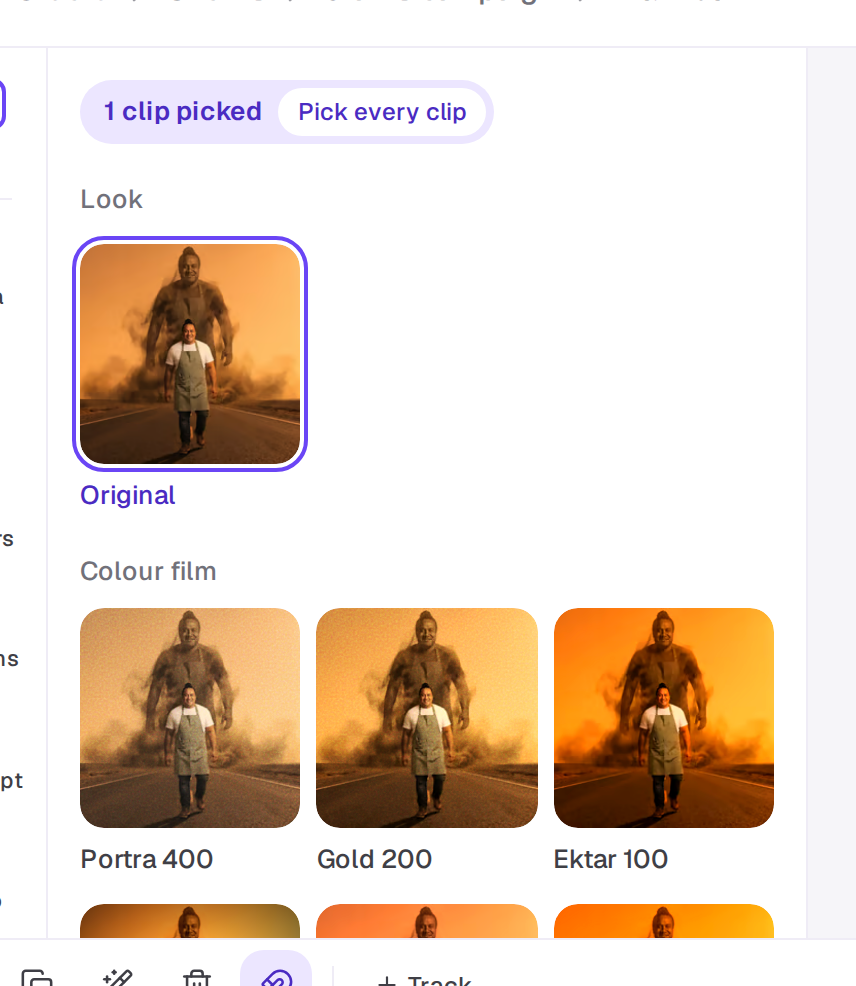
Looks
- Pick the videos or images on the timeline. The chip at the top of the panel says how many you’ve picked. To pick them all, choose Pick every clip.
- Pick a look. They're the same looks as in Studio and Create, in four groups: Colour film (Portra 400, Gold 200, Ektar 100, Kodachrome, Ektachrome, Velvia 50, Superia 400, Pro 400H, CineStill 800T), Black and white (Tri-X 400, HP5 Plus, Delta 3200), Cinema (Teal and orange, Bleach bypass, Technicolor, Day for night) and Vintage (Instant film, Disposable, Expired film, Cross-processed, Lomo, Silent film). Each tile shows the look on the first clip you picked.
- Drag the strength slider, named for the look (such as Portra 400 strength) and held at the top while a look is on, to make it subtler or stronger.
The look goes on every clip you’ve picked. Picking every clip gives all the footage the same look, which is a quick way to make clips from different places match. Original takes the look off. Looks are free. To see them all big, see Use a look.
Adjust
Under Adjust, sliders change Light, Contrast, Colour, Warmth, Tint, Highlights and Shadows, then Fade, Vignette, Grain, Sharpen and Blur. They work on the picked clips with or without a look. The round arrow puts every slider back.
Transitions
Pick the clips on the timeline, then under How they come in choose how each comes in from the clip before it: Cut, Fade, Black, Flash, Whip, Zoom, Wipe, Push, Blur, Iris or Glitch. Each tile shows the transition between the clip before the first one you picked and that clip, and plays it when you point at it. A transition only works where another clip on the same track ends right where this one starts, so close any gap first.
You can choose the same thing from the clip itself: the Clip tab of its panel has an In row when there’s a clip right before it. See Change a clip.
On a phone, pick a clip and choose Looks or Adjust along the bottom. For a transition, tap the small + on the cut between two touching pictures: you can choose Cut, Cross dissolve, Dip to black, Dip to white, Slide or Zoom, its length (0.25s, 0.5s or 1s), and Use on every cut along the track. See Edit on your phone.
Looks, sliders and transitions show in the preview and in the exported video. Undo takes back any of them like any other change. The Agent can also grade the timeline for you: ask it to "make it all warmer" or "put Film on every clip".
A real person in Melbourne will write back, usually within one business day.