Change a video with a prompt
Say what should change in a video, and get a new copy with just that changed.
Change a clip makes a new copy of a video from your Library with what you ask for changed: swap the person or product, add or take something away, change the weather or the time of day. Whatever you don’t mention stays as it is. The new video is the same length as the original, lands in your Library next to it, and the original stays as it was.
Change a video
1. Open Tools and pick Change a clip, or open a video in your Library and pick Change a clip under Tools. 2. Under Which video?, pick a video from 1 to 30 seconds long. 3. Under What should change?, say it plainly, for example “Make it snow, and give the dog a red scarf”. 4. Under Options, pick who changes it, when more than one can take the video: - Seedance 2.5 changes the picture and its sound together, for videos of 4 to 30 seconds. - Kling 3.0 Omni changes the picture and keeps the original sound, for videos of 3 to 15 seconds. It costs less. - SwitchX by Beeble keeps the picture’s own pixels and relights what changes to match, for videos up to 8 seconds. Under What stays, pick Everything else to change only what you describe, or The person to keep the person and make a new scene around them, lit to match. 5. Choose Change it. The button shows the price.
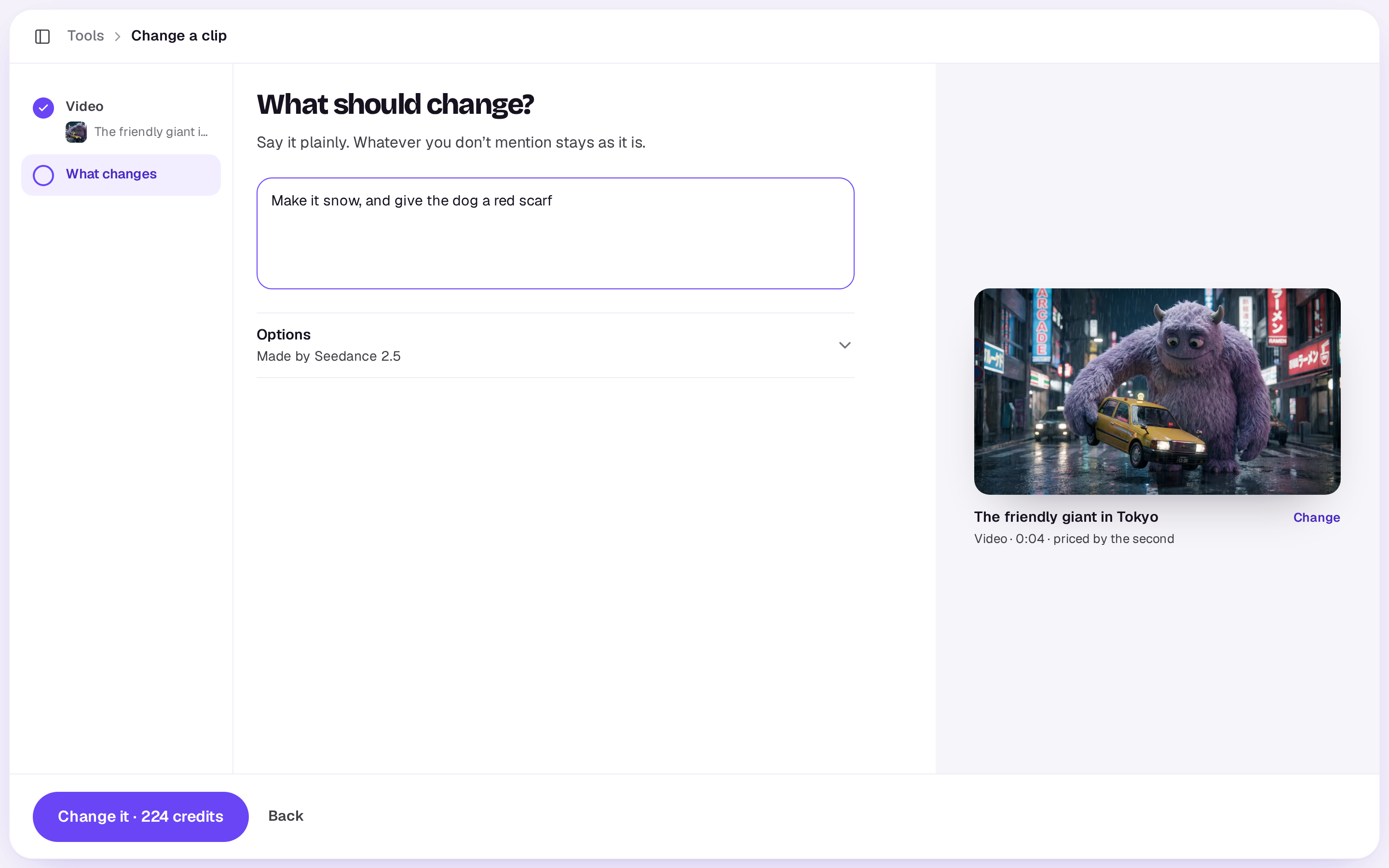
It takes a few minutes. You can close the tool while it works. If it doesn’t work, your credits come back. A result made by SwitchX is marked Powered by SwitchX under it.
In the editor
Pick a video clip on the timeline and choose Change it with a prompt in Tools in the timeline’s toolbar. Say what should change, and the new video lands in Media for the edit when it’s ready, so you can compare it and swap it in. It changes the whole video the clip comes from, not only the part on the timeline, and uses Seedance 2.5 whenever the video is long enough for it.
What it costs
Priced for every started second of the video, because the new one is just as long. Kling 3.0 Omni costs the least a second, then Seedance 2.5, then SwitchX. The price on the button is what you pay.
Too long or too short?
Videos have to be 1 to 30 seconds long (4 to 30 for Seedance 2.5, 3 to 15 for Kling 3.0 Omni, up to 8 for SwitchX). For a longer one, trim it in an edit, export the part you need, upload that and try again.
A video under 4 seconds can go to Kling 3.0 Omni or SwitchX, and one under 3 seconds only to SwitchX. Its size, shape and format don’t matter: each model is sent the video as it takes it, made smaller, larger or converted first when it needs to be, at no extra cost.
The Agent can change part of a longer video: tell it which part, and it changes just that stretch.
A real person in Melbourne will write back, usually within one business day.