Boards
Collect shots, references and notes on a canvas with your team, then make new shots from what you pick.
A board is a canvas your team works on together. Put Library files and elements on it, group them, write notes beside them, and make new shots from what you pick. Everyone in the workspace can open a board, and editors can change it at the same time.
Start a board
Open Boards in the sidebar (on a phone, tap More, the lime button beside the tab bar, then Boards) and choose New board (on a phone, the violet + at the top right). To rename it, click its name at the top of the board, or choose Rename from More on its tile.
Until you have a board or a folder, the page opens on a short shot made on Shotz with Your ideas live here, instead of the New board button. Choose Start a board to make one, or Find references to ask the Agent to search for pictures you can put on a new board. If you have folders but no boards, one New board tile stands in for the button.
New board under the question on Home also makes a board and opens it.
Beside the search, in a workspace with more than one person, a menu switches between Everyone’s boards and Yours.
A board opens with the sidebar hidden so the canvas has the room. Choose Show sidebar, first in the top bar, or press ⌘\\, to float it over the board; click the board, press Esc or go to another page to put it away.
Put things on it
The tools down the left side of the board:
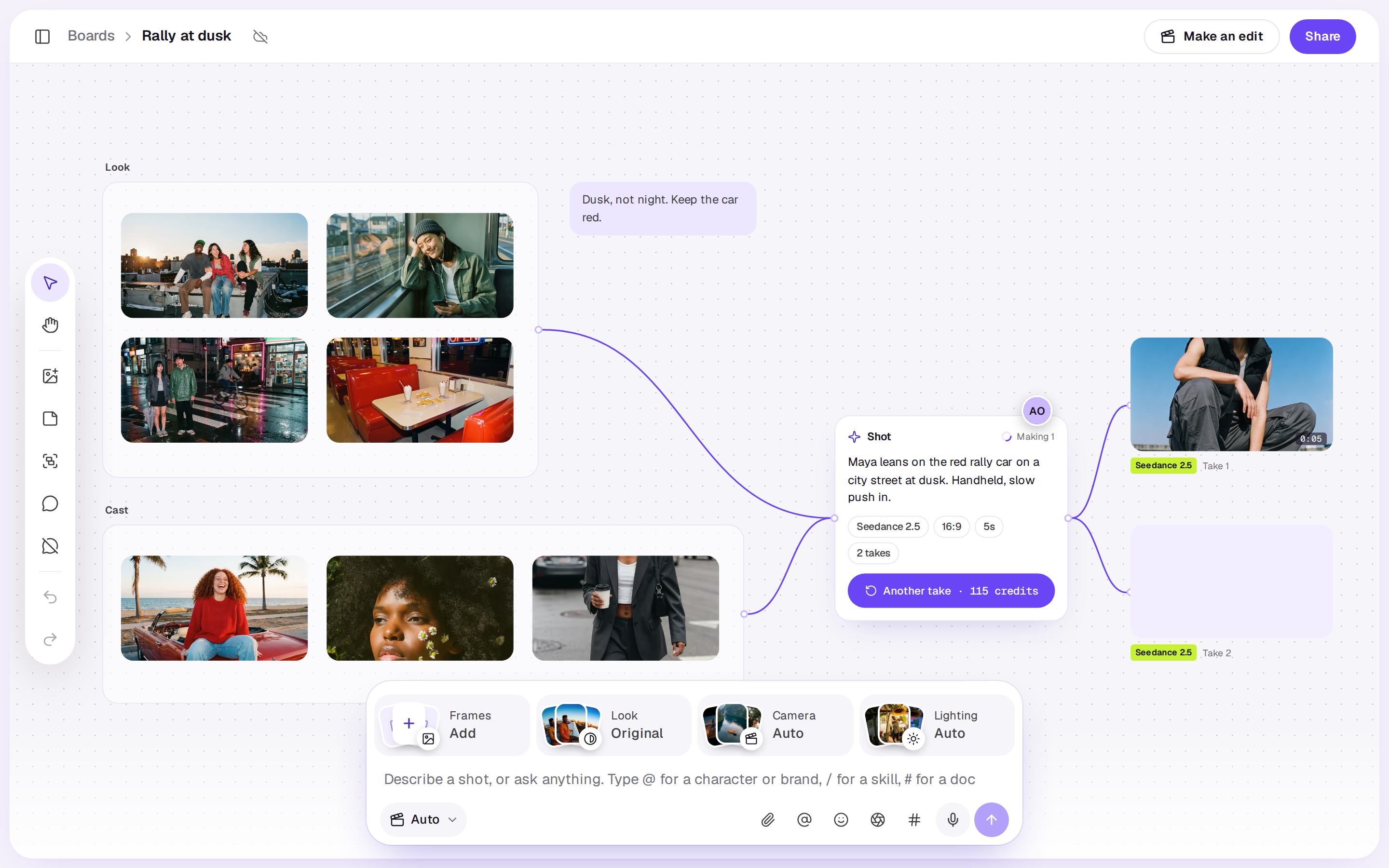
- Pick and move (V): click something to pick it, Shift-click to pick more, or drag across the board to pick everything you cross. Drag what's picked to move it.
- Pan (H): drag the board around. You can also scroll with two fingers on a trackpad, and pinch to zoom.
- Add from the Library: pick images, videos or elements to put on the board. Upload, the first tile, or files dropped on the dialog, adds new ones, picked once they’re ready.
- Add a note: a note for an idea, a shot you want, or what to change. Double-click a note to write in it. When a note has grown into a brief or a script, pick it and choose Make it a doc above it. The note stays on the board. See Docs.
- Group: with things picked, puts them in a group you can name and resize; with nothing picked, puts down an empty group. Drag something onto a group to put it in, or out of one to take it out. Moving a group moves everything in it.
- Comment (C): click anywhere, or on something, to leave a comment there.
To take something off the board, pick it and press Delete, or choose Take off above it. It stays in your Library. Undo and Redo are at the foot of the tools, or press ⌘Z and ⇧⌘Z.
To look closer at a file or a finished take, double-click it, or pick it and choose Open above it. It opens over the board in the Library's viewer, with the same actions and tabs, and closing it leaves you where you were. Open a take and the arrow keys step through the shot's other finished takes.
Make shots from it
Pick what a shot should be made from (a group, a few images, an element), then describe the shot in the Agent's card at the foot of the page. The card shows From the board with how many things it's using: images go to the model as references, and elements are tagged in the prompt. Choose × on it to make the shot without them.
The shot lands on the board beside what you picked, joined to it by a line, and its takes appear beside the shot as they come in, joined to it too. While they're being made, the lines show in violet. Choose Another take on a shot to make one more the same way, at the price on the button.
Ask the Agent to lay one out
From any page, ask the Agent for a board of your references, a cast, the places in a story or a storyboard's frames. It makes a new board in sections, top to bottom, each with a heading and its files, elements and notes in rows, and opens it. It's free and made at once. Saved Inspiration comes in as a copy of its picture with what works in it written underneath. Anything that isn't in your workspace is left off, and the Agent says so. It can change a board too: ask it to add a section, take things off, rewrite a note or swap a picture for a new one, and everyone with the board open sees the change land.
Add pictures the Agent found
With Superagent on a paid plan, the Agent can search the web for pictures. On its card, tap the ones you want and choose Add to this board while a board is open, or Put on a new board. They’re kept in your Library first, each with where it came from in its description. See The Agent.
Make an edit
Make an edit at the top puts the files and finished takes you've picked (or everything on the board, with nothing picked) on a new edit's timeline, in the order you'd read them: rows from the top, left to right. It opens the edit for you.
Working together
Everyone on the board sees each other's pointers with their names, and a ring in their colour around what they've picked. Things you move, add and take off move for everyone as you do it. Their faces show at the top of the page; choose one and the board moves to their pointer, or to what they've picked if their pointer isn't on the board, keeping your zoom. If they're on neither, a message says so. The cloud at the top of the page shows a tick once it's saved; if a save doesn't go through it turns red and says Not saved yet.
People who can only comment in the workspace can look around a board and comment on it, but not change it.
Comments
Choose Comment in the tools, then click where the comment goes. A comment left on something moves with it. Each pin shows its writer's photo, or their initials on their colour. Click a pin to read the comment and reply; Esc or a click on the board puts it away again. The tick resolves it and puts it away, and the pin comes back if someone opens it again. Only whoever wrote a comment, or an owner, can resolve it or move its pin. Use the tool below Comment to hide or show the pins.
Type @ and pick someone from the list to mention them: their name shows as a chip in the comment, and they get a notification saying you mentioned them, and an email unless they've turned comment emails off. Pick Agent from the same list, or type @agent, to ask the Agent: it reads what the comment is on and the conversation so far, and answers as a reply in the thread a moment later, with its sparkle beside it, and you get a notification when it has. If you’re an editor or owner, it can also do what you ask, such as make a black and white version of a picture, rename or file things, or start a doc: see The Agent. Whoever made the board, and everyone in a comment's thread, gets a notification when someone comments or replies; someone you mention gets the mention instead.
Share a board
Share copies the board's link and says Link copied for a moment. Anyone in your workspace can open it.
Folders
Boards and docs share the workspace's folders with the Library and Studio, so one folder can hold a project's footage, edits, boards and docs. Folders sit above the boards as tiles with how many boards each holds; choose one to open its boards on a page of its own, with Boards before its name to come back. New folder is at the top right (on a phone, in the ⋯ menu).
To file a board, choose Move to and the folder from More on its tile, or drag the tile onto a folder on a desktop. Undo in the message puts it back. Take out of folder takes it out again. A folder with nothing in it shows faint empty tiles, the first one reading New board here: choose it to make a board there. New board inside a folder does the same. Under a folder's name, Also here links to the rest of what's in it. A folder's ⋯ has Rename and Delete folder, which change it in every tab; deleting one keeps everything that was in it.
Delete a board
Choose Delete board from More on its tile. It goes for everyone, with its notes and comments. Its files and takes stay in the Library.
A real person in Melbourne will write back, usually within one business day.