A tour of the editor
Where everything is in the editor: tools, preview, timeline, the Agent and the top bar.
Open any edit from Studio to cut it in the editor. Everything you change saves on its own a moment later, and editing never uses credits.
The top bar
- Show sidebar at the far left opens the app’s sidebar over the editor; the editor starts with it hidden. See Find your way around.
- Where you are, as a path: Studio, then the folder the edit is in (if it’s in one), then the edit’s name, then the name of the timeline you’re in. Choose Studio, or the folder, to go back. Choose the timeline’s name to open its menu: Rename, Duplicate, Versions (the versions you’ve saved of this timeline, each with Restore, and Save this version at the foot), New timeline and All timelines. See Start a new edit.
- A small cloud that shows whether your changes are saved. Point at it to read Saving… or Saved. If a save doesn’t go through, it turns red and says so.
- The faces of anyone else in the edit right now. See Edit together.
- The sparkle opens the Agent’s card at the right. See below.
- Export makes the video. See Export a video.
- Share invites people or turns on a review link. See Share for review.
The tools on the left
Each tool opens its panel next to the list:
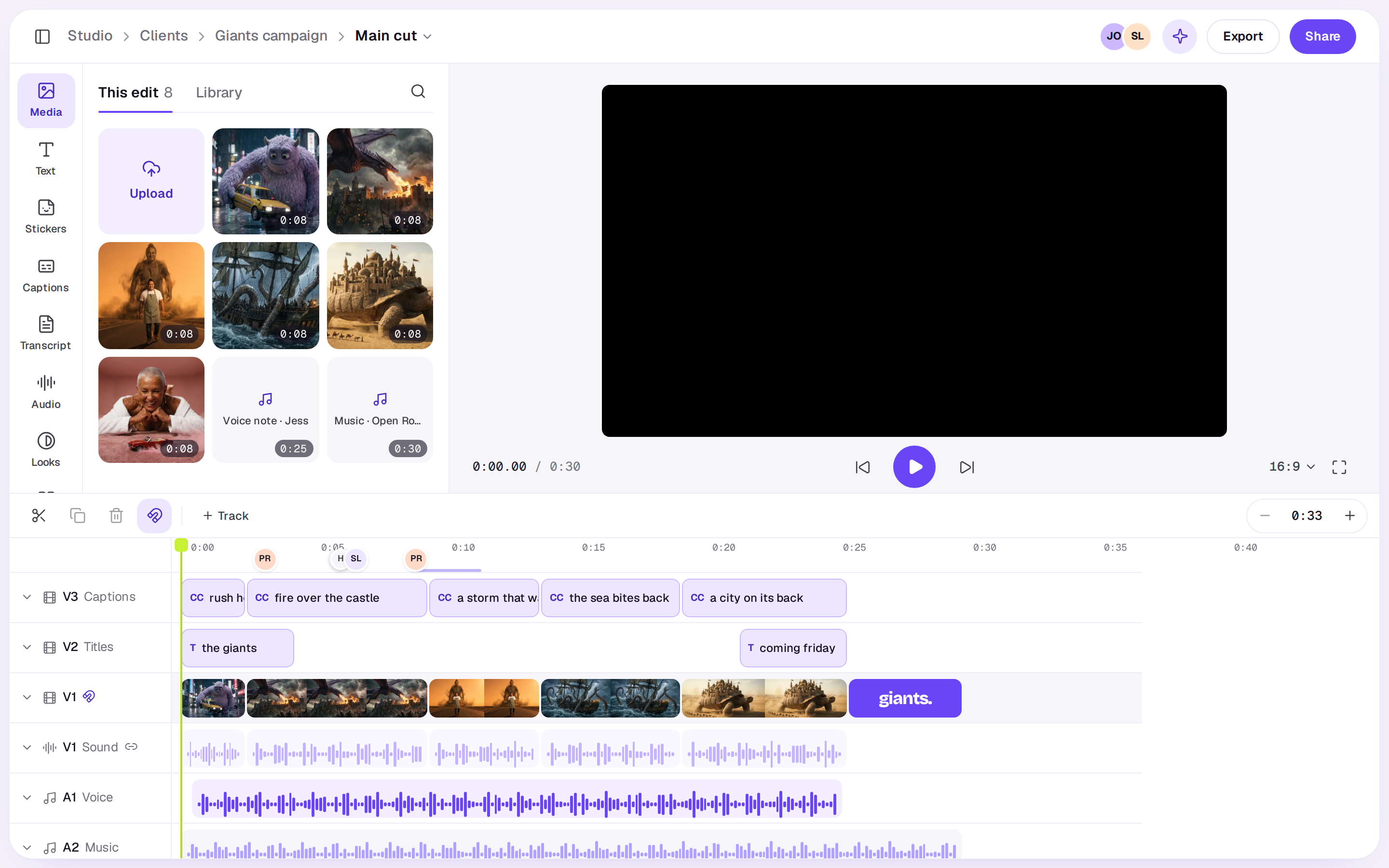
- Media: two tabs, This edit and Library. This edit has the edit’s files; drag one onto the timeline, choose its + to add it at the playhead, or click it to open its details in place of the tool. Library is your whole Library, where a file’s + brings it into the edit and puts it on the timeline at the playhead. Upload is the first tile on either tab, and the magnifying glass at the end of the tabs searches the tab you're on, with the kind of file beside your words.
- Text: titles and text. See Text and titles.
- Stickers: moving stickers to lay over your footage. See Stickers.
- Captions: captions from what’s said. See Captions in the editor.
- Transcript: what’s said on the timeline, word by word. Choose a word to jump there, or drag across words and press Delete to cut them. See Edit by transcript.
- Audio: music, voiceovers and sound files. See Music and voiceover.
- Looks: looks, colour sliders and transitions. See Looks and transitions.
- Templates: save this timeline as a template. See Templates.
To make the panel wider or narrower, drag its right edge. Double-click the edge to go back to the usual width, or focus it (Resize the panel) and use the left and right arrow keys. The preview always keeps some room, and the width is remembered in this browser. The same goes for a picked clip or file, and for Comments.
After a line come Timelines: every timeline in the edit, each its own cut in its own shape. See Start a new edit. Last is Comments: what your team and reviewers have said about the edit, with replies. Each open comment also shows on the timeline’s ruler as its writer’s face; point at one to read it. See Share an edit for review.
The preview
The middle shows the timeline at the playhead. An edit with nothing on it yet shows a blank frame in its shape. Under the preview are the timecode at the left, then Back to start, play and Next cut, which jumps to the next place a clip starts or ends. At the right is the timeline’s shape (16:9, 9:16, 1:1 or 4:5) and Full screen.
Choose the shape to change it: Wide, Vertical, Square or Post. The same menu has Safe zones: turn them on, then pick TikTok, Reels or Shorts to see, over the preview, where that app puts its own buttons and captions. They show on a 9:16 timeline, in this editor only, and are never in the video you export.
You can work on the picture itself. Click a title, image or video in the preview to pick it, drag it to move it, and drag a corner to make it bigger or smaller. It snaps to the middle of the frame, with a line to show you. Each drag is one step for Undo. See Change a clip.
The timeline
Your clips, track by track, with the lime playhead: video tracks (V1, V2…) above, audio tracks (A1, A2…) below. Titles and captions sit on video tracks. The bottom video track is the main track, which closes up gaps for you. Drag the line above the timeline to make it taller or shorter. Its toolbar starts with the blade, then has Duplicate, Tools and Delete for what’s picked, then Snap, + Track and the zoom. Undo and redo are ⌘Z and ⌘ Shift Z. See Work on the timeline.
A picked clip or file
When you pick a clip, its panel opens on the left in place of the tool, with tabs for its settings, prompt, details and team comments. Click a file in Media and a File panel opens the same way. The × at the top closes either. If you pick a tool on the left, the tool shows and the pick stays; choose Clip (or File), first in the list, to bring the panel back. See Change a clip.
The right side
The right side is the Agent’s alone. Choose the sparkle in the top bar, or press ⌘J, and the Agent’s card docks there. Describe a shot and it’s made in the edit’s shape and lands at the playhead; ask about the edit, or tell it what to change, and it makes the change on the timeline as one step you can undo. It can also see the cut and hear it. Drag its left edge to resize it (double-click the edge to go back to the usual width), and close it with ×. See Generate a shot in an edit and The Agent. If you can only comment on an edit, the editor opens so you can watch, but you can’t change the timeline.
A real person in Melbourne will write back, usually within one business day.