Music and voiceover
Make a music track or a voiceover inside an edit, add sound files and set levels.
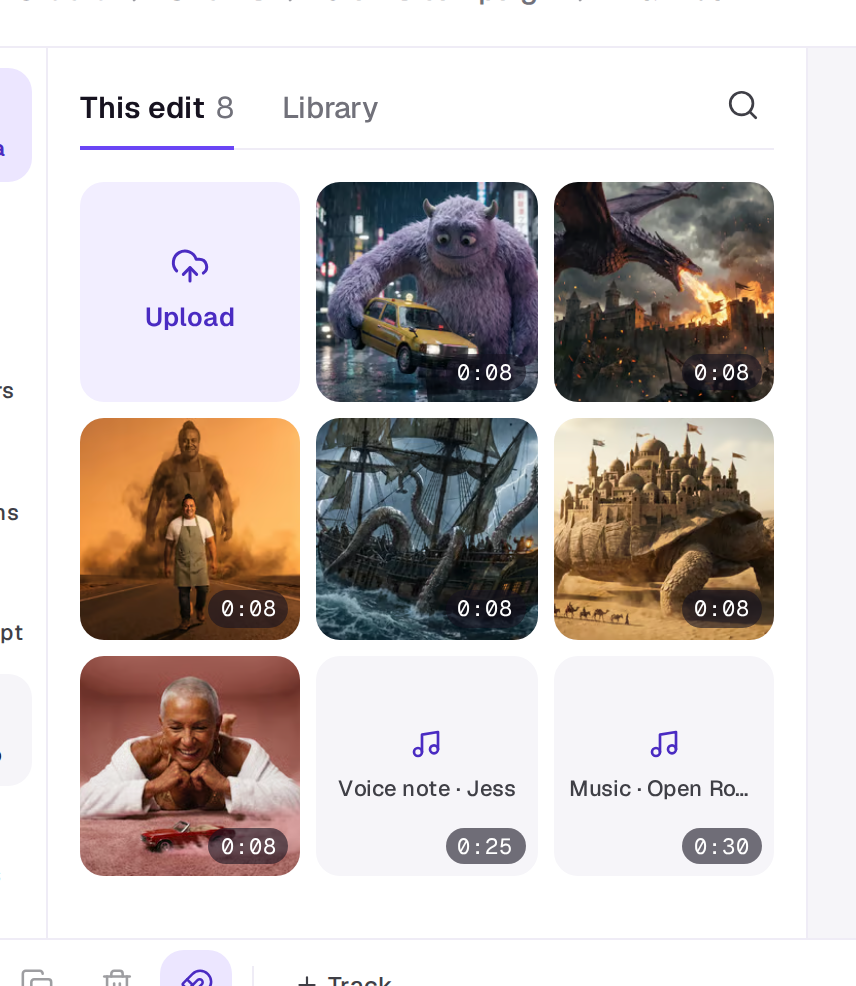
Choose Audio on the editor’s left. In this edit lists the sound already in the edit, and Make one has three cards: Music, Voice and Sound.
Music
Choose Music. The Agent opens beside the edit with the start of a request in its box. Say what you want: the mood, the instruments, whether it has vocals, and send it. The Agent shows the price before it starts.
The track is made as long as your edit, between 15 seconds and a minute, and lands in Media when it’s ready. Drag it onto an audio track from there. Music made here is safe for commercial use.
Voiceover
Choose Voice, then write the script after the start in the Agent’s box, or describe the product and who it’s for and ask the Agent to write it. Name a voice if you want a particular one. The credits depend on the length of the script.
The voiceover lands at the playhead when it’s ready. To make a generated shot say it, put the voiceover under the shot and pick the shot and choose Lip sync under Fix it in Tools in the timeline’s toolbar. See Change a clip.
Sound files
In this edit lists the audio in this edit. Choose Add to put one at the playhead. To bring in a new file, upload it from Media.
Levels
- One clip: click it and use Volume on the Clip tab of its panel, from silent up to twice as loud.
- A whole track: hover the track’s name on the timeline and choose Mute track.
- Fades: on a sound, the Clip tab has Fade in and Fade out sliders, from none to three seconds and never past half the clip. You can also drag the dot at a sound’s top left or top right corner on the timeline.
- Music under a voice: click the music clip and turn on Lower under voices on the Clip tab, or hover the track’s name and choose Lower under voices to turn it on for every clip on that track. It eases down while a voiceover or any other sound on an audio track plays, then comes back up. A Ducks tag in the track’s name shows it’s on. It’s in the preview and in exports, and so are the fades.
The sound from video clips plays too, on the Sound row above the audio tracks that belongs to its picture track; turn it down with the clip’s Volume. To work on it as a clip of its own, such as to move it or cut it apart from the picture, choose Detach sound in Tools or on the Clip tab. See Work on the timeline.
A real person in Melbourne will write back, usually within one business day.