Work on the timeline
Add, move, trim, split and delete clips, and use tracks, gaps, markers, snapping and zoom.
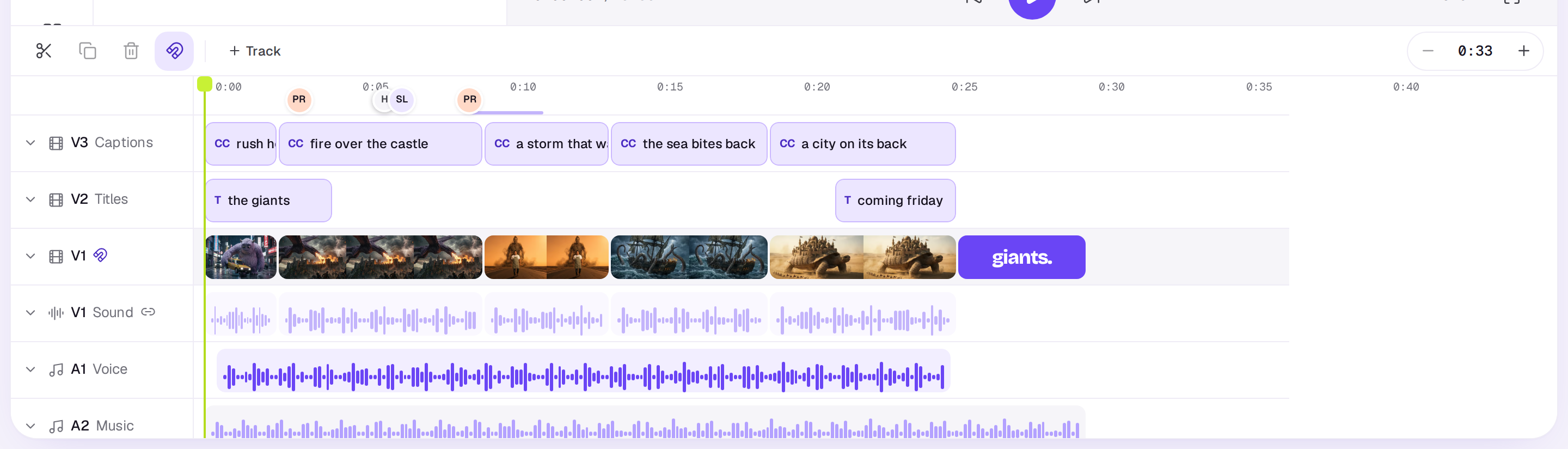
The timeline sits under the preview. Each row is a track, and the lime line is the playhead: what the preview shows. Click the time ruler to move the playhead there, and drag along the ruler, or along an empty part of a track, to scrub.
To give the timeline more or less room, drag the line between the preview and the timeline up or down. Double-click it to go back to fitting your tracks. With the line focused, the up and down arrow keys move it too. The preview always keeps some room, and the height is remembered in this browser.
Adding clips
Open Media on the left, on the This edit tab. Drag a file onto a track at the time you want: a see-through copy of the clip shows where it will land, and it goes in when you let go. Or hover a file and press + to add it at the playhead. Hold Option (Alt on Windows) as you drop one file onto a clip of the same kind to put it in that clip’s place.
Dropped on the main track, a file makes room: a clip it lands on is cut there and everything after it moves along, so nothing is covered. On any other track it lays over what’s there. With +, which has no track in mind, footage goes on the main track and sound on an audio track, never on Titles or Captions; if the only video tracks are for words, a new video track is added.
Click a file to open its File panel on the left, with its details, how many times it’s in this edit and Add at the playhead at the foot; the tools that work on it are in Tools in the timeline’s toolbar. Press the ×, or press Esc, to close it. Files that are still processing say so.
To bring in something from your Library, open the Library tab. A file’s + (Add to timeline) there adds it to the edit’s files and puts it on the timeline at the playhead in one step.
A new clip goes over whatever was already there on that track, cutting it back to make room.
Tracks
There are two kinds of track: video and audio. Video tracks are counted from the bottom up (V1, V2…) and audio tracks from the top down (A1, A2…). Titles, captions and colour cards are text clips on video tracks, so they sit with your pictures. Video tracks higher up are drawn over the ones below.
The bottom video track is the main track. Its row is shaded and its header has a magnet: it closes up for you, so trims, deletes and speed changes there leave no gap.
Choose + Track for a Video track or an Audio track. Each track’s header shows its code and, when it says more, its name, such as A2 Music. Hover it for its switches:
- Hide track / Show track on video tracks.
- Mute track / Unmute track on audio tracks.
- Lock track stops its clips being moved, trimmed or split, and they can’t be picked or dragged on the preview.
- Lower under voices on an audio track turns that on for every clip on it. A Ducks tag in the header shows it’s on.
- Collapse / Expand folds any track to a thin row, its sound row included.
To reorder tracks, drag a track’s header up or down; a violet line shows where it will land. Video tracks stay above audio tracks. With a header focused, Option ↑ and Option ↓ move it too.
Every track is the same height. To rename a track, double-click its header, press Enter with the header focused, or choose Rename from its right-click menu. Press Enter to keep the new name or Esc to leave it as it was; a blank name becomes Video or Audio.
Sound
A video track that holds video clips gets a Sound row of its own, between the picture tracks and the audio tracks, with a link icon in its header. Each video clip’s own sound shows there, and moves, trims and splits with its picture. To work on it alone, pick the clip and choose Detach sound in Tools (it’s free), or on the Clip tab. The sound becomes a clip of its own on an audio track, and the picture goes quiet.
Each sound has a dot at its top left and top right corners: drag one in to fade the sound in or out. Clip edges you move or trim snap to the beats of music on the timeline too, with On the beat on the ruler.
Moving and trimming
- Move: drag a clip along its track, or up and down onto another track of the same kind. Sound goes on audio tracks; video, images and text go on video tracks.
- Trim: drag either end of a clip. A video or sound clip can’t grow past the end of its file, and no clip trims over its neighbour. On the main track the clips after it close up or move to make room.
- Ripple trim anywhere: hold Shift while you trim, and everything after the clip on its track moves along with the change instead of leaving a gap.
Splitting and deleting
- The blade (the scissors, or B) turns the pointer into scissors: click a clip to cut it in two where you click, or Shift-click to cut every track there. A line shows where the cut will go, and it snaps to the playhead when it’s close. Press B again, or Esc, to put it down.
- Split at the playhead (S) cuts the clips under the playhead in two. If you’ve picked clips, only those are split; with none picked, S splits every clip under the playhead.
- Duplicate (next to the blade) makes a copy of the picked clip right after it; later clips on the track move along to make room.
- Delete (the bin, or the Delete key) removes the picked clips. On the main track the gap closes up; on other tracks it stays. Hold Shift as you delete to close the gap on any track. A message says what happened, such as Clip deleted · V1 closed up, Gap closed or Cut 0:02 out, with Undo beside it.
Click a clip to pick it, and Shift-click to pick more than one. Its panel opens on the left, and Tools in the toolbar has what can be made from it. See Change a clip. Esc lets go.
Gaps
Click an empty stretch of a track between clips, or before the first one, to pick it. It shows as Gap with its length. Press Delete to close it: everything after it on that track moves back.
Marks and markers
- I and O mark in and out at the playhead, with the stretch between them washed violet on the ruler. Delete cuts that stretch out of every track that isn’t locked and closes up. X clears the marks.
- M adds a marker at the playhead, a violet flag on the ruler. Click it to go there, drag it to move it, double-click to rename it, and press Delete to remove it.
Snapping and zoom
Snap (the magnet, or N) is on to begin with: clips you move or trim line up with other clips’ edges, the playhead and the beats of music. Turn it off to place things freely.
Zoom is the last thing in the toolbar: −, how much time is on screen (such as 0:30), and +. Choose the time to pick Fit (the whole edit), 10 seconds, 30 seconds, 1 minute or 5 minutes; a span longer than your edit isn’t offered. Shift Z shows the whole edit again.
Everything here can be undone with ⌘Z (Ctrl+Z on Windows), and ⌘ Shift Z redoes it. There are no undo buttons in the toolbar on a computer. If a change would put two clips on top of each other, the editor leaves it as it was and says so.
A real person in Melbourne will write back, usually within one business day.