Edit on your phone
How the editor works on a phone: scrubbing, picking clips, the tools and exporting.
The editor works on a phone, laid out for one hand: the preview at the top, the timeline under it, and the tools along the bottom. It’s the same edit as on a computer, and changes on either show on the other.
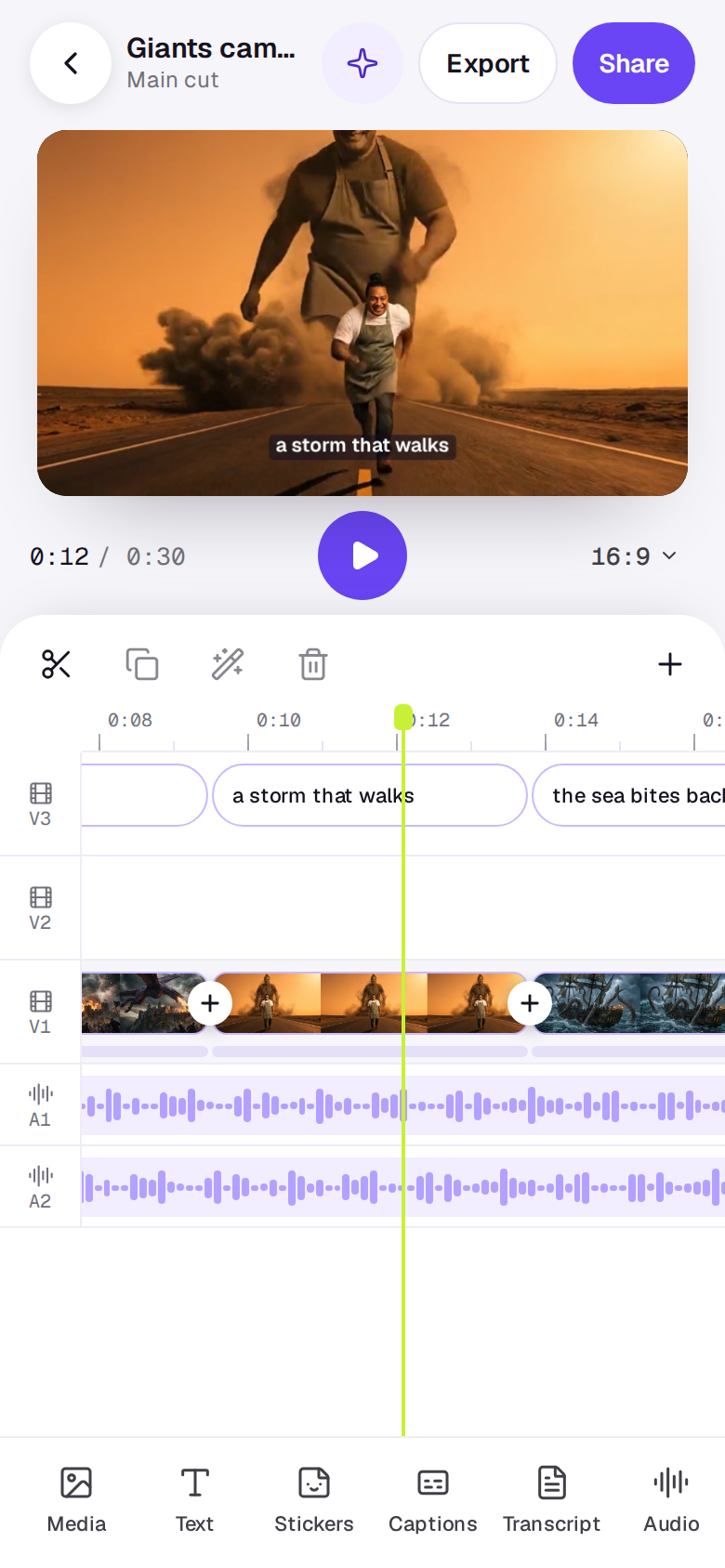
The top bar
Back to Studio is at the left, then the edit’s name with the timeline’s name under it; tap them to see the edit’s timelines and switch between them or start another. At the right are the Agent sparkle, Export and Share.
Getting around
- Under the preview are the time, Play and the timeline’s shape; tap the shape to change it. Tap the preview to see it full screen.
- Drag the timeline sideways to scrub: the playhead stays in the middle and the tracks move under it. It snaps to the edges of clips with a short vibration. Pinch to zoom in or out. While it plays, the timeline moves along with it.
- The timeline looks like the one on a computer: a ruler, a column of track codes (V1, A1…), and every track as a row. A video clip’s own sound shows under its picture.
- Above the tracks are Undo, once there’s something to undo (press and hold it to redo), then Split at the playhead, Duplicate, Tools, Delete and Add a track, a Video track or an Audio track. A delete says what it did in a message with Undo beside it.
- If the preview needs a moment, it says Buffering… or Preparing preview… at the top right.
- If something else takes over the sound, like a call, playback stops and says Audio was interrupted. Press Play to resume picture and sound. Press Play to carry on.
A new, empty edit opens Media by itself.
Changing a clip
Tap a clip to pick it; its ends get handles you can drag to trim it. Hold a clip to pick several, then tap more to add or remove them. The tools along the bottom become the clip’s: Done first, then Split, Speed, Volume, Looks, Adjust, Frame, Tools, Duplicate and Delete. Only the ones that fit what you’ve picked show.
Each tool opens a drawer over the foot of the screen, with a line naming the clip (or 2 clips picked) and where it sits. The timeline above shrinks to the picked clips’ tracks so you can see the change, and the tools stay along the bottom, so another one is a tap away. Picking another clip keeps the drawer open on it. To put the drawer away, tap its handle or drag it down; Done lets go of the pick.
- Speed has 0.5×, 1×, 1.5×, 2× and 4×, and Exactly for any speed from 0.25× to 4×. The clip’s length follows its speed, and on the main track the clips after it move to meet it.
- Volume has the volume, Fade in and Fade out, Lower under voices on sound, and Detach on a video that still has its sound.
- Looks and Adjust work on every clip you’ve picked.
- Frame picks Fill the frame or Fit inside for a picture of another shape.
- Tools opens the clip’s new takes and fixes, each with its price. See Change a clip.
A title has its own tools: Edit, Font, Colour, Style and Where. Drag a picked title on the picture to move it, and pinch it to size it.
A small + sits on each cut between two touching pictures on a track. Tap it to pick a Transition and its length, or Use on every cut along the track. Remove takes it off.
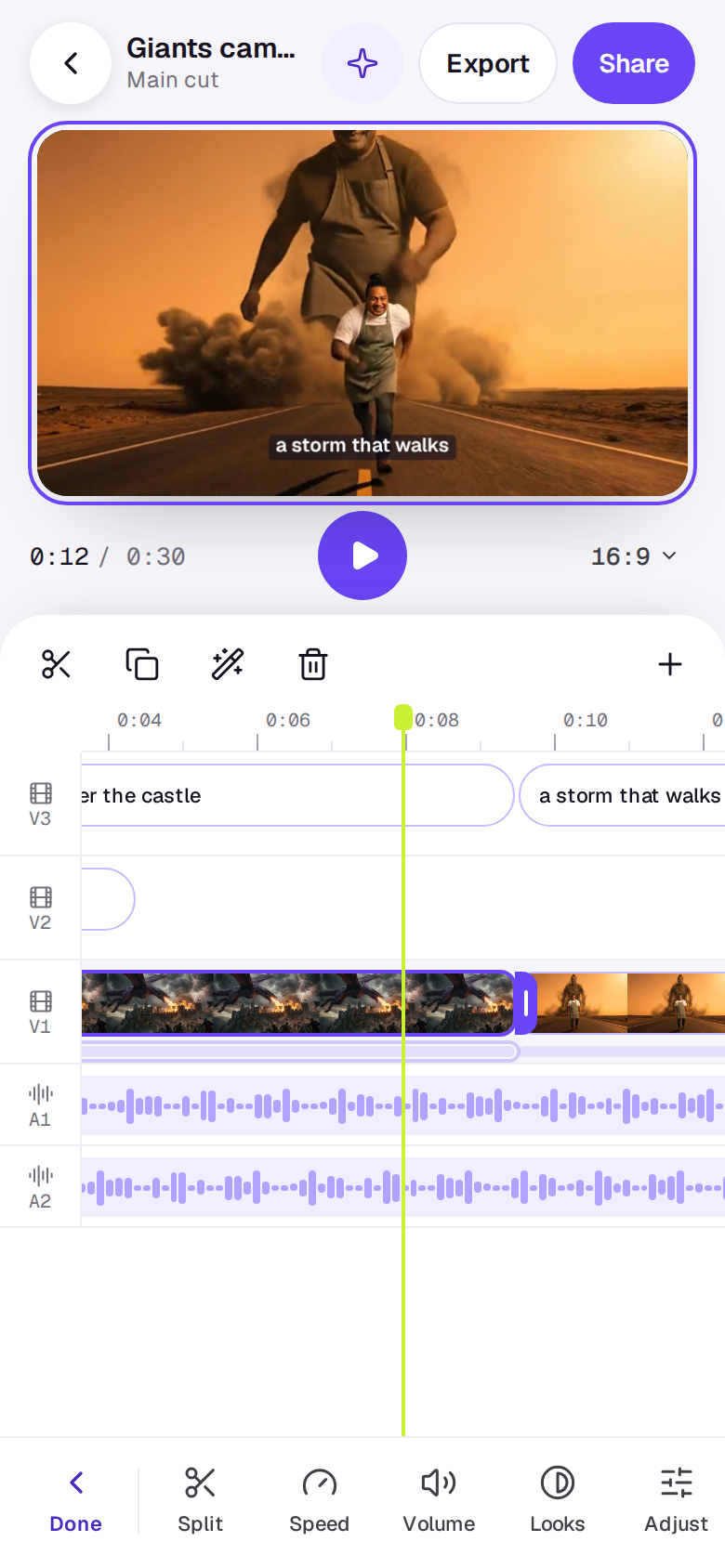
Moving a clip to another place or track still needs a computer. On a phone, split a clip at the right places and delete the parts you don’t want. Hold a track’s code to move the track.
The tools
With nothing picked, the row along the bottom scrolls: Media, Text, Stickers, Captions, Transcript, Audio, Looks, Templates, Timelines and Comments. Each opens as a sheet over the editor; drag its handle down to close it. They work as they do on a computer; in Media, the + on a file adds it at the playhead. In Comments, the sheet covers the picture, so there’s no Pin on a phone; comments are still left at the playhead.
Sharing and exporting
Share and Export are at the top right. Export makes the video on the phone itself, so keep the app open until it’s done. See Export a video.
A real person in Melbourne will write back, usually within one business day.