Templates
Save a timeline as a template, then fill its shots with new clips in one go.
A template is a timeline’s shape and structure without its footage: its tracks, text, music, looks, transitions and timing. Start a new edit from one and your clips drop into its shots, in order.
Saving a timeline as a template
- Open the edit and choose Templates on the editor’s left.
- Choose Save this timeline as a template, at the foot of the panel.
- Give it a name, or leave the edit’s name, and choose Save the template.
Every file on a video track becomes a shot to fill, in the order they play. Captions are left out, since they belong to the footage they came from. The template is saved for everyone in your workspace, and shows under Your templates in the panel.
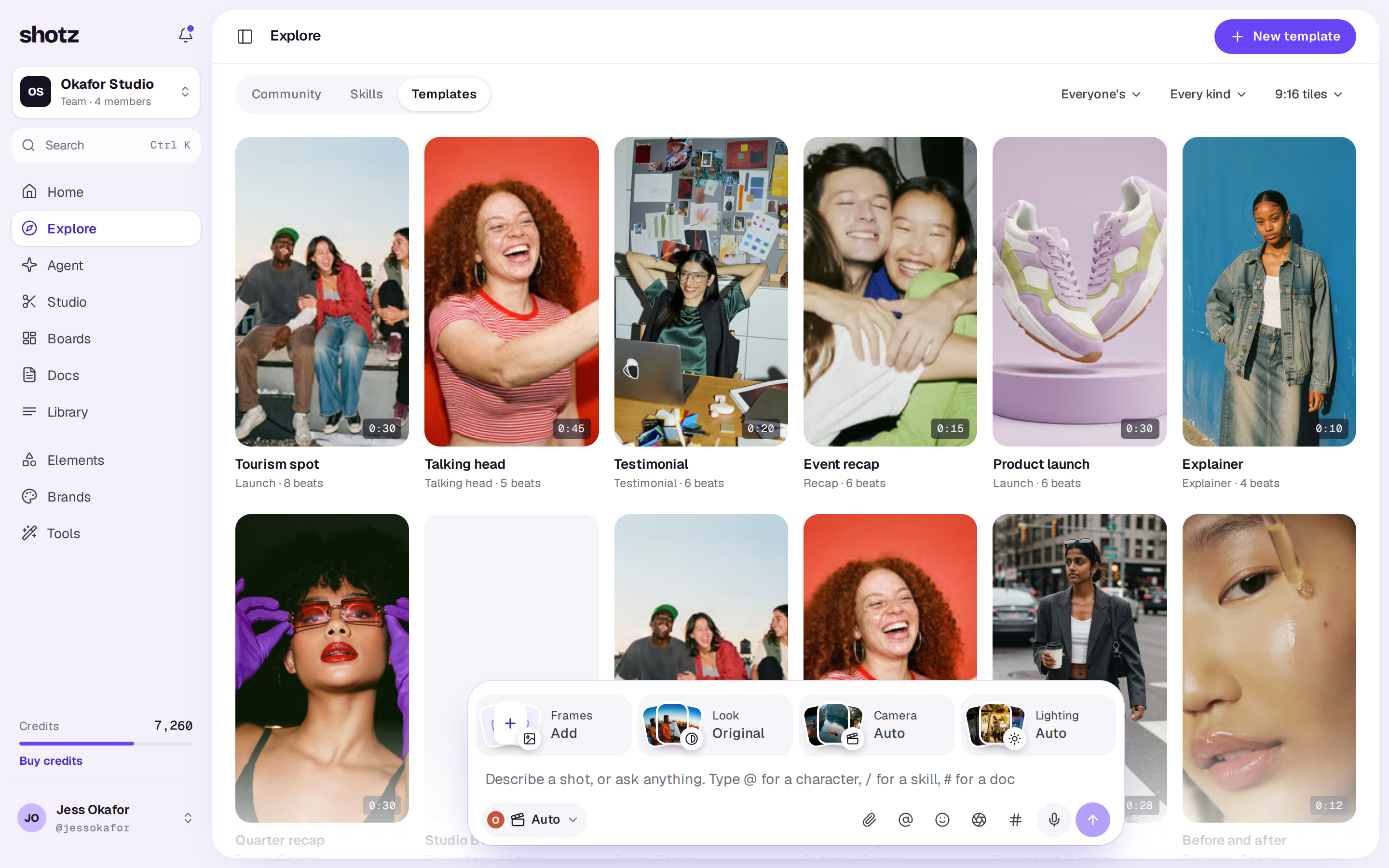
From Explore's Templates tab, New template opens your videos in Studio: open one, then choose Templates on its left. Until you have a template, the page shows a New template tile that does the same, and the New template button waits.
You need to be able to edit in the workspace to save one, and the timeline needs something on it.
Using a template
- From Explore's Templates tab, open one and choose Use this template. A new edit opens with it.
- From the editor’s Templates panel, choose one of Your templates.
The new edit starts with the template’s tracks, titles and music. Shots keep the template’s own footage when it’s from your workspace; swap in your clips from Media. You can change anything afterwards; the template itself stays as it was.
Removing a template
Open it from Explore's Templates tab and choose Remove. Edits already made from it stay as they are.
A real person in Melbourne will write back, usually within one business day.