Takes, re-rolls and fixes
Run more takes, use the ones you like, and re-roll or fix a take in an edit.
Each time a model runs your prompt you get a take, also called a generation. One prompt can make up to 4 video takes, or up to 8 images, at once (How many in the card), and each is charged on its own, so more takes give you more to choose from at a higher price.
Watching takes come in
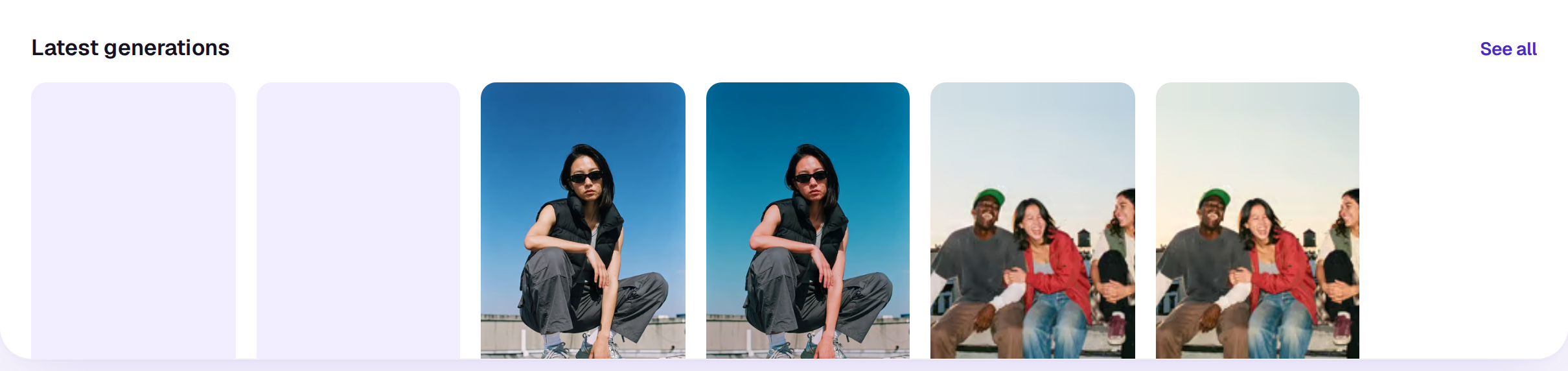
Takes come in inside the conversation you made them in, under a line with the model, shape and length. A take being made shows a tile in the shape of what it will make, with a soft light crossing it, and Making in its caption. If a take sits in a model’s queue for more than about ten seconds, the tile says Waiting for a turn until it starts. There’s no time estimate or percentage, since a busy model can make any guess wrong. A finished take shows its model and what it cost. It also lands in your Library, among the Videos or Images (Filter, then Made and Generated, shows only what a model made), each take a file of its own, and on Home under Latest generations. While it’s being made, it also leads the Library, newest first, and becomes a file when it lands. If you leave the page, you get a notification when your takes are ready.
Using a take
Click a video take in the conversation to play it right there; on a computer, choose the corner Open button to open it over the page, with the prompt that made it and Reuse prompt. A picture opens over the page when you click it; in Details, choose Saved beside Library to open it in the Library. A generated file in the Library has a Prompt tab with Reuse prompt, which puts its words and the settings it was made with (frames, references, look, camera, lighting and emotion) back in the card to run again or on another model, and Copy prompt. Open the thread goes back to the conversation it was made in. See What you can do with a file.
On Home, move the mouse across a video take to scrub through it, and click it to open it big. A bar under it has Edit in Studio (it opens a small picker above the button, where you choose the edit and At the end or Media bin; on an image take it opens the picture in the image editor), Tools, Download and Share to the community (or See the post, once it’s shared). Tools has Make it again, which runs the take again with the same settings at the same price, and what can run on its file (Upscale among them for videos). Beside it, tabs: Prompt with Copy prompt and Reuse prompt (an element you tagged with @ shows as a chip, and the frames, references, look, camera, lighting, emotion, skill and brand it was made with show under the words), Details with the file’s description, the model, shape, length and credits, then the elements it used and the file’s type, dimensions, size and codecs, and Library showing it’s saved there, then X-Ray, Share and Comments from your team. Once the take is shared, Team and Community split your team’s comments from the post’s. Use the arrow keys to move between takes, and Escape to close.
To work with several at once, select them in the Library: Download saves the files, and Edit in Studio puts them in an edit.
On a phone, tap a take on Home or in the Agent’s conversation to open it full screen and swipe between them. At the foot are Edit in Studio (the image editor, for an image take), Tools and Share. Tools opens a sheet with Make it again and what can run on the file. Share opens the Share tab. Swipe up, or tap the title, to see the details: the same tabs as on a computer, with Reuse prompt under Prompt, and the bar stays at the foot, except on Comments, where the comment box takes its place. Download and Share to the community (or See the post) are in ⋯. To close it, drag the picture down and it shrinks back into its tile, or use Back. Press and hold a take for what you can do with it without opening it.
Drafts on Seedance 2.5
On Seedance 2.5, Quality in the card also has Draft. A draft is a quick 480p take of the shot, priced as a 480p take, so you can check the movement, framing and timing before paying for full quality. When one works, choose Make the final: it makes the same shot again at 1080p from the draft, priced as a 1080p take of the same length. The prompt, references and settings come from the draft, so there’s nothing to set.
Make the final is in a draft’s Tools menu and on its Prompt tab, in the Library viewer’s Prompt tab, and on the row of a draft shot in an Agent plan. It shows the price and the last day you can use it: a draft can be finished for seven days after it was made, and after that the button goes away and you make the shot again instead. The final goes into your Library as the draft’s next version, and the draft waits in its Versions tab. See Upload a new version of a file. If it doesn’t work, your credits come back.
The Agent can plan drafts too: ask it to draft a long or costly shot on Seedance 2.5 first.
Re-rolls and fixes in an edit
Once a generated video is on a timeline, select its clip and open Tools in the timeline’s toolbar:
- Make it again runs the same prompt again on the same model.
- Make it on another model runs the same prompt and frame there. If that model would leave out some of the frames, elements or references the prompt was made with, Shotz says which and asks Make it anyway? first. Choose Not now and nothing is made or spent. If the shot was made with shots, a seed, Leave out or a see-through background that the other model can’t take, it won’t make it there at all. Make it again on the same model instead.
- Extend… adds 4 to 15 seconds before the shot, after it or both, and puts them on the timeline beside it with the rest of the cut moved along. On a phone, Extend 5s makes five more seconds after it, which land in Media as their own clip.
- Upscale 4K makes a sharper copy.
- Slow down adds frames in between, so the clip stays smooth when you slow it with Speed.
- Lip sync matches the mouth to the voiceover under the clip. Put a voiceover on an audio track under it first (Audio → Voice).
Each shows its price before you start. A tile in Media for that edit shows the new take being made, and the file takes its place when it lands, so you can compare it and swap it in. Once a clip has more than one take, its Clip tab also has a Take row of pictures: choose one to swap it in where the clip is. Re-rolls and fixes work on clips you generated in the same workspace.
If a take doesn’t work, your credits come back on their own. See What happens when a take fails.
A real person in Melbourne will write back, usually within one business day.