The card and its settings
Every setting in the card, where you describe a shot or ask the Agent, on a computer and a phone.
The card is one box for making and asking. Describe a shot and the Agent makes it with the card’s settings; ask a question and it answers. On a computer it sits at the foot of most pages, ready to type in (on Home it’s under the question, and each message sent there starts a new conversation on Create, with the card's settings carried over, and so does Create video or Create image under the question, with the card set to that kind), and the conversation grows up above it while you’re in it. Click anywhere else on the page or press Esc to put the conversation away; it stays, and comes back when you click in the card again. Agent in the sidebar (Create) shows the card under the whole conversation, with your other conversations down the left.
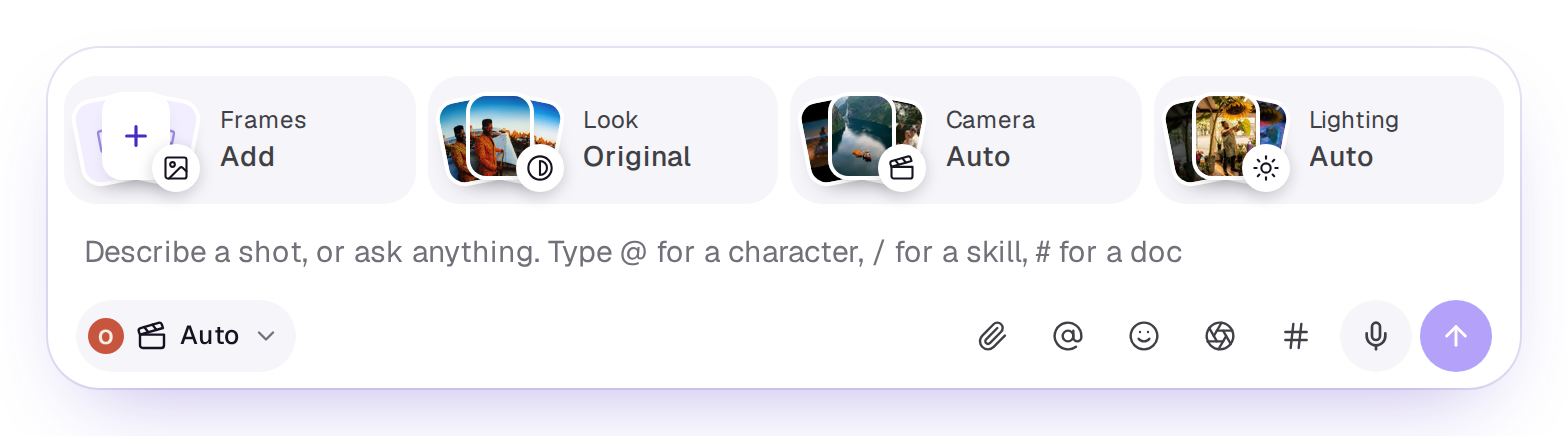
Your words come first. Type @ to tag an element, / to pick a skill, including your team’s own, or # to name a doc for the Agent to read. Press Enter to send, or Shift and Enter for a new line.
The tiles over your words
Each tile shows what’s picked, with its picture, and opens a panel of pictures to tap. The one you pick has a tick. On a phone, and in the card docked beside an edit, a design or a doc, the tiles sit in one line of small tiles, each with its picture and one word.
- Frames holds the picture a video starts on (Start frame) and one it ends on (End frame), from your Library or Studio. An image has no frames, so it has no Frames tile. For a talking avatar it’s Person and What they say. References are attached in your words instead, with the paperclip (below). See Start and end frames.
- Look is a colour grade to make the shot in, each one shown on the same sample with a strip of its colours. Original is no look. It’s free. See Use a look.
- Camera has four rows (an image has the first three, since nothing moves), and you can pick one from each or leave any on Auto for the model to decide. Lens: Wide-angle, 50mm, 85mm portrait, Telephoto, Macro, Fisheye, Anamorphic or Tilt-shift. Shot: Extreme wide, Wide shot, Medium shot, Close-up, Extreme close-up, Over the shoulder, POV, Low angle, High angle, Dutch tilt, Aerial or Top down. Camera, what it looks shot on: Alexa, IMAX, 35mm film, 16mm film, Super 8, Camcorder, Phone or Action cam. Movement: Locked off, Handheld, Steadicam, Dolly in, Dolly out, Tracking, Orbit, Crane up, Whip pan, Drone fly-through or Slow motion. Each row scrolls sideways, and choosing a picked card again takes it off. The tile shows your first pick and how many more.
- Lighting says how the shot is lit: Auto, Golden hour, Soft window, Moody, Neon night, Bright studio, Silhouette or Blue hour. Drag the light around her to say where it comes from, and move Warm to Cool, Soft to Hard and Bright to Moody if a preset isn’t quite right.
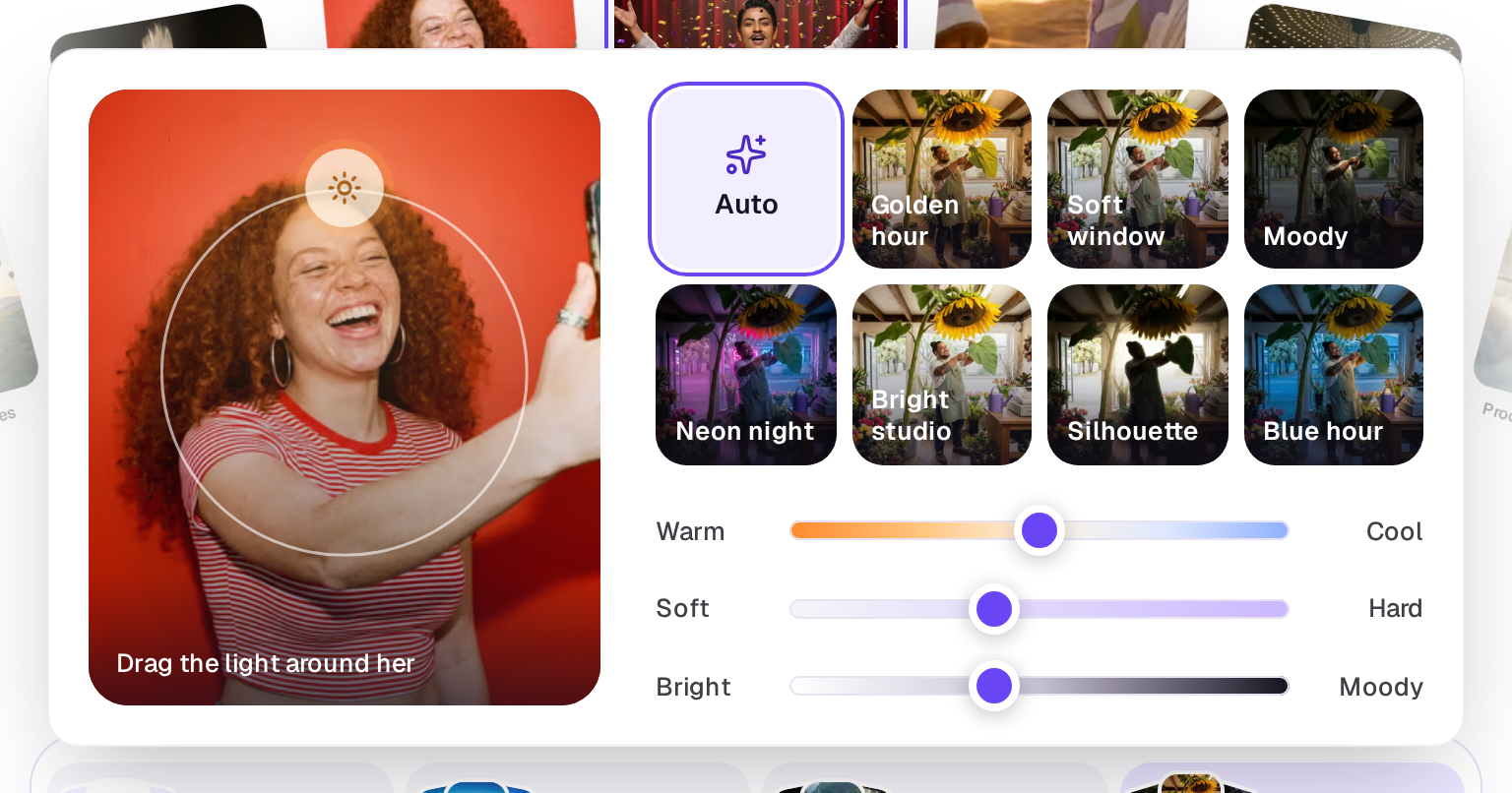
Choosing a look closes its panel; the camera’s and lighting’s stay open so you can pick from each row. Look, Camera and Lighting are free, and a brand’s own camera and light lines step aside for the one you pick. The tiles don’t show for voice and music, and a talking avatar has only Frames. Emotion, in the row under your words, works differently (see below).
The row under your words
The row starts with one pill that names the model, such as Auto, with a crossed-out speaker when sound is off. The shape, length and how many takes aren’t on the pill; they’re in Settings. When a brand is on, the brand’s mark leads the pill. Choose it to open Settings: a short menu with a row for each setting and what it’s set to. On a computer, choosing a row opens its choices beside the menu; on a phone, the pill opens Settings as a page of its own, and choosing a row shows that row’s choices in its place, with a back arrow at the top. After the pill come the paperclip, Elements, Emotion, Skills and Docs as icons, then send. While your words read like a shot, the send button also says who will see the takes: the people icon (and Share on a computer) when they go to the community, the building icon (and Workspace) when your team sees them, and a lock (and Private) when only you do. The arrow beside it switches between Community, Workspace and Private, for this shot and the ones after; it doesn’t send. Community isn’t offered if an owner turned sharing off for the workspace, and Private isn’t offered in an edit or on a board, which everyone there sees. See Keep takes private.
In Settings:
- The model, which says Auto unless you pick one, with a film icon for video, a picture icon for images or a waveform for audio. While it’s on Auto and you haven’t picked Video or Image yourself, the card follows your words: “an image of a dog surfing” switches it to images, “a short clip of rain” to video, and the model and price shown are for that. When your words name neither, or both, Shotz asks the same model that reads your prompt, and switches only when it’s very sure; otherwise the card stays as it was. Pick a kind yourself and it stops. Its Video, Image, 3D and Worlds tabs also switch what you’re making (see 3D and Worlds); what you’ve typed stays. 3D and Worlds aren’t offered in an edit or on a board. See Choose a model.
- Shape (Auto, 16:9, 9:16, 1:1 or 4:5), Length for video (Auto, then the lengths the model makes), How many takes to make of the prompt (1, 2, 3 or 4 videos, or 1, 2, 3, 4, 6 or 8 images; each one charged; switching from images to video turns 6 or 8 into 4), Quality and Generate sound (video only). Quality lists what the model makes: Seedance 2.5 and Seedance 2.0 start at 480p, Veo 3.1 goes up to 4K, and image models offer 1K, 2K or 4K. On Auto you can pick any of them: 720p, 1080p, 1K and 2K leave every model in, while 480p and 4K narrow Auto to the models that make them (Seedance for 480p; Veo 3.1 and MiniMax for 4K video; Nano Banana and FLUX for 4K images). A model that has one quality, such as Kling 3.0, has no Quality setting. If you change to a model that doesn’t make the quality you chose, it makes the nearest one it does. Seedance 2.5 also offers Draft: a 480p take you can finish at 1080p later with Make the final (see Takes, re-rolls and fixes).
- Shape and Length start on Auto in the card, and Auto is first in each list, saying what it came to, such as Auto · 9:16 or Auto · 5 seconds. For shape it uses your start frame’s shape if you added one, otherwise a shape your words name (a ratio like 16:9, or where it’s going, such as TikTok, YouTube or the feed), otherwise 9:16 for video and 4:5 for images. For length it uses a length your words name (“a 3 second loop”), otherwise enough time for any lines in quotes to be said, otherwise 5 seconds, then the nearest length the model makes. When your words and start frame don’t settle it, Shotz asks the same model that reads your prompt for Auto, as you pause typing, to pick from what you described: a wide landscape for 16:9, a person filling a phone screen for 9:16, a longer length for a slow reveal or several beats. It only counts if it’s sure; if it isn’t, or it can’t be reached, you get 9:16 or 4:5 and 5 seconds, and the card shows what Auto picked. A shape or length you named in your words, or lines in quotes that need time, are never overruled, though a longer length can still be picked. The model is chosen for the shape and length Auto picked. Pick a shape or length yourself and Auto steps aside. In an edit the card keeps the edit’s shape.
- A few more rows appear only when the model takes them, and a row that isn’t listed isn’t offered for that model:
- Shots (video: Kling 3.0 and Seedance) cuts one video into several shots. Pick One shot, Model decides to let the model cut between angles, or Set the shots. Your prompt stays the scene; each shot, two to six of them, says what happens in it and how long it lasts, and Add a shot adds another. The video lasts as long as the shots do together, so Length steps aside and Settings shows the total and the number of shots. The count under the shots turns red when they’re longer than the model makes, and you can’t send until they fit. On Auto, Shots is the only one of these rows offered, and Auto then picks a model that cuts shots.
- Leave out (Kling 3.0 and Veo 3.1) lists what the shot should keep out, such as text, extra people or blur.
- Seed (many video and image models) is Random until you type a number or choose New seed. With a seed, the same settings make the same takes again, as near as the model allows. Each take in a run gets the next number up, so they still differ. Random puts it back.
- See-through background (GPT Image) makes a PNG with nothing behind the subject.
- Search the web (Nano Banana 2.1) lets the model look things up, for real places, products and the news.
- Format (every video model, after Quality) is MP4, which plays anywhere, or MOV: H.264 with full colour (4:4:4) and uncompressed sound, which holds up better when you grade it. A MOV is bigger, and some players can’t open it (VLC and mpv can); Shotz plays its preview as usual and Download gives you the MOV. Only Seedance 2.5 makes a MOV. On Auto, picking MOV narrows the choice to Seedance 2.5. On another model, picking MOV switches the model to Auto, which then picks one that makes it. Drafts are always MP4, so Format hides while Draft is picked.
- Brand (Pro and Team; see Brands), last.
Then the icons on the row:
- Attach, the paperclip: pictures of who or what is in the shot, and on Seedance videos and sound to follow, from your Library. Each goes into your words as a chip where your cursor was, so you can say what it’s for. Choose a chip to draw on a picture or pick the part of a clip to send. Its Studio tab names one of your edits or designs the same way, as a chip with its cover, so the Agent knows which one you mean. Once some are attached it shows how many. See References, and drawing on them.
- Elements, with the @ icon: your characters, products and places, to tag with one tap, which puts the tag where your cursor was. The list has a search and tabs by kind, New to make one, and See all for the Elements page. Once some are tagged it shows how many. See Keep a character the same across shots. - Emotion, the face, says how someone plays a moment, on any video or image shot (not a talking avatar). Choose an emotion and it goes into your words as a chip where your cursor was, so put it right after who feels it: "@maya", a Smug chip, "hands @leo the letter, @leo", a Shock chip, has two chips, each played where it sits. Use as many as you like. The emotions are in four rows: Joy (Laughter, Awe, Relief, Pride, Flirting, Smug, Determined), Tension (Eye roll, Suspicion, Boredom, Confusion, Nervous smile, Realisation), Sadness (Crying, Sadness, Guilt, Embarrassed, Exhausted) and Distress (Shock, Terror, Rage, Disgust, Pain, Frustration, Anxiety). Choose a chip to swap its emotion or set How strongly it’s played: Subtle, Natural or Big. It’s free, and your own words still win: put Smug beside her and write "she bursts into tears", and she cries. Once some are in your words, the face shows how many. - Skills, which adds a camera move, effect or transition to the end of your words as a chip, and can run with no other words at all. Add as many as you like, or type / where you want one. The list has every skill, with a search and tabs, and scrolls; in this card your team’s skills come first, then the Agent skills. Once some are picked it shows how many. See Use a skill. - Docs, with the # icon, which lists your workspace’s docs: tap one to put it in your words as a chip, where your cursor was, and tap it again to take it out. Type # to find one by name. The Agent reads every doc you name when you send. Once some are named it shows how many. See Docs. A saved reference you’re working from or what’s picked on a board shows as a small pill above your words. Choose its × to take it off.
Improve prompt
Once your words read like a shot, a small wand appears at the right of them. Choose it (its tooltip says Improve prompt) and your words are rewritten in place with more detail. A Prompt improved notice appears with Undo, which puts your own words back, as long as the notice is showing and you haven’t changed the words. See Write a good prompt.
Sending
Once you pause typing, the card reads what you've asked for. When it's a shot, the send button shows the price, on a phone too. When it's a question, or something to write or plan first like a script or an ad, the button is a plain arrow, since nothing is made straight away. On FLUX.2 klein, the button says Free while today’s 50 free images last (see How credits work). Up to 500 credits, the shot starts after five seconds, with Stop beside it; nothing’s spent until it starts. Over 500, the Agent shows the shot with its price and waits for you to press Generate. While the conversation is put away, a strip across the top of the card says what’s about to start, with Stop too.
If the run costs more than you have left, Shotz offers a top-up or a bigger plan and keeps your words. Your balance is in the sidebar.
Create
Create lists your conversations under two tabs: Private, your own, and Workspace, chats everyone in the workspace reads and writes (see Chat with the Agent as a team). The one you’re in comes first (New chat while it’s empty). Hover over one and choose the pin to keep it at the top under Pinned, and search them by name. Each chat gets a short name based on your first message; to change it, open its ⋯ menu, choose Rename, type a name of up to 80 characters and choose Rename again. Next to the pin, Save as a skill (the Skills icon; owners and editors) writes a conversation up as a draft skill for you to check and save, so your whole team can start it with a / word. See Use a skill. An empty conversation opens on What are we making? with a few ideas to start from. Choose New chat at the top right to start another. The open conversation’s name is at the top, with a ⋯ beside it that has Pin to the top, Rename, Save as a skill and Delete.
Each conversation remembers its card. Go back to one and the card is as you last sent it: the model, shape, length, how many, quality, sound, frames, references, look, camera, lighting and brand. A shape or length you left on Auto opens on Auto again. Anything that’s gone since is left off, such as a file you deleted, a brand your plan no longer covers or a model an owner turned off. Words you typed and didn’t send, and anything you picked since, wait in that conversation on this browser until you send them; they aren’t saved anywhere else. A new chat starts on Auto with nothing picked.
On a phone
Home has the card under its question: type there and send, and the drawer opens with the reply. Tap Agent in the tab bar to open the card in a drawer from any page. On Home, the shortcuts under the card, a skill from its row, and Reuse on a take you’re viewing open a new conversation on Create instead, full screen, with the card filled in. The card is shorter. The tiles are one line of small tiles, each with a few pictures and its name under them; once something is picked, its tile shows that picture and the choice. The row is the same as on a computer: the settings pill, then Elements, Emotion, Skills and Docs as icons (with how many once you’ve picked some). The tiles each slide in as a page inside the drawer, with a back button at the top; on Home they open in a sheet. The settings pill opens Settings as one more page inside the drawer (or the sheet, on Home), and each row you choose shows its choices in the page’s place. The back button leaves the row first, then Settings. Create lists your conversations, and one opens full screen with the card at its foot.
Where takes go
Takes come in inside the conversation as they’re made, and land in your Library among the Videos or Images (Filter, then Made and Generated, shows only what a model made) and on Home under Latest generations. A generated file in the Library has Reuse prompt, which puts its prompt back in the card along with the frames, references, look, camera, lighting and emotion it was sent with, and Open the thread, which goes back to the conversation it was made in. See Takes, re-rolls and fixes.
3D and Worlds
Choose Create 3D or Create world on Home, or the 3D or Worlds tab in the card’s model picker. It’s the same card: describe an object or a place, optionally add an image to start from on the Image tile, and send. The send button shows the credits before anything is made, and the Agent makes it or answers your question as it would for a shot. A 3D description can be up to 1,024 characters and a world’s up to 4,000. They’re made one at a time, so the card hides shape, length, quality, sound, the brand, elements, skills and sharing while they’re picked. A 3D model takes only the words and one image, so Look, Camera and Lighting hide too: its surfaces are made evenly lit, for the light of wherever you use it. A world’s light and colour are built into it, so Worlds keep Look and Lighting: Lighting shows its presets only, since there’s no one subject to light from a side, and Camera hides because you move through a world yourself.
3D makes a textured model you can orbit and zoom. Worlds makes an environment you can explore: drag to look, use WASD or the arrow keys to move and Q/E to move down and up, or use the Left, Forward, Back and Right buttons under the preview, which is how you move on a phone. Once you’ve moved, a Reset view button appears in the top right corner of the preview; double-click the preview to return to the starting view at any time.
Both appear in Latest generations and the workspace Library, under its 3D and Worlds tabs. Open a file for its interactive preview, details, sharing and original download. The downloads are GLB for 3D and SPZ for Worlds. Spatial files cannot be added to a video timeline.
A real person in Melbourne will write back, usually within one business day.