Text and titles
Add a title, subtitle or caption to an edit, and change its words, font, size and colour.
Choose Text on the editor’s left to add words over your video.
Adding text
Pick a style: Title, Subtitle or Caption. It goes in at the playhead for three seconds, on a video track above the main one that’s free there (Shotz makes a track called Titles if there isn’t one). Captions you add this way go on the Captions track.
Changing text
Click a text clip on the timeline. Its panel opens on the left, in place of the tool, with a Text tab:
- The words, in the box at the top. The preview changes as you type.
- Font: Bricolage, Geist or Mono.
- Size: Small, Medium or Big.
- Where: Top, Middle or Bottom of the frame.
- Colour: white, ink, violet or lime.
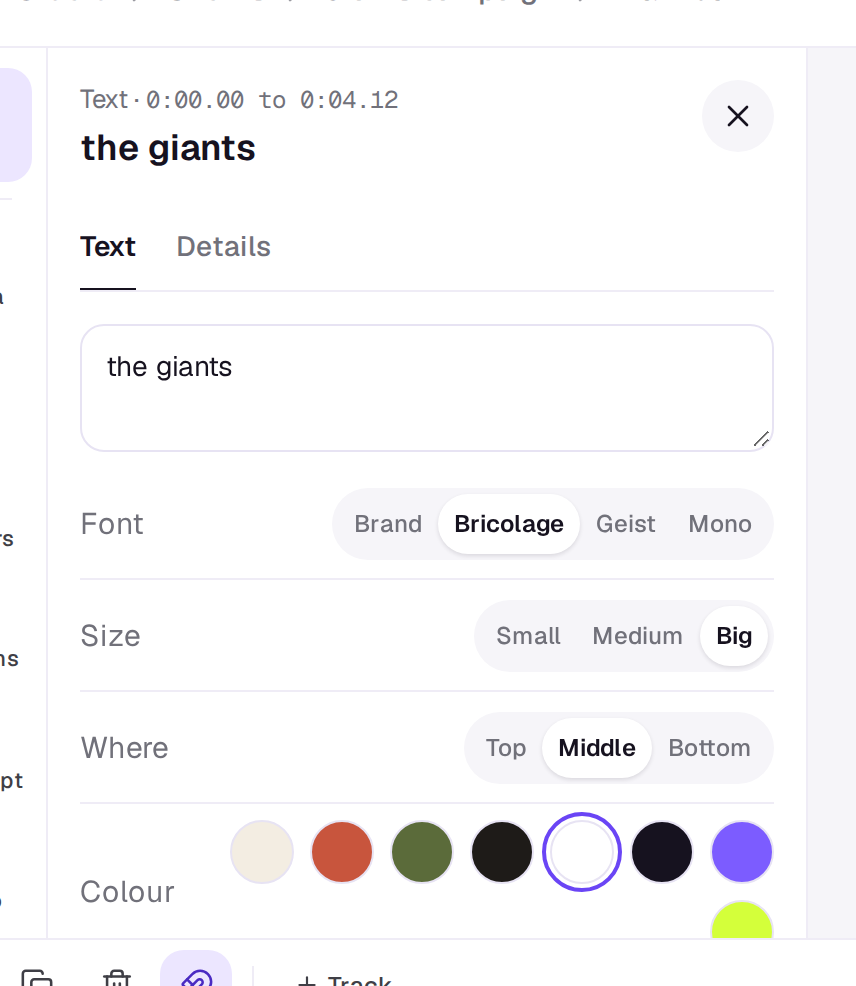
Close the panel with the × at its top right, or choose Text on the left to add another title.
To make it last longer or start later, drag its ends or move it on the timeline like any clip. See Work on the timeline.
Good to know
- Text is a clip on a video track, so it moves, trims and splits like any clip. A track higher up is drawn over the tracks below it.
- Hide a track with its eye switch to see the edit without it. Hidden text isn’t exported.
- Text is burned into the video when you export. When you send the timeline to another editor, the clips and cuts go across but text and titles stay in Shotz (captions can go as an
.srt).
For captions made from what’s said, see Captions in the editor.
A real person in Melbourne will write back, usually within one business day.