Use a skill
Add camera moves, effects and transitions to a shot, or hand the Agent a bigger job, without writing it out.
A skill is a recipe for a shot: a camera move like a crash zoom or a 360 orbit, an effect like turning to chrome, a transition, or a common ad or UGC shot. You describe your subject and the skill describes the move.
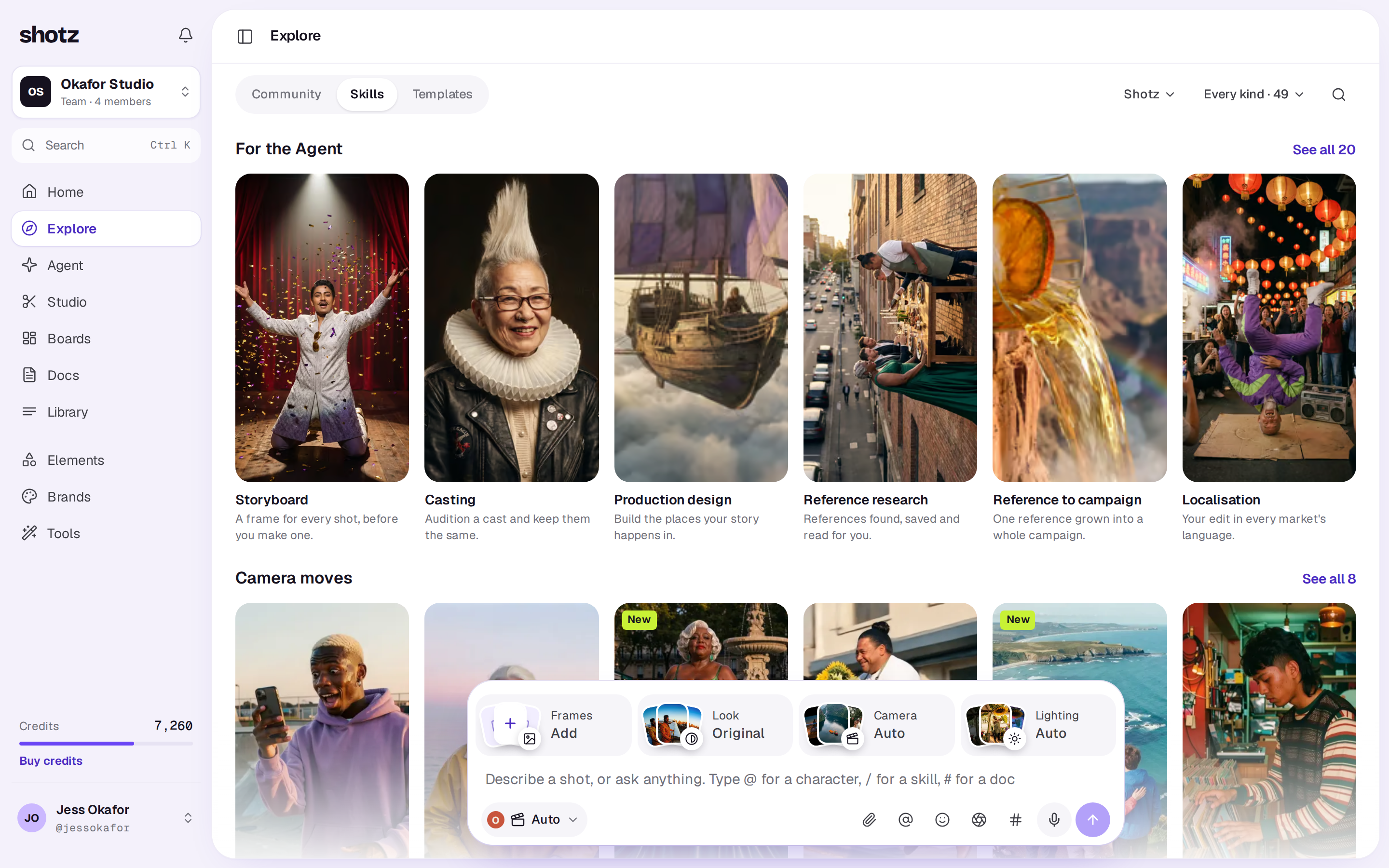
Find one
Open Explore in the sidebar (on a phone, in the tab bar) and choose its Skills tab. Home has a row of them too. The menu beside the tabs picks whose: Your team’s has the skills your team has saved and Shotz has the ones built in. A team that hasn't saved any yet opens on Shotz. If an owner or editor picks Your team’s before then, the page shows a New skill tile in place of the New skill button.
On Shotz, the Agent's skills come first under For the Agent, then the shot skills by kind: Camera moves, Effects, Transitions, Ads, UGC and Lip sync. Each kind shows a row, and See all shows the rest. Each shot skill plays a sample. Use the Kind menu to show one kind, and Show every kind to go back. To search by name, choose the magnifying glass.
Looks, the colour grades like Portra 400, Teal and orange or Tri-X 400, are in the Agent's card: choose Look above your words. See Use a look.
Choose a skill, on Skills or in Home's row, to see it big: its sample, which models run it best, what it costs from and what's been made with it, yours first and then the community's. On a computer these sit in tabs beside the sample: About (what the skill does), Details (Runs best on, Also good on, Works best with, Length and Cost) and Made with, which shows up once something has been made with the skill. The arrow keys step to the next one; on a phone, swipe. Use in Create closes the skill and starts a new conversation on Create with it on the card, ready for you to describe the shot or send it as it is. This is the same from the Skills page and from Home's row, on a computer and on a phone, where the button sits at the foot of the full-screen skill.
Tap one of your own takes under what's been made with the skill and it opens over the skill, with the others you made with it a swipe or arrow key away. On a computer, the button at its top left says Back to and the skill's name. Choose it, or press Esc, to come back to the skill.
Tap a community shot under Made with to see it. On a computer it opens in the post viewer in place of the skill, with the same Back to button at its top left, and going back returns to the skill. On a phone it opens full screen over the skill, as posts do in Community: like, comment, save or share it from the buttons at the right. Tap Back at the top left, or press your phone's Back, to return to the skill. Remix closes the skill and opens the card with the post's prompt filled in.
Add one while you write
Type / in your words. A list of every skill opens, and you can scroll it. Typing more narrows it by name, so /crash finds Crash zoom. Use the arrow keys and press Enter or Tab, or tap one. The skill sits in your words as a chip with its picture, right where you put it. Typing a skill's whole address as shown at the right of the list, like /crash-zoom, and then a space does the same. Press Esc to close the list without picking, and × on a chip, or Backspace just after it, to take it out.
Add as many as you like, anywhere in your words: “a dancer on a rooftop, /slow-push-in then a /crash-zoom as she /turn-to-chrome”. They run in the order you wrote them, and the words around each say what it's for. Whether a mix works is down to the model, so try it and make another take if it doesn't land.
You can also choose Skills (with the aperture icon) in the row under your words, between the @ and the #, and pick from the list. It shows a number once you've picked some. Picking one there adds it at the end of your words, and picking it again takes it out. Once you've picked some, No skills at the top of the list takes them all off.
The list is laid out like the model picker. Search skills at the top narrows it by name or description. Under it, tabs with counts: All, then one for each kind of shot skill. In the Agent's card there are also Agent and, once your team has saved a skill, Yours. If your words already point at some skills, For this prompt shows up to three of them as buttons to tap. Each row has the skill's name, its group beside it, what it does, and a badge: a shot skill's length, such as 2–4s or ≤60s, or what an Agent skill hands back, such as Frames or Edit. In the Agent's card your team's skills come first, then the Agent skills grouped as Plan the film, Make the shots and Finish the edit, then the shot skills by kind.
Skills for the Agent
Some skills are bigger jobs the Agent works through with you, a stage at a time: Storyboard, Casting, Production design, Reference research, Reference to campaign, Localisation, PDP assets, Reframing, Ad variations, Script, Previs, Motion graphics, Shot list, Treatment, Hook lab, Rough cut, Cut-downs, Sound design, Music video and Content series. They're first under Shotz on Explore's Skills tab and at the top of the / list in the Agent's card.
Tap one on the Skills page to see it big, like a shot skill: its picture, with a clip playing over it when there is one. On a computer the tabs beside it are About (what the Agent does with it) and Details (You bring, You get, Start it with its / word, and Cost: free to start, and you approve a plan and its price before anything is made). The arrow keys step to the next one; on a phone, swipe, and the same details sit under the picture. Use in Create closes the skill and starts a new conversation on Create with it in the Agent's card, ready for your brief.
When you pick one of these and haven't typed anything beside it, the card shows a faint line after the chip saying what to tell it first, such as “Which edit, and for which markets?” It goes as soon as you type. Skills that work on an edit you already have (Localisation, Reframing, Cut-downs and Sound design) also show Your latest edits under your words, up to three, when you aren't inside an edit or a board. Tap one to put it in your words as a chip, or pick any edit or design from the paperclip's Studio tab. You can also send the chip on its own, and the Agent asks.
Reference research and Treatment use Superagent’s web research, which comes with every paid plan. On Free, the Agent says so and does what it can without it. See The Agent.
The Agent asks what only you know first, shows you what it plans to make and what it costs, and makes nothing until you approve. You can name several in one message, and add shot skills for the shots inside them. Some lay what they make out for you: product page assets as designs in Studio, a previs as a 3D shot that plays in the conversation and a motion graphic as a title or lower third that plays there too (see The Agent), a rough cut or sound design on your timeline, each cut-down as an edit of its own, and each language as a timeline of its own beside the original. Research, a cast, a storyboard or a treatment's mood frames go on a board only when you say yes when it offers. Script, Shot list and Treatment are written in the chat (or in a doc, if you ask), and are free to write and change as often as you like; the Agent only asks you to approve a plan when it's time to make something.
Your team's skills
When a job with the Agent goes well, keep how it went as a skill of your own. On Create, point at the conversation in your list and choose Save as a skill (the Skills icon), or ask the Agent to write it up. Owners and editors can do this, up to ten times an hour; if you can only comment in the workspace, ask an owner to make you an editor. It works on your own conversations and on workspace chats you're part of, whoever started them. It writes up what worked as a playbook with a name and a / word, and shows it to you first. Nothing is saved until you say so.
From Create, a Save as a skill window opens straight away and fills in the name, a short line and the playbook once the Agent has written them, which takes a few seconds. Its Cover is the newest picture the conversation made, shown on the skill’s tile on the Skills page: choose another of its pictures, choose the picked one again for none, or choose the picture button to pick any picture or video from your Library. A private file can't be a cover, since everyone in the workspace sees it; show it to your team first (see Private takes). Change anything, then choose Save skill, or Cancel on a computer to close the window without saving. When you ask the Agent, a card appears under its reply with the name and its / word. Choose Read the playbook to see it, Change it to edit it in that same window, or Save skill to keep it as it is. The card then says Saved and links to the Skills page.
A saved skill is under Your team’s on Explore's Skills tab. Choose one to see its playbook, then Use it to put its / word in the card. Anyone in the workspace can type its / word in the card to start the same kind of job. Owners and editors can change a skill's name or playbook, delete one, or write a new one with New skill at the top right of the page (+ on a phone). Before your team has any, Your team’s also shows ways to start: From a conversation, Write it yourself and See how ours work.
A team skill works like Shotz's own: the Agent follows it, asks what only you know first, and makes nothing until you approve. The Agent only reads a skill’s full playbook when your message names it.
If Shotz adds a skill with the same / word as one of yours, Shotz’s skill wins. Yours says Shotz now has a skill with this name, so the Agent uses that one. Rename it to bring it back., and Use it is off until you rename it.
How it works
Shotz adds the skill’s own instructions after your prompt when it makes the shot, so write about your subject and setting and leave the move to the skill. For example, with 360 orbit on, “a dancer in a red dress on a rooftop at dusk” is enough. The instructions aren’t shown or saved with your prompt: Shotz keeps your own words, with the skills in them.
You can also generate with a skill and nothing typed. The send button works as soon as your words have a skill in them, and a skill with no other words makes its shot on its own. A take made that way is named after the skill in your Library.
A skill doesn’t cost anything extra and doesn’t change the model: you still pick one, or leave it on Auto. Some skills work best with a start frame or an element, such as a product shot from a product photo. See Start and end frames.
A real person in Melbourne will write back, usually within one business day.