Start a new edit
Start an edit from your clips or a template, and make more timelines of the same footage.
An edit holds your footage and one or more timelines of it. Each timeline is its own cut in its own shape, so a 16:9 cut and a 9:16 reel of the same shoot sit side by side.
A new edit
Open Studio and choose New, then Video (on Videos, the button is New video). While Studio is empty, New is hidden and the page offers Start an edit instead. It asks Which clips?
- Pick your clips from your Library, videos and photos, or upload them with the first tile or by dropping files on the page. Search appears once you have a dozen files or more. They go on the timeline in the order you pick them, and the edit takes the first one’s shape.
- Choose Edit 3 clips (or however many) to open the editor with them on the timeline. You can start with up to 50; add more from Media once it’s open.
- Choose Start empty instead to open the editor on an empty timeline called Main cut, in your workspace’s default shape.
Once it’s open:
- Add more clips from Media: choose Upload, or open the Library tab and choose a file’s + to bring it into the edit and put it on the timeline at the playhead.
- Change the shape at the right of the play controls under the preview.
- Start from a template in the Templates panel.
You can also ask the Agent in the card, for example “make an edit from my last three clips”: it makes the edit with them on the timeline and opens it. See The Agent. In the Library, a file’s Edit in Studio adds it to an edit; with no edits yet it opens a new one with that file on the timeline. On an image, Edit in Studio opens the image editor instead, and Add to a video (under ⋯, or in Tools on a phone) puts it in an edit.
Another timeline of the same footage
Each new timeline starts empty, with the edit’s files in Media.
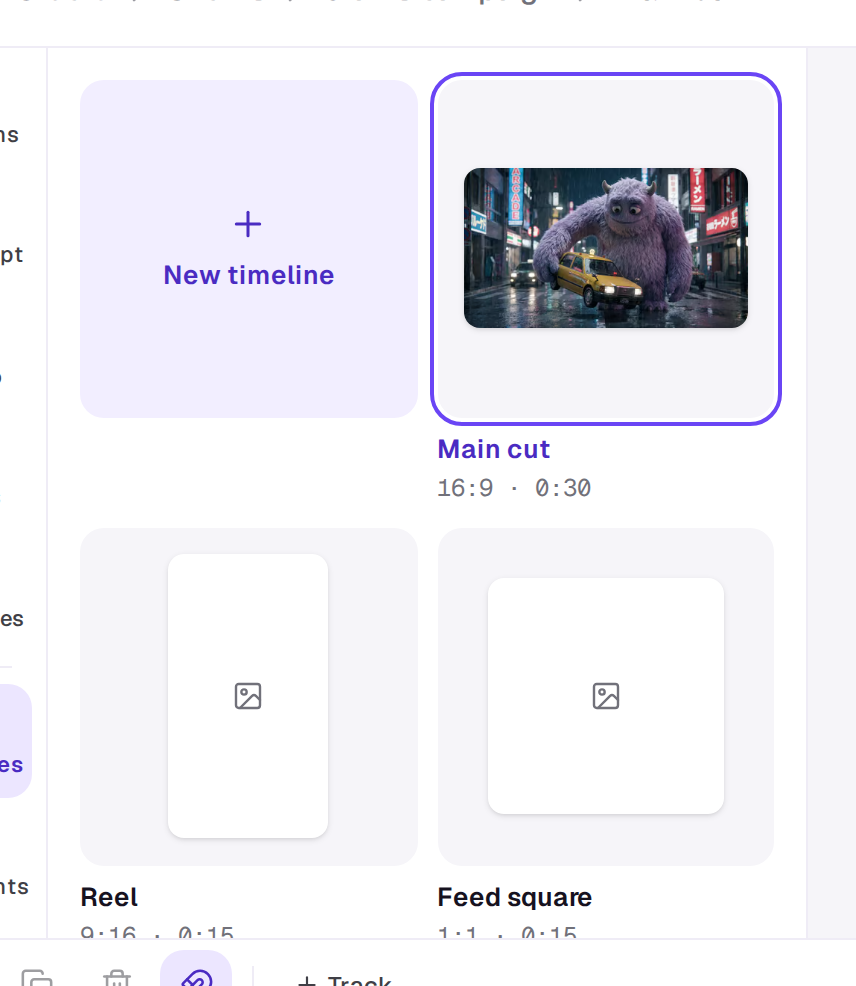
An edit always opens straight in the editor, even when it has several timelines. To start another, choose the timeline’s name in the top bar and then New timeline, or choose Timelines in the tool rail. The Timelines panel (also All timelines in that menu) lists every timeline in the edit; choose one to switch to it, or New timeline, the first tile. It asks for a name and a shape (Landscape, Vertical, Square or Portrait), then Make the timeline opens it empty.
The menu under the timeline’s name also has Rename and Duplicate, which makes a copy of the timeline with its clips to try another cut. Versions lists the versions you’ve saved, newest first, each with who saved it and when; choose Restore to go back to one, or Save this version at the foot of the list to keep the timeline as it is now. Restoring saves what’s there first, and Undo brings it straight back.
Changing the shape later
The shape shows at the right of the play controls under the preview. Choose it and pick another; you can undo the change like any other.
You need to be able to edit in the workspace to start an edit or a timeline. People who can only comment see the timelines but can’t make them.
A real person in Melbourne will write back, usually within one business day.