Find and use the tools
What’s on the Tools page, how a tool runs, and where else you’ll find them.
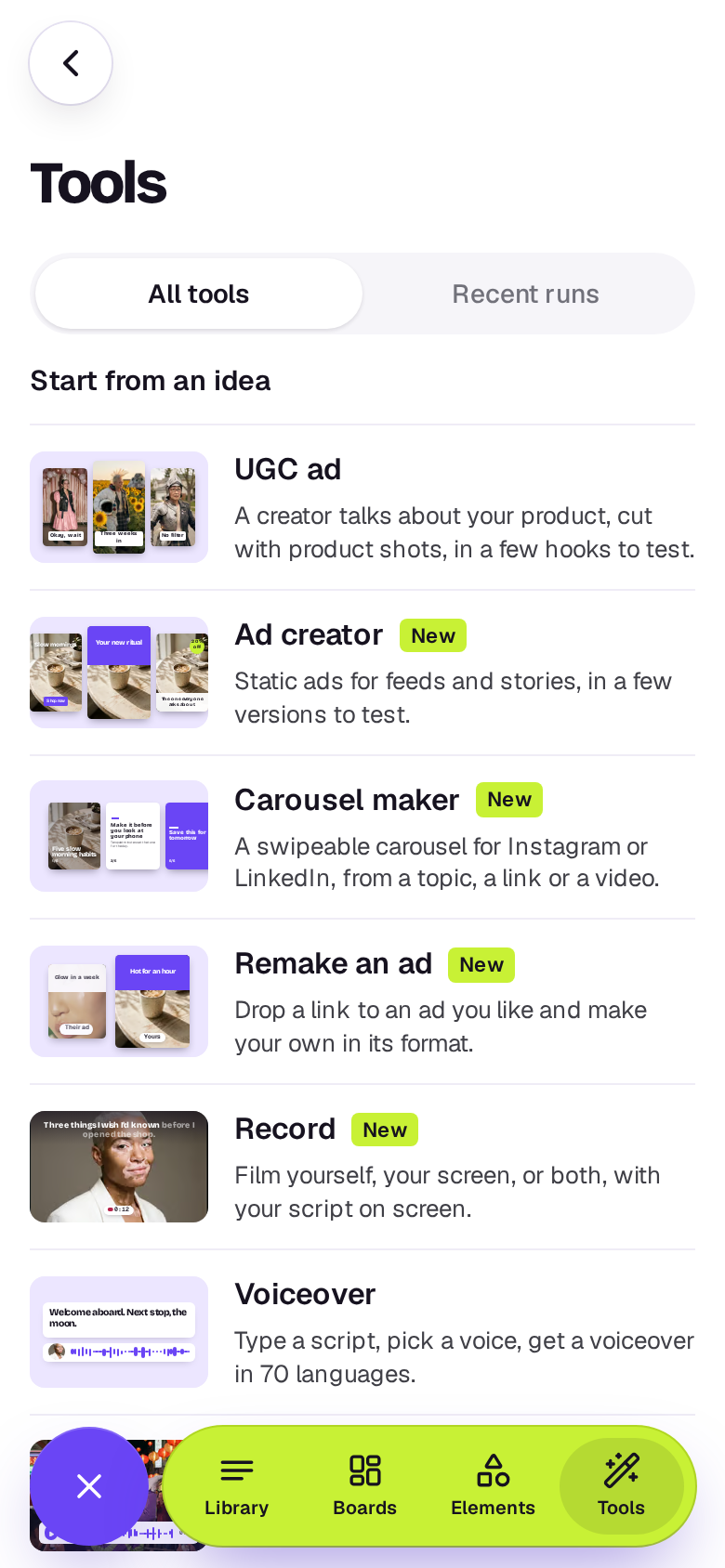
Tools do one job for you, like turning a long video into clips or giving a photo a voice. Open Tools from the sidebar on a desktop, or from More (the lime button beside the tab bar) on a phone.
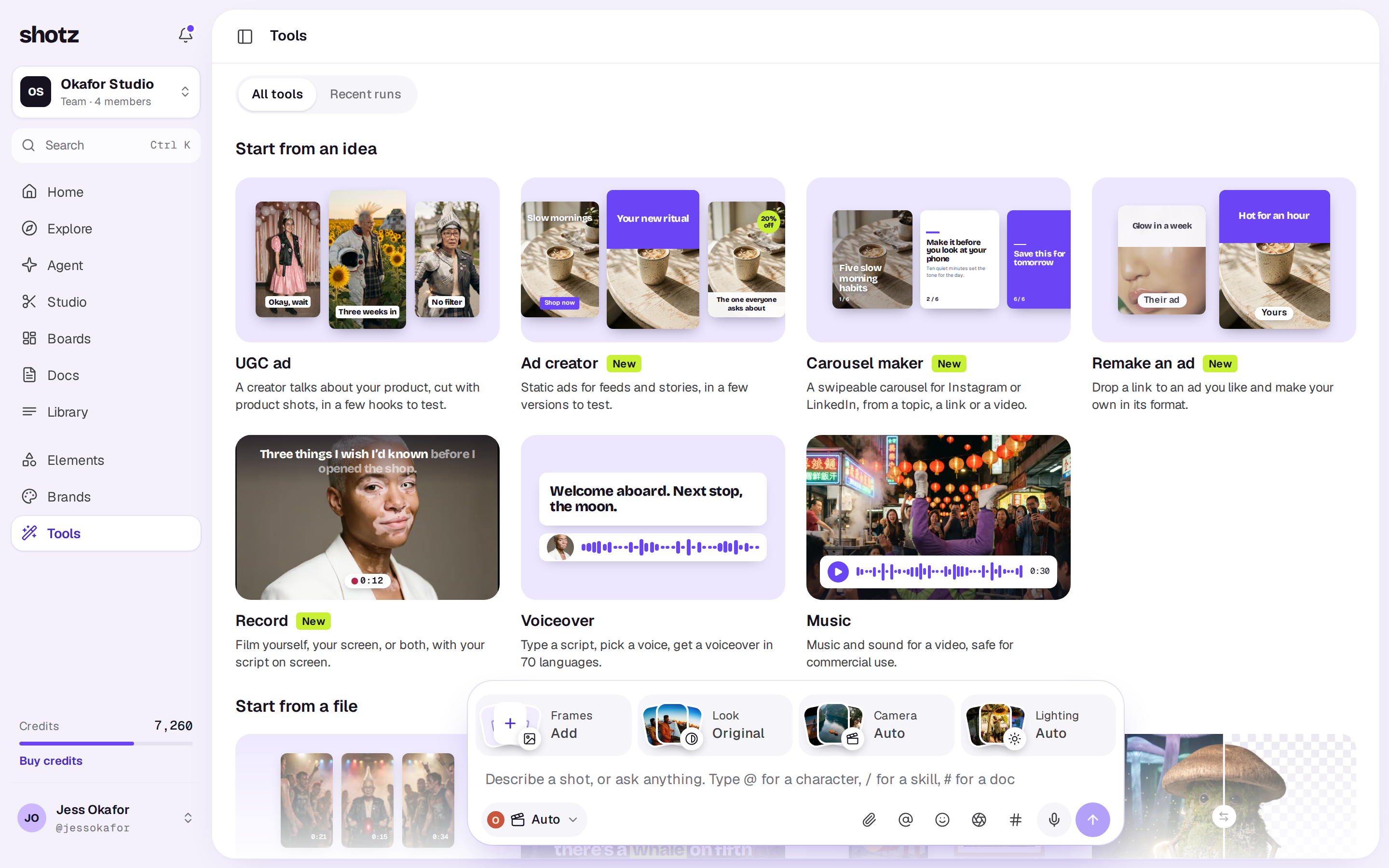
Kinds of tool
- Start from an idea: you begin with a brief or a script. UGC ad, Ad creator, Remake an ad, Carousel maker, Record, Voiceover and Music are here.
- Start from a file: you begin with an image, video or sound file from your Library. Clips, Captions, Mockup, Remove background, Thumbnail maker, Product photoshoot, Headshot pack, Product video, Dub, Talking photo, Sound effects, Clean up audio, Upscale, Extend, Change a clip, Recast, Reframe and Batch are here. Batch runs the same steps on up to 200 files, or on a list of prompts, at once.
- Free, in your browser: Compress video, Resize video, Trim video, Extract audio, Resize image, Compress image and Colour palette also start from a file, but they run in your browser, cost nothing and save a new copy to your Library or download it. See Free tools that run in your browser.
How a tool runs
Each tool opens in the page and asks one question a screen. On a computer the sidebar tucks away while you work; its button at the top left (or ⌘\) brings it back over the tool. On a wide screen the tool’s steps run down the left, each finished one showing what you picked, and pressing one goes back to it; the preview sits at the right. On a phone a thin bar along the top has a segment for each step. The first step starts with a box to add a file: drop one on it or anywhere on the page, choose choose one in it, or paste one with ⌘V (on a phone, tap it to take a photo or pick from your phone). Under it, pick a file you already have from your Library. Picking takes you straight on; an uploaded file is picked as soon as it’s ready. Change beside the preview picks another. Once you have video edits, Captions, Clips, Dub, Clean up audio and Reframe also show a Studio tab beside Library, and Mockup shows one for your designs. The search button at the right end of that row opens a search field that works on whichever tab is open. Press Esc, or the cross beside the field, to close it. Make your choices, and the main button tells you the price before you start. Settings most people leave as they are sit under Options, a row that opens in place and says what they’re set to now. On a phone it fills the screen and the tab bar steps out of the way. Leave any time: Tools at the top on a computer, or the cross on a phone. If the workspace doesn’t have the credits, nothing starts and Shotz offers a way to get more; once you’ve paid, the run starts on its own. See Buy more credits.
While it works you can choose Keep working elsewhere and come back later. What it makes lands in your Library, or for Clips, Captions, UGC ad and Reframe’s crop, in a new edit you can open in the editor. Ad creator, Carousel maker, Product photoshoot and the Thumbnail maker make designs you open in Studio. Remake an ad makes nothing itself: it reads a link and opens the Ad creator or UGC ads for you (details). If a run fails, its credits come back.
What’s free
The seven browser tools above are always free, with no limit. Every other tool that runs a model costs its credits each time, and the main button shows the price before you start. Everyone signed in can earn credits in the community to spend on them, even on the Free plan; see How credits work.
Once you've made something, the Tools page has two tabs: All tools and Recent runs. Recent runs shows what you've made with the tools lately as pictures, newest first under Today, Yesterday, This week and Earlier, so you can open any of it again; leaving a run you opened from there brings you back to it. Any tool narrows it to one tool. While something is still being made, the tab shows how many and its picture shimmers, with Making in its caption; a run that didn't work shows why, with Credits are back (or Nothing was spent) and a Try again button that opens the tool, and several failed tries of the same thing show as one that counts the tries.
Other ways in
- Your Library: open an image, video or sound file and the tools that work on it are listed under Tools, each with what it costs on that file. On a phone, press and hold a file.
- The editor: pick a clip and Tools in the timeline’s toolbar has Remove background, Clean up the sound and, for video, Change it with a prompt, Recast as one of your characters for video and images, and, when the clip isn’t the edit’s shape, Crop to that shape following the subject (free, on the timeline) and Fill in to that shape. A clean voice lands under its clip; other results land in the edit’s Media.
- ⌘K: type a tool’s name to jump to it (desktop only).
- shotz.co/tools: on the tool pages that start from a file, drop an image or video and sign in. It comes with you, goes into your Library, and the tool starts with it. Some run right in your browser with no sign-up and nothing uploaded: the Image resizer, Image compressor (up to 20 at once, downloaded one by one or in a zip), Colour palette generator, the Mockup generator (ready-made mockups only), and the video compressor, resizer, trimmer and audio extractor. Signed in, the same ones are in the app’s Tools.
- Home: a row of tools, with All tools to see the rest.
Tools are for owners and editors. In the demo workspace you can click through every step, but nothing runs until you sign in.
A real person in Melbourne will write back, usually within one business day.