Turn a long video into clips
Clips finds the moments that stand on their own and cuts each into its own timeline. Free.
Clips reads what’s said in a long video, such as a podcast, an interview or a talk, or in one of your video edits in Studio, finds the moments that stand on their own, and cuts each into its own timeline. It’s free.
Make clips
- Open Tools → Clips, or open a video in your Library and choose Make clips.
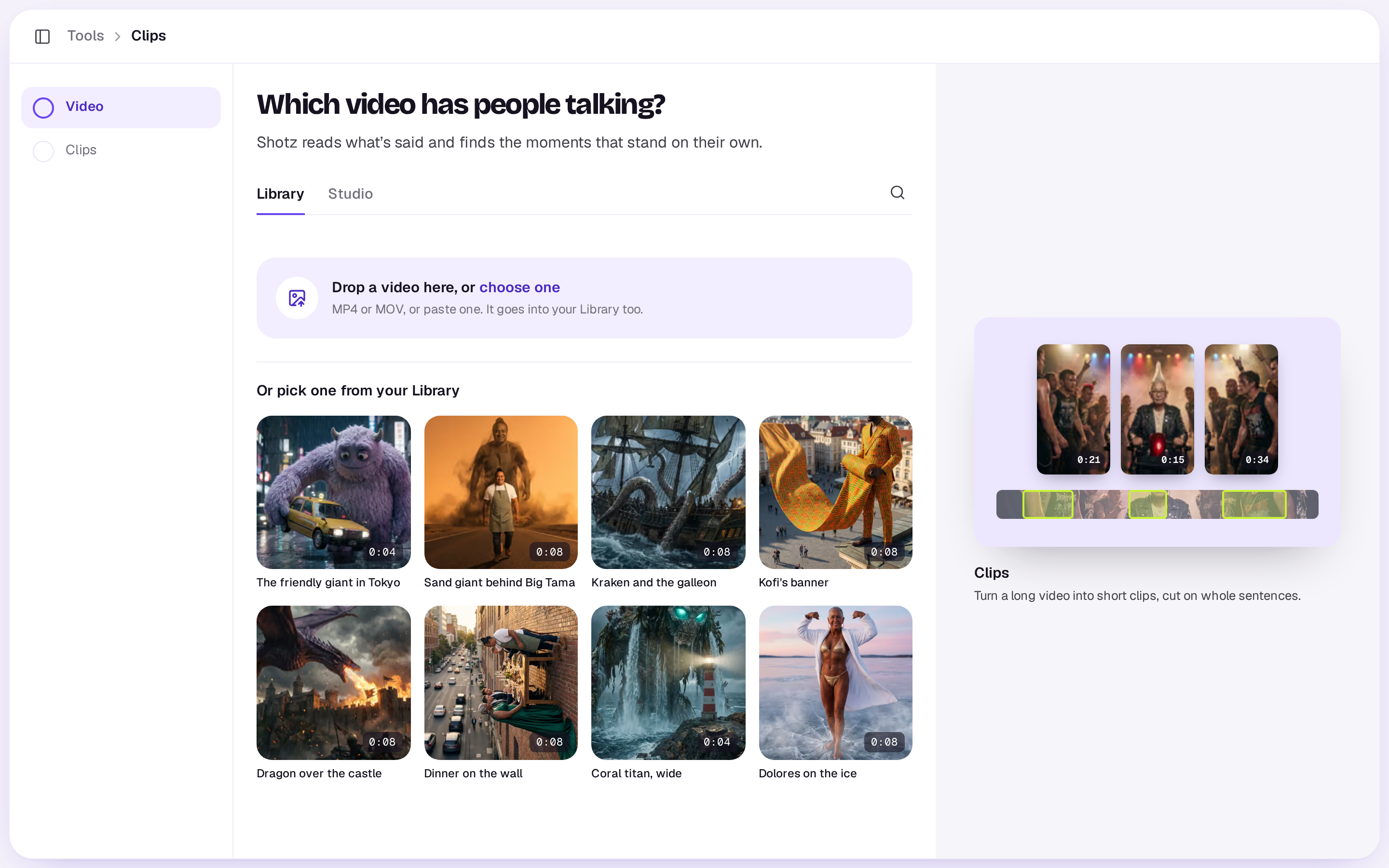
- Under Which video has people talking?, pick one from your Library, or switch to Studio and pick one of your video edits. Picking it takes you straight on.
- Under How long should each clip be?, pick the length. Open Options to change the rest (below), then choose the button, such as Find 5 clips · free, which says how many.
- Length: 15–30s, 30–60s or 60–90s. Clips are cut on whole sentences.
- How many: 3, 5 or 8. Clips keeps the strongest moments, and they follow the order they happen in the video.
- Shape: 9:16, 1:1 or 16:9. The video fills the frame with a centred crop.
- Captions: pick a look from the gallery, timed to each word, or No captions. Each look is drawn over your video and sets its own number of words at a time. See Add captions to a video for the looks.
- Only moments about: optional. Say what you want, like “pricing”, and Clips keeps to it.
From a Studio edit, Clips reads the edit as it's cut: what's said on its first timeline, at each clip's speed. Each clip keeps everything in that stretch of the edit, such as titles, music and cutaways, laid out again for the new shape.
If fewer moments stand on their own than the number you asked for, you get those, and the result says so, such as You asked for 5; only these stand on their own.
Finding the moments takes a minute or two for a long video. You can close the tool while it works.
What you get
A new edit called “Clips from” and the video’s or edit’s name, with one timeline per clip. Each clip shows its length, and on a desktop why it was picked. Choose Edit to open it, or Open the edit to open it in the editor; the Timelines panel lists every clip. Trim, reframe or restyle any of them in the editor, then export. Not what you wanted? Find different ones.
If it says no
- Clips works from the transcript Shotz makes of every upload. If the video was just uploaded, wait a minute or two for it.
- It needs enough speech to work with, and a video longer than the clips you asked for. For a short video, open it in an edit and trim it there.
- It reads videos and edits up to 3 hours long.
- From a Studio edit, it hears only clips that aren't muted, on tracks that aren't muted or hidden.
- A workspace can start Clips 10 times an hour. Deleting the result doesn’t give one back.
To put captions on a whole video instead, use Captions.
A real person in Melbourne will write back, usually within one business day.