Make a YouTube thumbnail
Your video’s best frame and a few words, laid out three ways in your brand.
The Thumbnail maker turns a moment from your video into a YouTube thumbnail: the person cut out and big, a few words beside them in your brand’s type and colours, and a background from the frame itself. It lays it out three ways, each a page of one design in Studio, so any word, colour or layer can change before you export it. Open Tools → Thumbnail maker, or choose Make a thumbnail on a video or image in your Library.
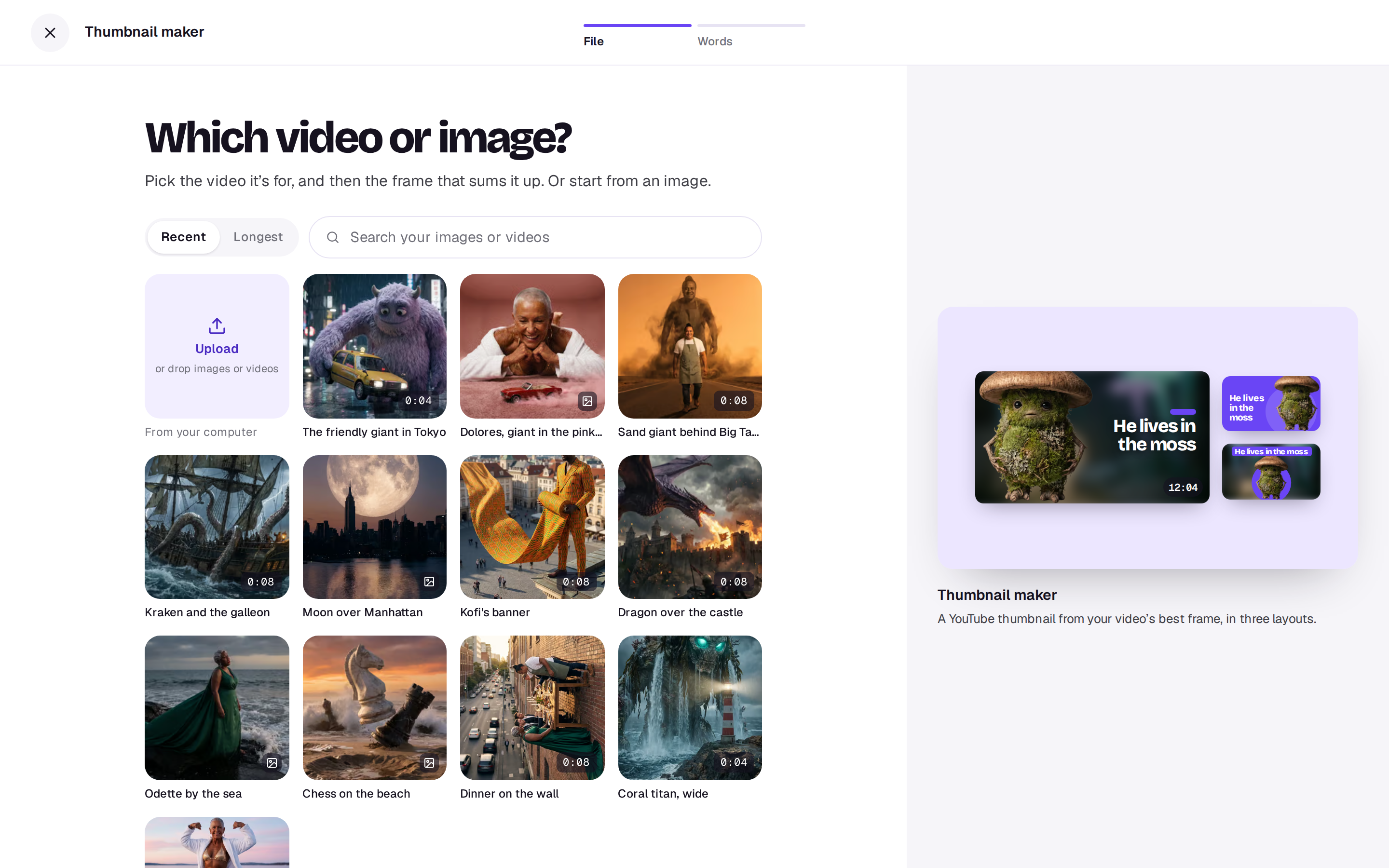
1. File
Pick the video the thumbnail is for, or an image. Opened from a file in your Library, it starts with that file.
2. Frame
For a video, drag along it to the moment that sums it up. A clear face with some feeling in it works best. The preview at the right shows all three layouts on that frame as you go. Next: the words saves that frame, full size, to go into the thumbnail.
An image skips this step.
3. Words
Write a few words, big enough to read on a phone at a glance. When the video has people talking in it, or a description, Shotz reads it and suggests three titles: the first goes in the field, and tapping another puts it there instead. Writing them is free. Without anything to go on, it’s just the field.
Cut out the subject lifts the person (or the thing that matters) off the background, so the words have room and the frame behind them can be blurred and darkened. It’s an ordinary Remove background, free a few times a day and then 4 credits. Turn it off to keep the frame as it is, with a panel behind the words.
Choose Make 3 thumbnails. The button says what it costs: free, or the cutout’s price.
What you get
One design with three pages, each 1280 × 720:
- Subject left: the subject big on the left over the blurred frame, the words on the right.
- Subject right: the words on your colour at the left, the subject on the right.
- Subject centre: the subject in the middle, the words across the top in a block of your colour.
Studio opens on the first page. A video’s frame goes into your Library as an image too. With the cutout on, the subject is the whole frame for a few seconds, then the cutout drops in on every page by itself, even if you’ve closed the tab. If the cutout doesn’t work, its credits come back and the frame stays.
From there it’s an ordinary design: move or resize the subject, change the words, the font or the colours, use the image tools, then export the page you like as a PNG or JPEG, or every page as a zip. With a brand on Pro or Team, the thumbnails use its colours and display face.
A real person in Melbourne will write back, usually within one business day.