Remove a background, or put someone somewhere new
Cut the subject out of an image or video, put it on a plain colour, or in a new scene.
Remove background keeps the subject of an image or video and takes the background away. An image can also go somewhere new: a scene you describe, or one like a picture you pick.
- Open Tools → Remove background, or open a file in your Library and choose Remove background.
- Under Which image or video?, pick one. Picking it takes you straight to the background.
- Choose What goes behind it?, then press the main button. It shows the price first.
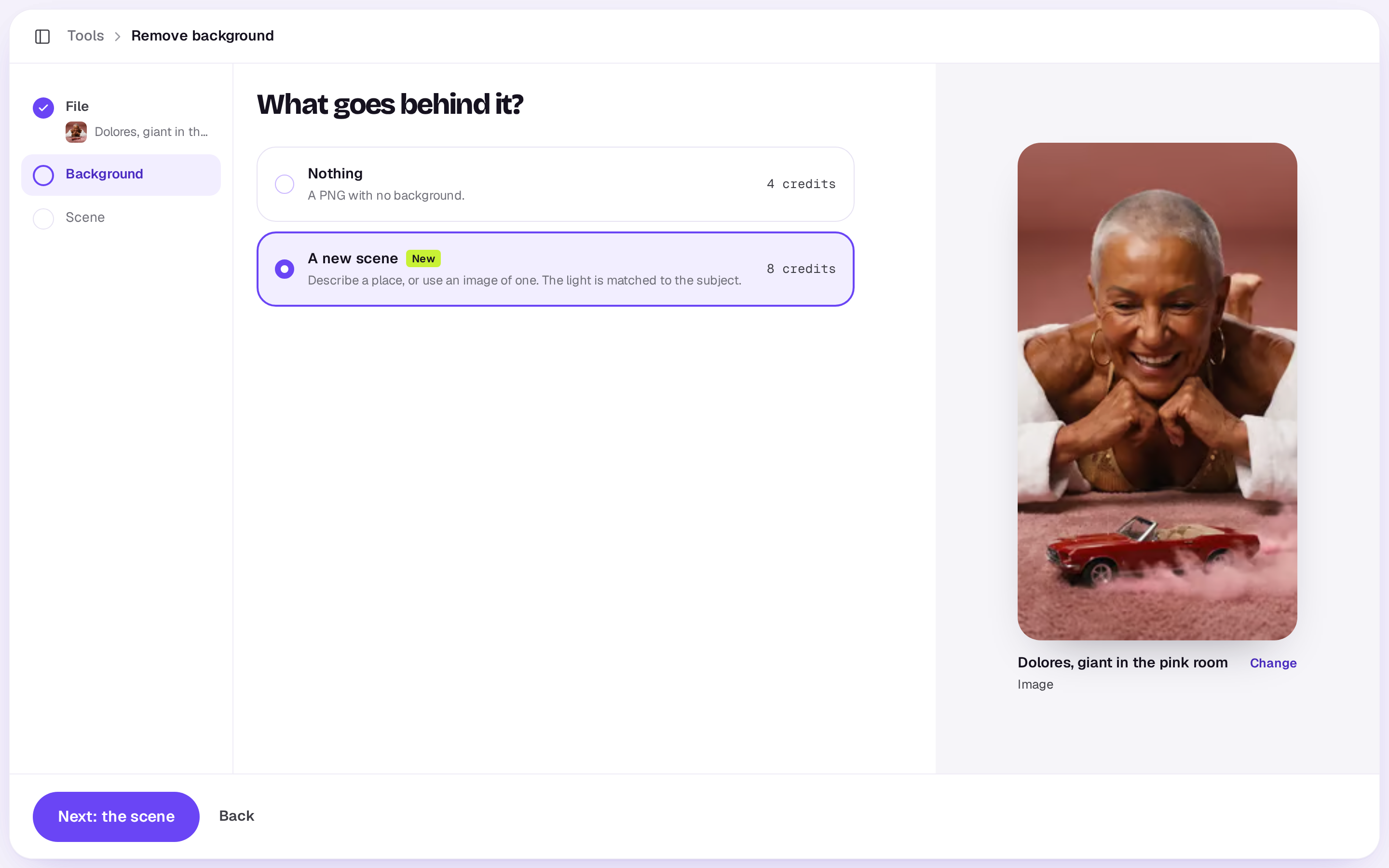
For an image
- Nothing: a PNG with no background.
- A new scene: choose Next: the scene, then Describe it (“a quiet beach at golden hour”) or choose Use an image and pick a place from your Library. Then choose Put it somewhere new. The light is matched to the subject.
Each is a flat price for the image, and the button shows it. Credits you earn in the community pay for these like any others; see How credits work. The result goes into your Library, so a run needs room there: if the Library is full, it stops before it starts. See Library storage.
For a video
- Nothing: a WebM with no background, to lay over other shots in an edit.
- A plain colour: an MP4 on white, black, green or blue.
A video is priced for each started 5 seconds, so a longer video costs more. The button shows the total. Videos can be up to 3 minutes; for a longer one, trim it in an edit and export the part you need.
What you get
An image takes a few seconds, a video a few minutes. While it works, the screen shows your original. You can close the tool while it works. The result lands in your Library next to the original, and from the finished screen you can Edit in Studio (an image opens in the image editor, a video goes into an edit), Download it or Make another. If it doesn’t work, your credits come back.
Without an account
An image’s background can also be removed free on shotz.co/tools, with no sign-up. Choose Photo background remover, then drop in a JPG, PNG or WebP of up to 20 MB.
- Download PNG saves the result. Hold the picture to see the original.
- Email it to me sends a link to the PNG that works for 7 days, then the file is deleted. Tick Tell me when new free tools land if you want to hear about new ones: the email then has a button to say yes, and you’re added only once you press it. One address can be sent three results a day.
- Do another starts again.
Nothing else is kept. You can do up to 30 images an hour.
Under Put it somewhere new, pick a scene or Describe your own. You sign in, and the image comes with you into Remove background, uploaded to your Library, with the scene ready to go.
In the editor
Pick a clip on the timeline and choose Remove background in Tools in the timeline’s toolbar. The cut-out lands in the edit’s Media when it’s ready, so you can put it over another shot. If the workspace doesn’t have the credits, Shotz offers a way to get more and starts the cut-out once you’ve paid. See Buy more credits.
A real person in Melbourne will write back, usually within one business day.