Make a voiceover or music
A voiceover from a script in a voice you pick, or music or a song with vocals.
Voiceover and Music make audio without opening an edit. What they make lands in your Library, ready to add to any edit.
Voiceover
- Open Tools → Voiceover.
- Under What should it say?, write the script. Or bring in one you have: From a doc picks a doc from your workspace, and Upload a script opens a PDF, Word, Final Draft, Fountain or text file (you can also drop one on the box). Only the words to say come in, and Undo beside From and its name puts your words back. Or write a rough idea, such as the product and who it’s for, and choose Write it for me. Undo beside it puts your words back, until you change them. It speaks the language you write in.
- Next: the voice, then pick who says it and choose Record it.
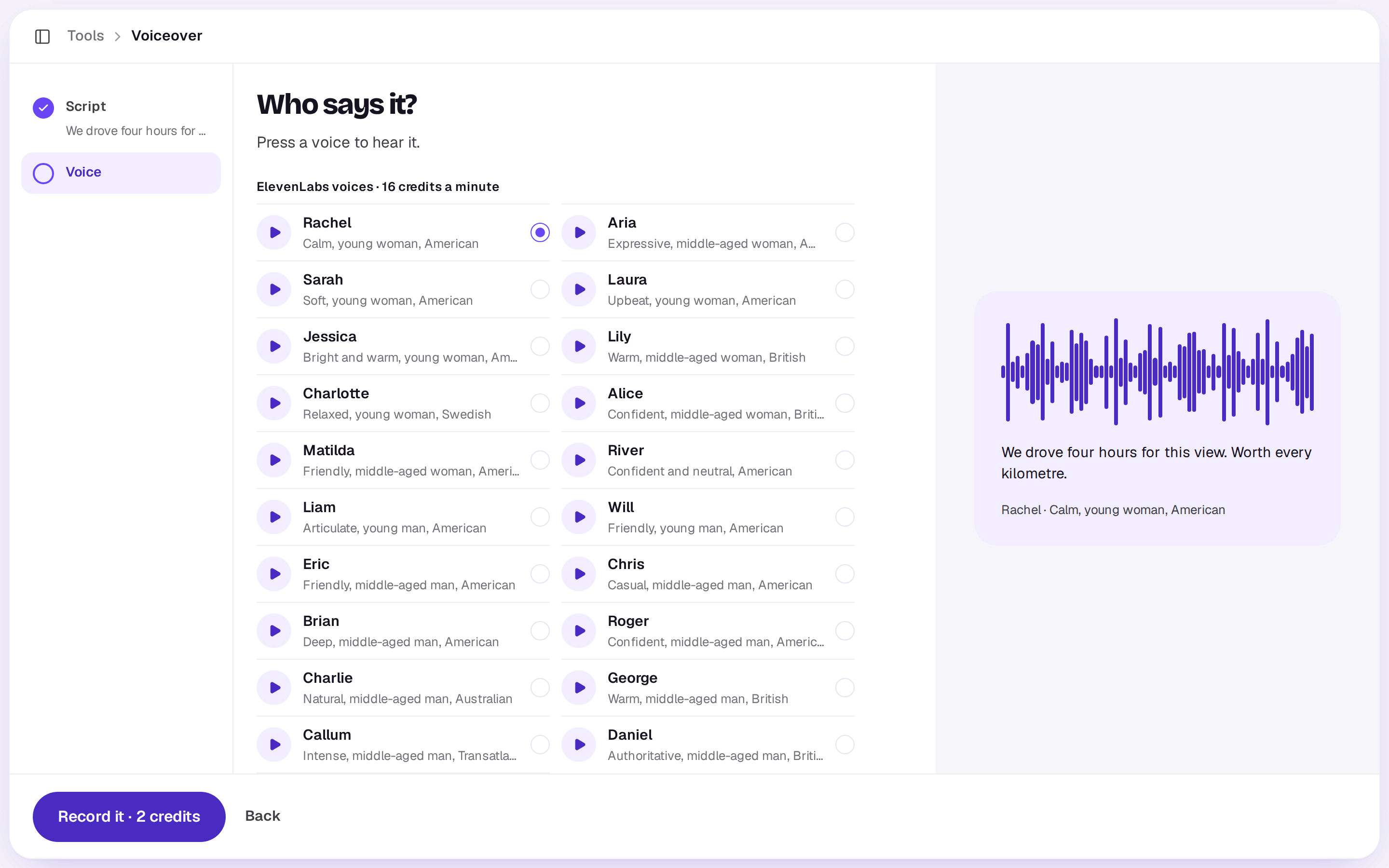
Pick from the list of voices, each with a short description. Press the play button beside a voice to hear a few seconds of it, and press it again to stop. If you’ve given one of your character elements a voice, it’s listed under Your characters, so that character always sounds the same.
There are two sets of voices. ElevenLabs voices are made by ElevenLabs v3. Gemini voices are made by Google’s Gemini 3.8 Flash TTS, for fewer credits a minute. Each card shows what its voices cost a minute.
Under the voices, How it’s said has settings for the model you picked:
- ElevenLabs has Language, which reads the script in a language you pick however it’s written (Automatic reads it in its own), and Delivery: Expressive for more feeling and more variety between takes, Natural as the voice usually sounds, or Steady for an even take every time.
- Gemini has Delivery, where you write directions apart from the words, such as warm and unhurried, or a whisper. It also has A second voice, for a conversation. Write each line as a name, a colon and what they say, with two names, like
Sam: Morning.The first name speaks in the voice you picked and the second in the voice you add. If the script doesn’t have exactly two names, Record it stays off and the row says what to fix.
A voiceover is priced on the script’s length, by the minute, and the button shows the price. Scripts can be up to about four minutes long. It takes a few seconds a line. An ElevenLabs voiceover comes back with its words timed, so captions and talking avatars made from it line up at once; a Gemini one is timed a little later, once Shotz has listened to it.
Music
- Open Tools → Music, or open a video in your Library and choose Make music for it.
- Under What should it sound like?, describe the mood, the instruments and the tempo, or tap one of the ideas. Say “no vocals” if you’ll talk over it.
- Choose Next: who makes it. Under Who makes it?, pick the model. Each card shows what it costs.
- Choose Next: the length. Under How long?, pick how long it runs, then Make the track. A song from Lyria 3.5 has no length to pick, so its button, Make the song, comes straight after the model.
The models:
- Sonilo makes instrumental music. Under How long?, pick 15s, 30s or 60s, or A video’s and pick a video under it (drop one in, or pick it from your Library), up to 60 seconds: it hears the video and fits the music to it. It’s priced by the second, and the button shows the price. It’s safe for commercial use.
- ElevenLabs Music sings, or plays without vocals if you say so, at the length you pick: 15, 30 or 60 seconds. Put lyrics in quotes to have them sung, or let it write them. Turn on Instrumental under the models to keep out all singing, whatever the description says. Each started minute is priced the same, so 15 seconds costs as much as 60.
- Lyria 3.5 writes and sings a whole song, about three minutes, from your description. There’s no length to pick, and it’s one flat price a song. Trim the part you need in an edit. Under A picture to set the mood, you can add an image from your Library, and Lyria writes the song to match it. It’s optional, and Take it off removes it.
It takes a minute or so.
A model an owner has turned off isn’t offered. If a voiceover or music won’t start and says its model is turned off, an owner has switched it off under Voice and music in Settings → Generative models. Ask them to turn it on. See Choose a model, or leave it on Auto.
When it’s done
Listen to it on the finished screen: press Play, and click or drag along the wave to jump to another spot. The time shows beside the button. Then Edit in Studio to add it to an edit (or start one), Download it or Make another. While it’s working you can close the tool; it carries on. If it doesn’t work, your credits come back.
A real person in Melbourne will write back, usually within one business day.