Add captions to a video
The Captions tool opens a video in a new edit with captions timed to the word. Free.
The Captions tool takes a video from your Library and opens it in a new edit with captions on, made from what’s said and timed to each word. It’s free.
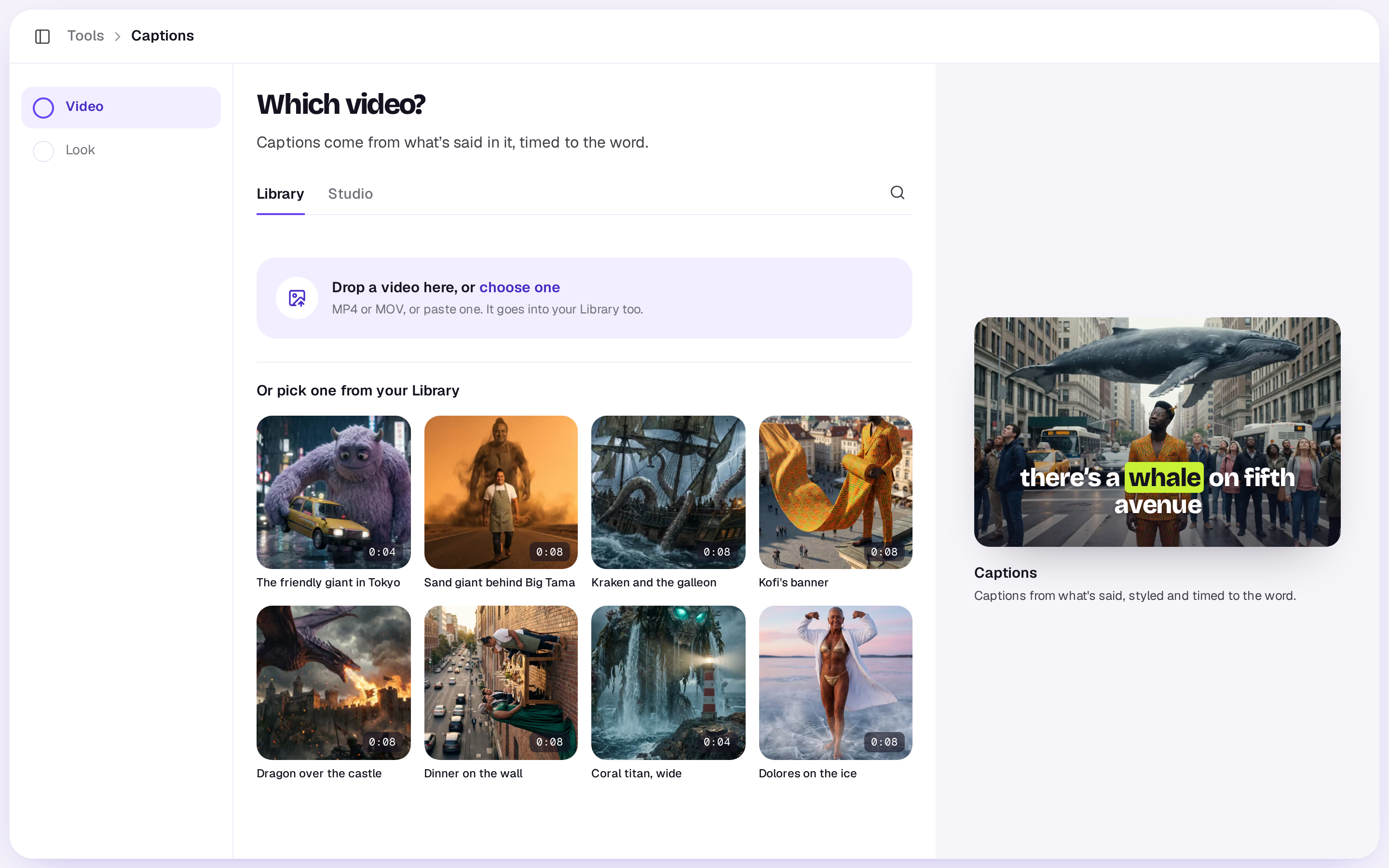
- Open Tools → Captions, or open a video in your Library and choose Add captions.
- Under Which video?, pick one. Picking it takes you straight to the look. To use one of your video edits, switch to Studio and pick it: the tool works on its latest export. An edit you haven't exported says Not exported yet; export it from the edit, then pick it here.
- Under How should the captions look?, pick a look and, if you like, change the rest under Options, then choose Make captions · free. The video shows at the right with the look on it, saying a sample line a few words at a time; Change under it picks a different video.
- Look: each one is drawn over a frame of your video with its name under it, and each plays a sample line so you can see how it moves. There are 17. Word pop, Box, Outline and Plain come first, then Pop, Karaoke, One word, Hype, Comic, Neon, Bubble, Headline, Marker, Arcade, Monster block, Typewriter and Subtitles. Some set the words in capitals, and some light up or enlarge the word being said, like Karaoke and Pop.
Under Options:
- Where: top, middle or bottom of the frame.
- Words at a time: As the look sets (each look has its own count, such as 1 for One word and 8 for Subtitles), 1, 2, 3, or A line.
- Shape: As it is (the video’s own shape), or Story 9:16, Square 1:1 or Wide 16:9.
Captions leave out filler words such as “um” and “uh”. It opens straight away in a new edit named after the video. If a word is wrong, fix it on the timeline, then export the video with captions burned in or download an .srt (see Export a video).
If it says no
Captions works from the transcript Shotz makes of every upload, which arrives a minute or two after the upload finishes. If Shotz is still listening to the video, try again shortly. A video with no speech has nothing to caption.
To cut a long video into short captioned pieces, use Clips. To caption a video in another language, dub it first, then caption the dubbed copy.
A real person in Melbourne will write back, usually within one business day.