Designs
Stack photos, takes, text and shapes in layers to make a post, poster or thumbnail, then export a picture or animate it into an edit.
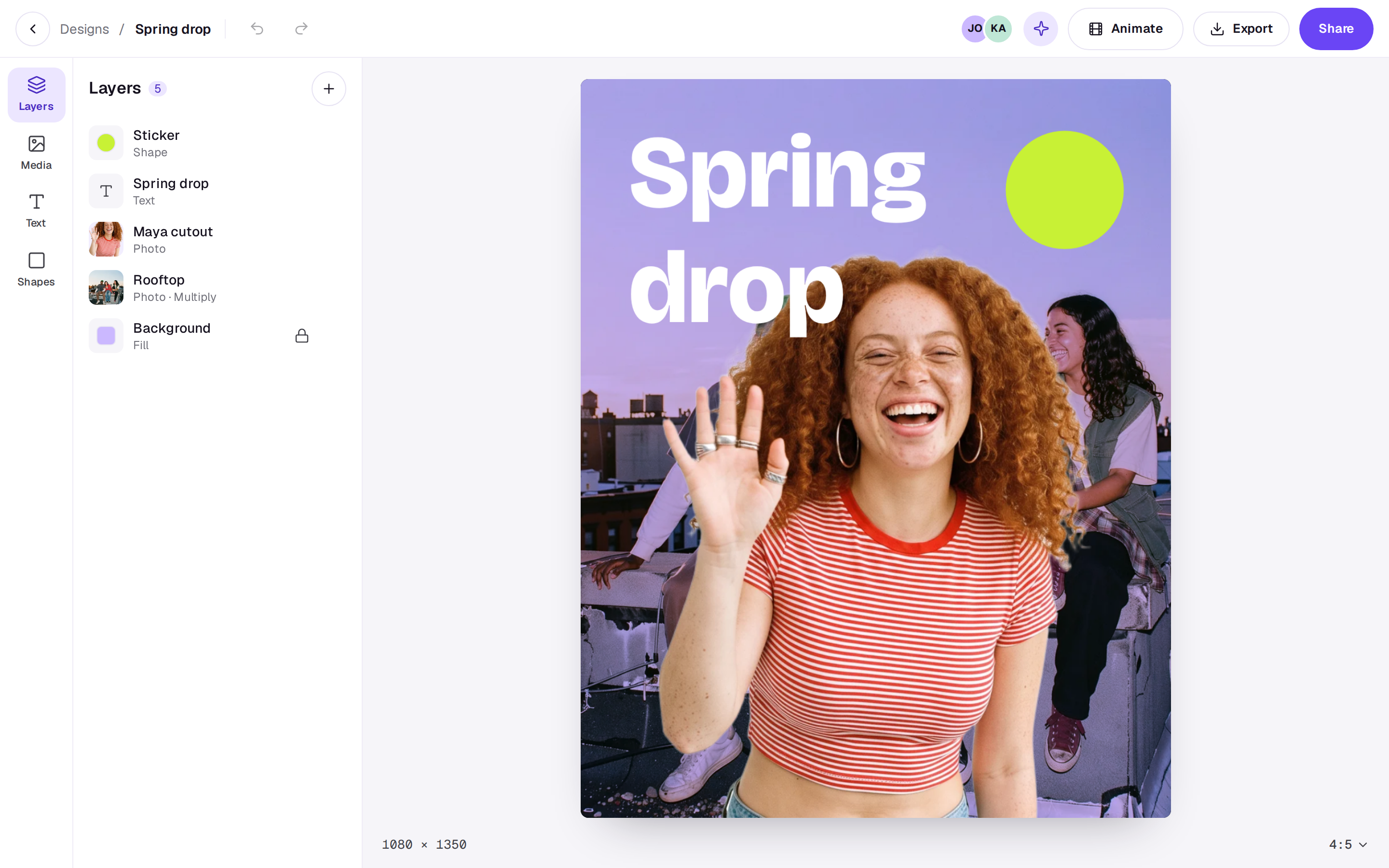
A design is one picture made of layers: a feed post, a poster, a story or a thumbnail. Each photo, video, piece of text and shape is a layer of its own, which you can move, size, hide, lock and blend with the layers under it. Everyone in the workspace can open a design, and editors can change it at the same time.
Start a design
Open Designs in the sidebar (on a phone, tap More, the lime button beside the tab bar, then Designs) and choose New design, then the size: a portrait post (4:5), a story (9:16), a square or a landscape thumbnail (16:9). It starts with a white background. You can change the size later from the menu under the design. On a phone, + at the top makes a portrait post at once. To rename or delete a design, use the menu on its tile (press and hold on a phone).
Home also has a Latest designs row with your newest ones. All designs opens the full list. If you have none yet, the row has a Start a design button, with the same sizes. Editors can start one there; people who can only comment see that designs show up once someone makes one.
You can also ask the Agent from any page, for example "make a 4:5 post for the spring drop with the rooftop shot and a lime sticker". It makes the design with its layers and opens it. Inside a design, the sparkle in the top bar opens the Agent beside it.
Add layers
The tools down the left:
- Layers: every layer, the front one first. Choose + to add a photo or video, text, a rectangle or a circle.
- Media: this design's files. Upload more, or bring them in from your Library. Choose + on a file to add it as a layer.
- Text: a headline, subheading, body text or a label, and your brand's name in its typeface when you have a brand.
- Shapes: a rectangle, a circle or a colour fill that covers the whole design.
Change a layer
Click a layer on the design, or in the Layers list, to pick it. Drag it to move it, and drag a corner to size it. Its centre snaps to the middle. The panel at the right has the picked layer's settings:
- Text (text layers): the words, typeface, size, weight, alignment and colour.
- Arrange: its position and size in pixels, rotation for photos and videos, centring, and Fit or Fill to fit a photo inside the design or cover it. Send back and Bring forward move it down or up the stack.
- Look: its opacity and blend mode (Multiply, Screen, Overlay and the rest), the colour of a shape or fill, and how round a rectangle's Corners are.
In the Layers list, drag a row up or down to restack it, double-click a name to rename it, and use the eye and lock beside a layer to hide it or stop it moving. A locked layer can't be picked or dragged on the design, so unlock it first. The background starts locked. Arrow keys nudge the picked layer (Shift for 10 pixels), ⌘D duplicates it, Delete removes it, and ⌘Z undoes.
Export, share and animate
- Export saves the design as a PNG or a JPEG at its full size, drawn by the same engine you see in the editor.
- Share sends a review link, as for an edit.
- Animate makes a new edit from the design, each layer a clip five seconds long, so you can add motion, music and captions in the editor. The design stays as it was. Animate and the Agent's sparkle are in the top bar on a computer.
A real person in Melbourne will write back, usually within one business day.