Start and end frames, and talking avatars
Start a video from your own picture, end it on another, or make an image talk.
A start frame is a picture the video begins on. It’s the surest way to control exactly what’s in a shot: make or upload the picture you want, then let the model move it.
Add a frame
Frames are for video. In the card, choose the Frames tile over your words. Its panel has Start frame (“The shot opens on this”) and End frame (“Optional. It lands on this”). Choose Add on one and a picker opens for just that frame, with Library and Studio tabs. In Library, pick an image, or choose Upload, the first tile. The panel comes back with the picture in place, and × on the frame takes it off. Use the back arrow if you change your mind.
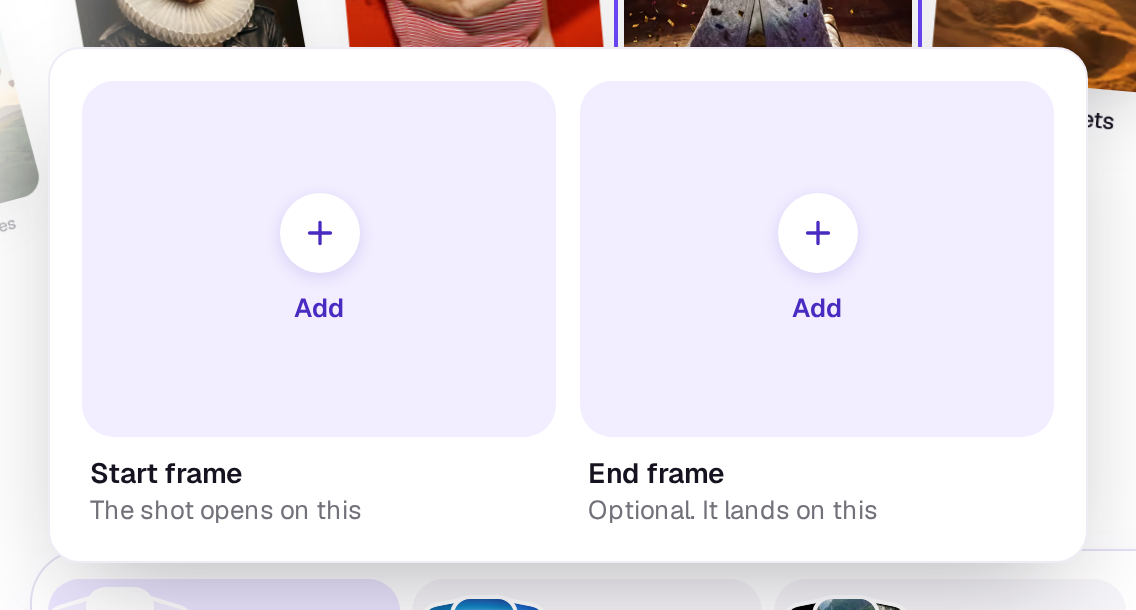
An uploaded image is set as the frame as soon as it’s in. Images you’ve generated are listed too, so a good way to start is to make the image you want first, then use it as the start frame.
Use a design or an edit from Studio
Open the Studio tab to pick from your designs and video edits, the ones you opened or made most recently first. A design’s first page is drawn and used as the picture, and it’s also saved to your Library as a PNG. A video edit opens a page with a preview of the edit as it’s cut, over a strip of its frames. You don’t need to export it first, and the frame always shows the edit as it stands now. Drag or tap the strip to move the playhead, or press Play on the picture to watch it run in real time (without sound). The picture is drawn as it goes, so on a busy edit it skips frames rather than slowing down. Dragging the strip stops it, and Pause stops it too. Then choose Use this frame. The frame is kept as a picture and fills the slot, like a frame from a video. For the end frame the page is End frame and opens on the edit’s last frame. An edit with nothing on its timeline says so. Studio edits can be picked once you’re signed in.
Use a frame from a video
A frame is always a picture, but it can come from a video. Your Library lists videos beside images here. Pick one and a page opens with the video and a strip of its frames under it. Drag or tap the strip to move the lime playhead (the arrow keys move it a tenth of a second), or press Play to watch. Then choose Use this frame. Back returns to your files.
For the start frame the page is Start frame and opens at the start of the video. For the end frame it’s End frame and it opens on the video’s last frame, which is a good way to carry on from a shot you already have. The frame you pick is kept as a picture and fills the slot. It doesn’t appear in your Library. This doesn’t apply to the voice track on a talking avatar, which has to be sound.
On a phone, in the drawer, Frames is a small tile over your words, and it slides in a page named Frames with the same slots. Tap one and your Library slides in; tap an image to use it, or a video to pick one of its frames, and the back button returns to the slots.
Gemini Omni Flash 1.1 can’t start or end on a WebP image. If a frame is one, nothing runs and nothing is spent: pick a JPEG or PNG frame, or another model. WebP reference images are fine.
How frames work
- The take starts on the start frame, and ends on the end frame if you add one.
- With a start frame, the take usually follows the picture’s shape, so use a picture in the shape you want.
- Not every model can end on a frame. Auto only picks one that can. If you pick a model yourself and it doesn’t take an end frame, the take starts on your start frame and ignores the end one.
- Your prompt still matters: say what happens between the frames.
Reference images
References are pictures that show the model who or what is in the shot. They’re optional, for video and for images. In the card they go in your words: choose the paperclip in the row under your words, pick from your Library or upload, and each goes in as a chip where your cursor was. See References, and drawing on them.
When you tag an element with @, its photos go to the model as references as well, ahead of the ones you pick. See Keep a character the same across shots.
A run takes up to 30 references and 8 elements. Past that, a note under your words says how many to take off.
Not every model can use everything. Some take only a few images, some can’t use references beside a start frame, and some can’t use an end frame. Before you generate, a note under your words says exactly what the model would leave out, such as “Veo 3.1 takes 3 images, so Kofi and Iris won’t be seen”, and offers Switch to a model that uses everything. If you generate anyway, that’s what happens. If something would be left out that the note didn’t show, such as words a brand or look adds, Shotz asks Make it anyway? before it starts, and nothing is spent if you choose Not now. A prompt that’s too long for the model can’t be made until you shorten it; the note says by how much. Auto counts frames, references and elements when it picks, and prefers a model that uses the most of them.
Talking avatars
Pick Kling Avatar 2.0 or OmniHuman 1.5 as the model and the frames become Person (“The face that talks”) and What they say (“A voice track they speak”):
- Add an image of the person, ideally looking at the camera.
- Pick a voice track from your Library, or choose Upload, the first tile. Music made in Shotz isn’t listed; voiceovers, cleaned-up voices and sound files you uploaded or recorded are. To make one, use the Voiceover tool, or Audio → Voice in an edit.
- Use the prompt to say how they move, for example “small head movements, friendly, talking to the camera”.
Both are in the Frames panel. Choose Add on one, then tap an image or a voice track from your Library to use it, or Upload, the first tile, to add one. The cross on What they say takes the voice track off. On a phone, in the drawer, it’s the Image and voice page.
The take runs as long as the voice track, up to 60 seconds, and is priced by the second. For a longer script, split it in an edit and make it in parts.
A real person in Melbourne will write back, usually within one business day.