Generate your first shot
Describe the shot in the card, pick a model or leave it on Auto, and send.
Generating needs credits, which come with a paid plan or a top-up. See How credits work.
On a computer
You make shots in the card: one box where you describe a shot or ask the Agent anything. It’s at the foot of most pages, ready to type in; the conversation grows up above it as you go. On Home it’s under the question, and sending from there opens a new conversation on Create, with the card's settings carried over. For more room, open Create in the sidebar, where the card sits under your conversation. Every setting is explained in The card and its settings.
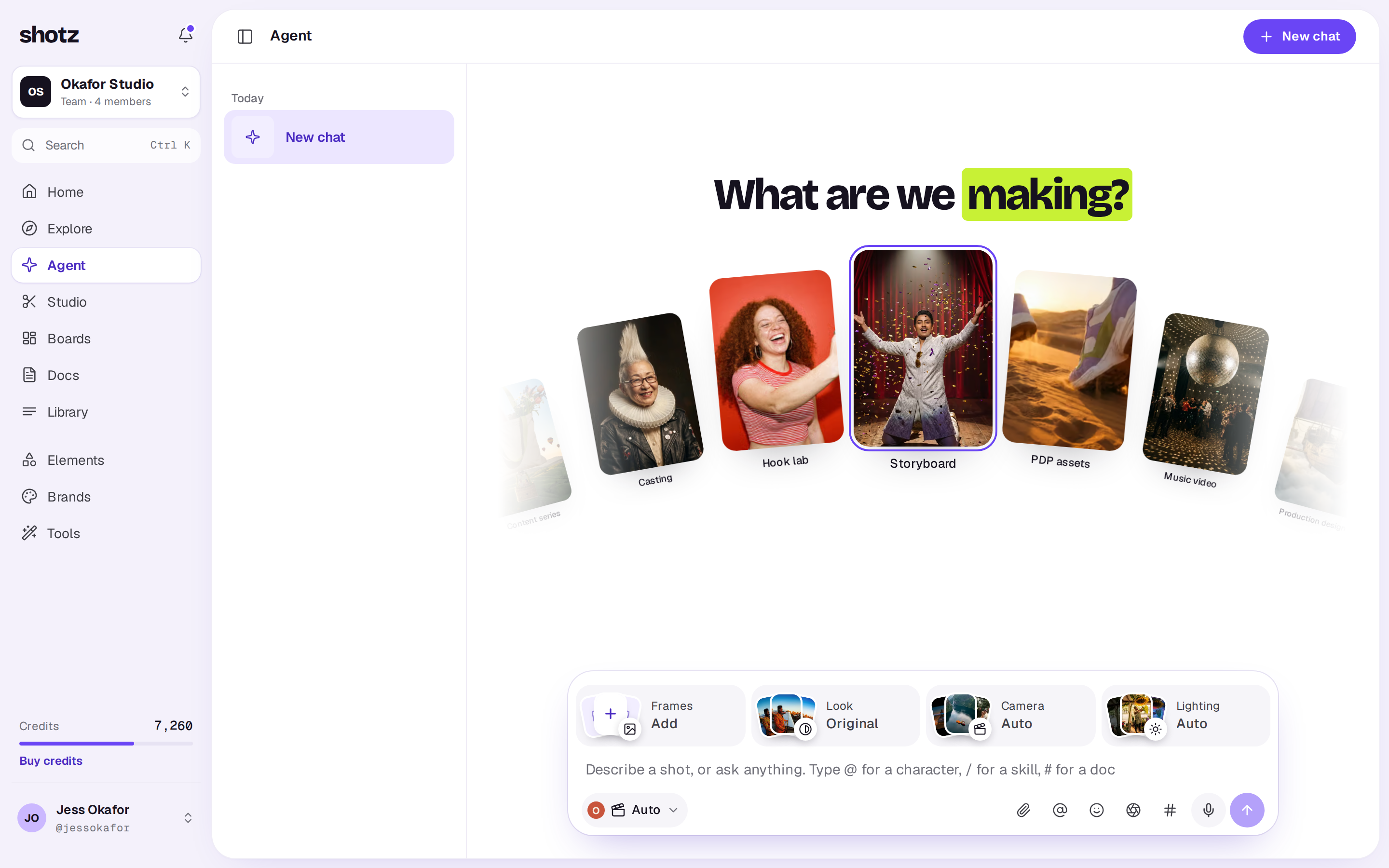
- Describe the shot: who or what is in it, where it is, how the camera moves and the light.
- Tiles over your words, Frames (video only), Look, Camera and Lighting, each open a panel of pictures to tap. The row under your words sets the rest. The pill at its start names the model, such as Auto, which picks a model for your prompt. Choose the pill to change the model, the shape (Auto, 16:9, 9:16, 1:1 or 4:5), how many seconds (also Auto), how many takes (up to 4 videos or 8 images; each take is charged), quality and sound, the brand and where the takes go. Beside it are the paperclip, which attaches pictures (and on Seedance, videos and sound) as references in your words, then Elements (@), Emotion (the face, which puts how someone feels into your words), Skills (camera moves and effects, or type /) and Docs (#).
- Press the send button. Once your words read like a shot to make, it shows the price. If you ask a question, or ask for a script, an ad or ideas first, it stays a plain arrow, since the Agent answers or plans before anything is made.
Up to 500 credits, the shot starts after five seconds, with Stop beside it if you change your mind. Nothing’s spent until it starts. Over 500, the Agent shows the shot with its price, and it starts when you press Generate.
If you ask a question instead, the Agent answers it. See The Agent.
On a phone
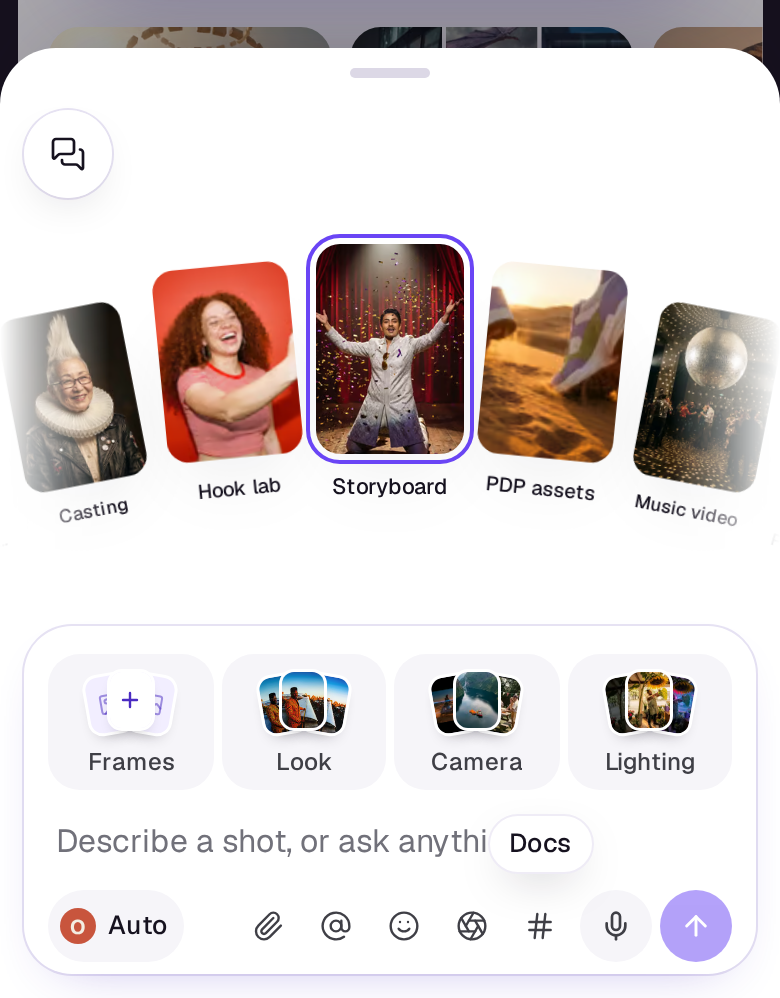
Type in the card on Home, or tap Agent in the tab bar to open the card in a drawer. The settings are the same, with a shorter row; in the drawer each opens its choices as a page, and on Home in a sheet. Describe the shot and tap send.
What the price says
While the model is on Auto, the price reads “from” the cheapest model that fits. Once you stop typing, Shotz picks the model for your prompt and the button shows that price. If the pick changes or costs more than what was shown, Shotz tells you instead of running it, so you’re never charged more than you saw.
Pictures on FLUX.2 klein are free for 50 a day, and the button says Free while they last. See How credits work.
Your takes
Each result is a take. Takes come in inside the conversation as they’re made, and finished ones are saved to your Library, among the Videos or Images. To see only what a model made, choose Filter, then Made and Generated. They’re also under Latest generations on Home.
- Click a video take in the conversation to play it right there; on a computer, choose the corner Open button to open it over the page, with its prompt and Reuse prompt. A picture opens over the page when you click it. To open it in the Library, choose Saved beside Library in Details. A generated file in the Library shows its prompt, with Reuse prompt to put it back in the card, and Open the thread to go back to the conversation it was made in.
- On Home, click a take to open it big, with Edit in Studio, Tools, Download, Share and Share to the community in a bar under it.
- On a phone, tap a take to watch it full screen, or hold it for more.
If a take fails, its credits come back. See What happens when a take fails.
Tips for better shots
- Say what the camera does: “slow push in”, “handheld, following her”.
- Name the light and time of day: “golden hour”, “neon at night”.
- Tag an element with @ to keep a character or product the same across shots. See Keep a character the same across shots.
- Pick a Camera and Lighting instead of describing them, or add a Start frame from the Frames tile to begin a video on an image of your own.
A real person in Melbourne will write back, usually within one business day.