Use Shotz on your phone
The tab bar, More, the You sheet, the iPhone and Android app, and putting Shotz on your home screen.
Shotz works in your phone’s browser, with a layout made for it, and there’s an app for iPhone and Android that shows the same thing. Either way it’s the same account, workspace and files. The app is covered under The iPhone and Android app below.
The tab bar
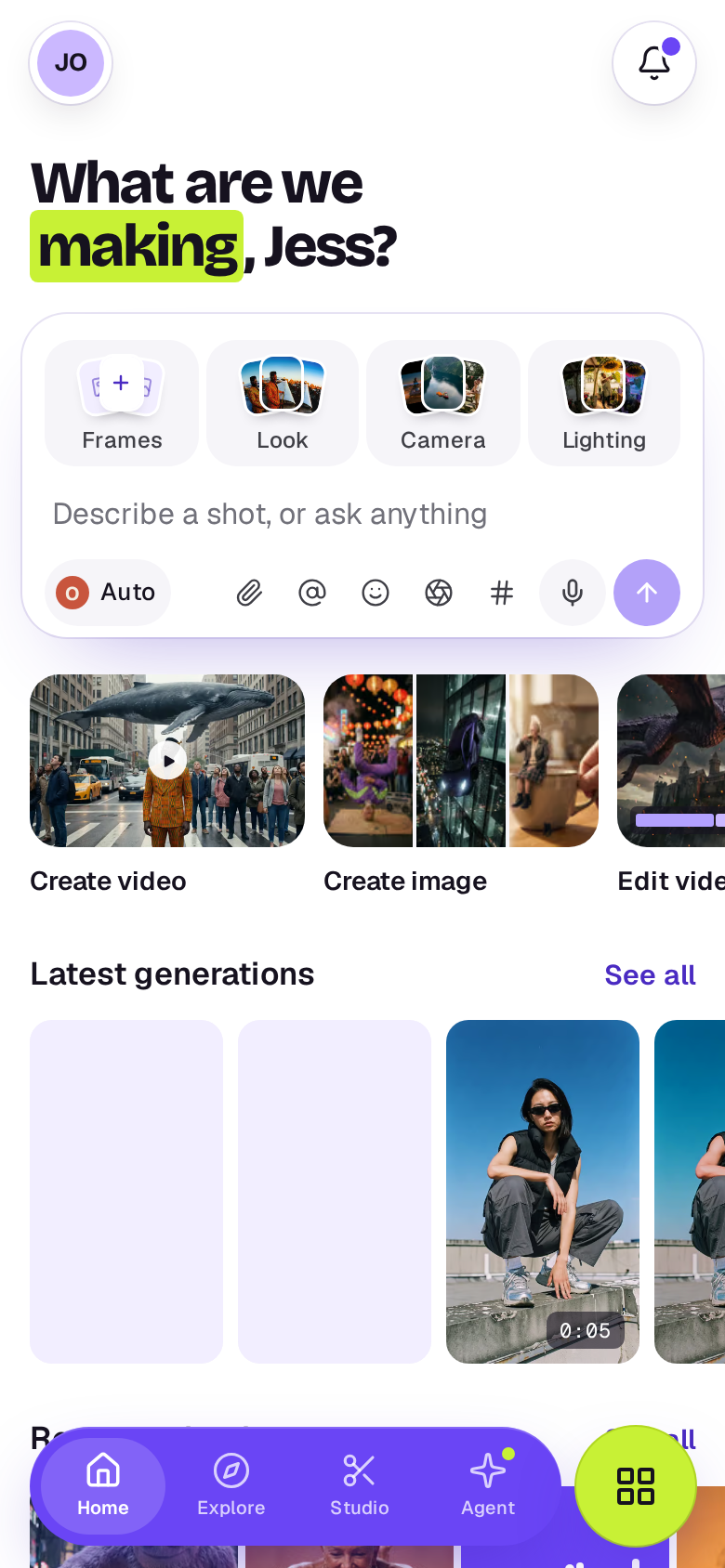
The violet bar along the bottom has four tabs:
- Home: your latest takes, edits and designs (a row you slide sideways), with the card under the question. Type there and send, and the drawer opens with the reply. Under the card, a row you slide sideways has shortcuts: Create video, Create image, Edit video, Edit image, New board and New doc; Create video and Create image open Create full screen with the card set to that kind. See all next to Latest generations opens your Library, and below it Recent uploads shows the newest files you've added, recorded or exported; tap one to open it. See Find your way around.
- Explore: shots people have shared, one at a time, full screen, with Skills and Templates in the tabs along its top.
- Studio: your edits and designs together.
- Create: the card, in a drawer over the page you're on. Describe a shot and the Agent makes it, or ask it anything. The drawer grows as you talk; drag its handle up, or tap the handle, for the whole conversation on Create. While something is being made, its sparkle pulses and carries a lime dot. See Generate your first shot.
The lime button beside the bar is More. Tap it and the two swap: the violet bar shrinks to a circle with ×, and the lime one opens out with Library, Boards, Elements and Tools. Tap one to go there. More follows where you are: it opens by itself when you go to one of those four pages, and puts itself away when you go to Home, Explore, Studio or Create. Anywhere else it stays as you left it, after you reload too, until you tap × (or press Esc) to put it away.
Tap the tab you're on to scroll its page back to the top. From a page inside a tab, such as a folder in the Library, the same tap takes you to the tab's own page. The items under More work the same way.
Explore opens on Community, shots people have shared, one at a time, full screen: swipe up for the next. The tabs along the top switch to Skills and Templates, or swipe sideways to move between them; tap a post's skill to open it. A picture under From the community on Home opens it, starting on that post.
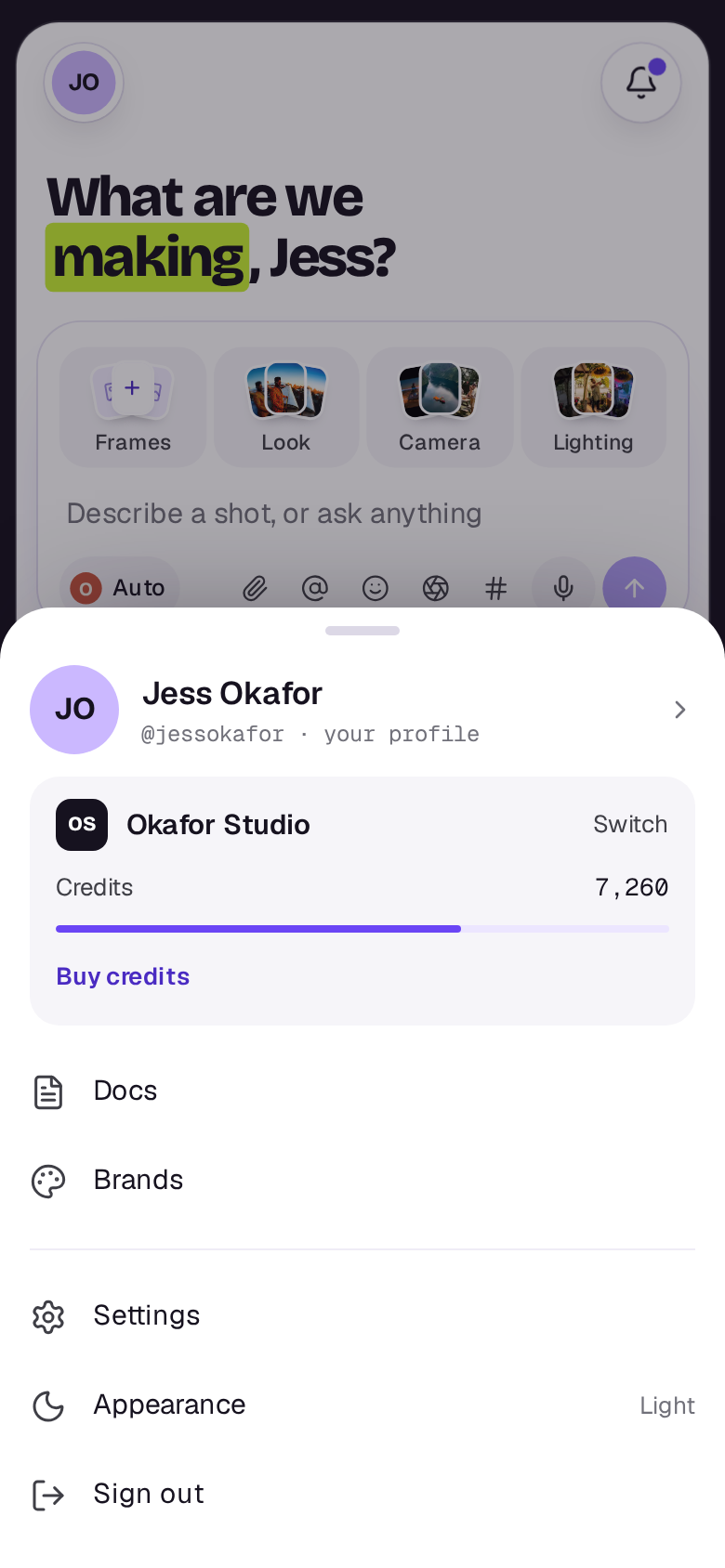
The You sheet
Tap your picture at the top left of Home or Studio. Explore shows only its tabs along the top. The sheet that opens has:
- your name and handle, which open your community page
- the workspace, with Switch to change workspace, and its Credits with Buy credits or See usage
- Docs and Brands
- Settings, Appearance (light, dark or match your device) and Sign out
Settings opens as a list, your own pages under You and the workspace’s under Workspace; tap one to open it.
To close the sheet, drag its handle down, or use your phone's Back.
Notifications
The bell at the top right of Home or Studio opens your notifications. A purple dot on it means some are unread. Activity at the top switches to everything the workspace has been doing.
A page's main button
Where a page has one main action, such as Upload in the Library, New element, New board, New skill or New chat, it's the violet round button at the top right, on its own beside the other buttons (on Home and Studio the bell comes after it, at the edge). A page with no main action keeps everything in the white buttons, with less-used actions under ⋯ beside the page's name.
Going back
The back button at the top left, a chevron (an arrow on Android) with no label, goes up a level: from a page like Create, Boards or Settings back to Home, and from something inside a page, like an element, to its list. Your phone's Back closes an open drawer first.
On Home, Explore, Library, Studio and the other lists you reach from the tab bar or your sheet, pull down from the top to refresh the page. A spinner shows while it fetches what's new.
Takes and files
Tap a take or a file to watch it full screen, and swipe sideways to the next one. Dots above its name show where you are among the others, moving along with your swipe. When a video is playing, a thin line showing how far through it you are takes the dots' place a moment after you open it or stop swiping. The first time you open one with more to swipe to, the picture slides a little way to show you. Its main actions sit at the bottom: for a file, Edit in Studio (into an edit, or the image editor for an image), Tools and Download. Tap its name, or swipe up, for tabs under the picture, which stays in view. When you swipe, the details rise with your finger, and settle back down if you let go early. They hold the prompt, the details and tags, what X-Ray found, who can open it and the team’s notes. The actions stay pinned under them. As you scroll the details, the picture shrinks to make room, and grows again when you scroll back. Swipe down to put them away. To close, drag the picture down: it follows your finger and, when you let go, shrinks back into the tile it came from. Let go early and it settles back. Hold a tile down for what you can do with it, like downloading it.
The iPhone and Android app
The app is Shotz in its own window, so new features reach it without an update. Sign in with the same email or account you use on the web. A few things work a little differently there:
- Signed out, the app opens on a welcome screen. Choose Get started if you’re new or I have an account if you’re not, and the sign-in page opens. The arrow at its top left takes you back to the welcome screen.
- Signing in with Apple on an iPhone uses Apple’s own sheet, and Google on Android uses your phone’s account picker. You stay in the app. Facebook, X, Discord, Twitch, and Google on an iPhone open in your phone’s browser, then bring you back to the app. Links in sign-in emails open in the app, and the code screen has buttons to your email: Open Mail and Open Gmail on an iPhone, and on Android Open Gmail and Open email app for whichever you have.
- Download opens your phone’s share sheet instead of saving straight away. Choose Save to Files, Save Video or Save Image there. If it can’t save, a message says so; try again in a moment.
- Links to other sites open in your phone’s browser, and a Shotz link opens in the app.
- On Android, your phone’s Back goes back a page, and on the first page it leaves the app.
- A light tap from your phone’s haptics goes with a few things: liking a post, holding a tile down until its actions open, and a take or file finishing on screen.
- With no connection the app says You’re offline. Check your connection and tap Try again.
- Plans and credits are bought through the App Store or Google Play. See Buy a plan or credits in the iPhone and Android app.
- Takes that are ready can reach you as push notifications. See Notifications.
Put Shotz on your home screen
In the browser, not the app, Home shows a card on a phone saying how. On an iPhone, in Safari, tap the Share button, then Add to Home Screen. On other phones, tap Install on the card when your browser offers it. Shotz then opens full screen, like an app. If you close the card with ×, it stays closed.
A real person in Melbourne will write back, usually within one business day.