Invite people to your workspace
Add people to the whole workspace, how seats work, and what they receive.
Everyone in a workspace shares its credits, its Library and its edits. Only an owner can invite people.
Send an invite
- Open Settings → Members.
- Type one or more email addresses, separated by commas.
- Pick the role they join as: Editor or Can comment. See Members and roles.
- Choose Send invites.
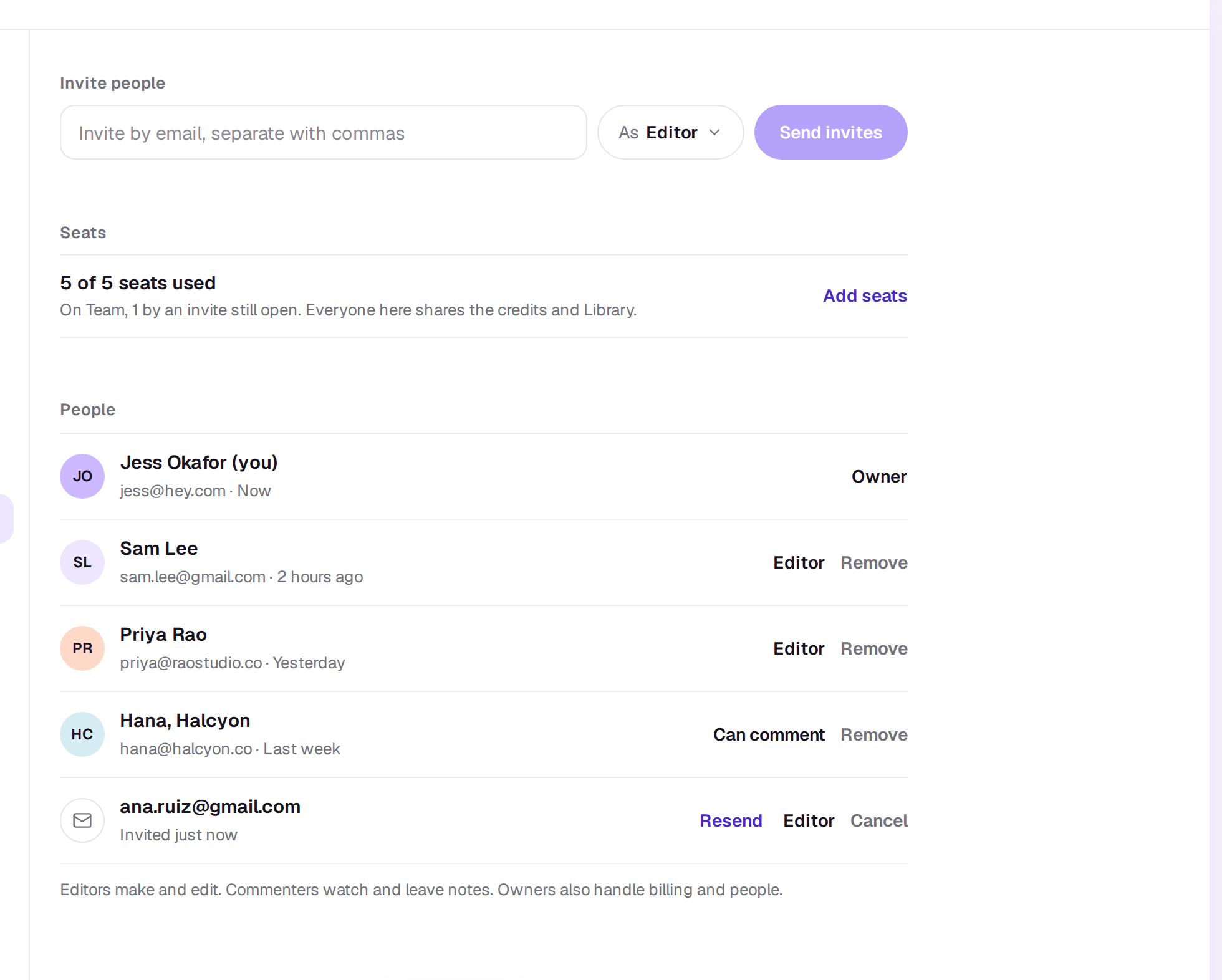
Someone who already has a Shotz account joins straight away and finds the workspace in their list. Anyone else gets an email with a link that signs them in and brings them in. Either way the page says Invited.
To keep anyone from being flooded with email, one address can be invited three times a day, and there’s a limit on how many invites you can send in an hour. Resend counts as an invite. Addresses that reach the same inbox count together, so sam+shotz@example.com is the same as sam@example.com, and dots in a Gmail name don’t make a new one. Past either limit, the row says That’s a lot of invites for now. Try again later.
Seats
Free, Starter and Pro have one seat, which is the owner’s. Team has five. Under Seats, a line such as 1 of 5 seats used shows how many are in use, and Add seats beside it takes owners to Plan and billing.
An invite that hasn’t been accepted holds a seat. Invites last 14 days; after that the row says Expired and stops holding its seat. Choose Resend to send a fresh one, or Cancel to free the seat.
When every seat is taken, Shotz says so. Change plan for more room, or bring someone into a single edit instead, which doesn’t use a seat. See Bring someone into one edit.
Removing someone
To remove someone, choose Remove on their row; they lose access to the workspace’s edits, files and credits, and you can invite them again later. Files they kept private in the workspace are deleted when they go.
A real person in Melbourne will write back, usually within one business day.