Bring someone into one edit
Invite a client or freelancer to one edit without adding them to the workspace.
To work with someone on one edit, invite them to just that edit. They see that edit and nothing else in the workspace, and they don’t take a seat.
Invite them
- Open the edit and choose Share.
- Type their email address under Add people by email. Separate several with commas.
- Pick Can edit or Can comment. The role and the Invite button appear once you’ve typed an address.
- Choose Invite.
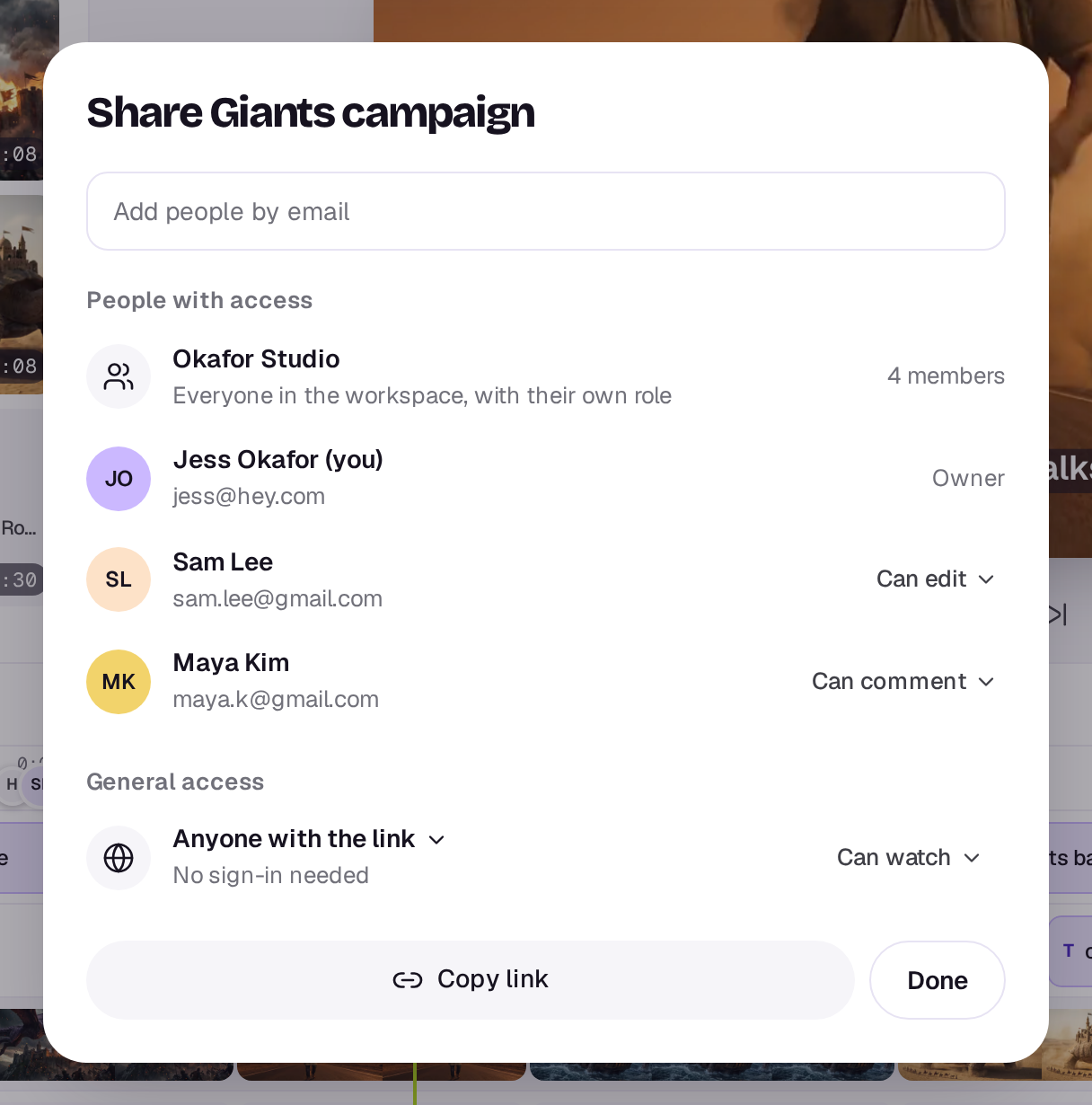
Someone with a Shotz account is added straight away and gets a notification, plus an email unless they’ve turned off I’m invited to a workspace in their account. Anyone else gets an email with a link that signs them in and opens the edit. That invite lasts 14 days.
Under People with access, each person shows with their photo, or their initials if they haven't added one. The people you bring in show with Guest under their name. Change what they can do, or choose Remove, from the menu beside them. An invite that hasn’t been accepted shows as Invited, with a cross beside it (Cancel the invite).
At the top of that list, your workspace’s row says Everyone in the workspace, with their own role: its members can open the edit with their usual role.
Who can invite
Owners and editors of the workspace. Guests who Can edit can work on the edit, but can’t invite people or change who has access. People who can only comment see who’s there but can’t change it.
You can invite up to 20 people to one edit in an hour, and 50 in a day across edits.
Without an account
To get feedback from someone who shouldn’t need to sign in, turn on the review link in the same dialog. See Share an edit for review.
A real person in Melbourne will write back, usually within one business day.