Comments on community posts
Comment and reply, what’s allowed, and turning comments off on your own post.
Comments sit in the Comments tab beside a post when you open it on a desktop, under it on its own page, and in a sheet from the comment button in the phone feed. The newest are at the top.
Comment or reply
Type in Add a comment and choose Post.
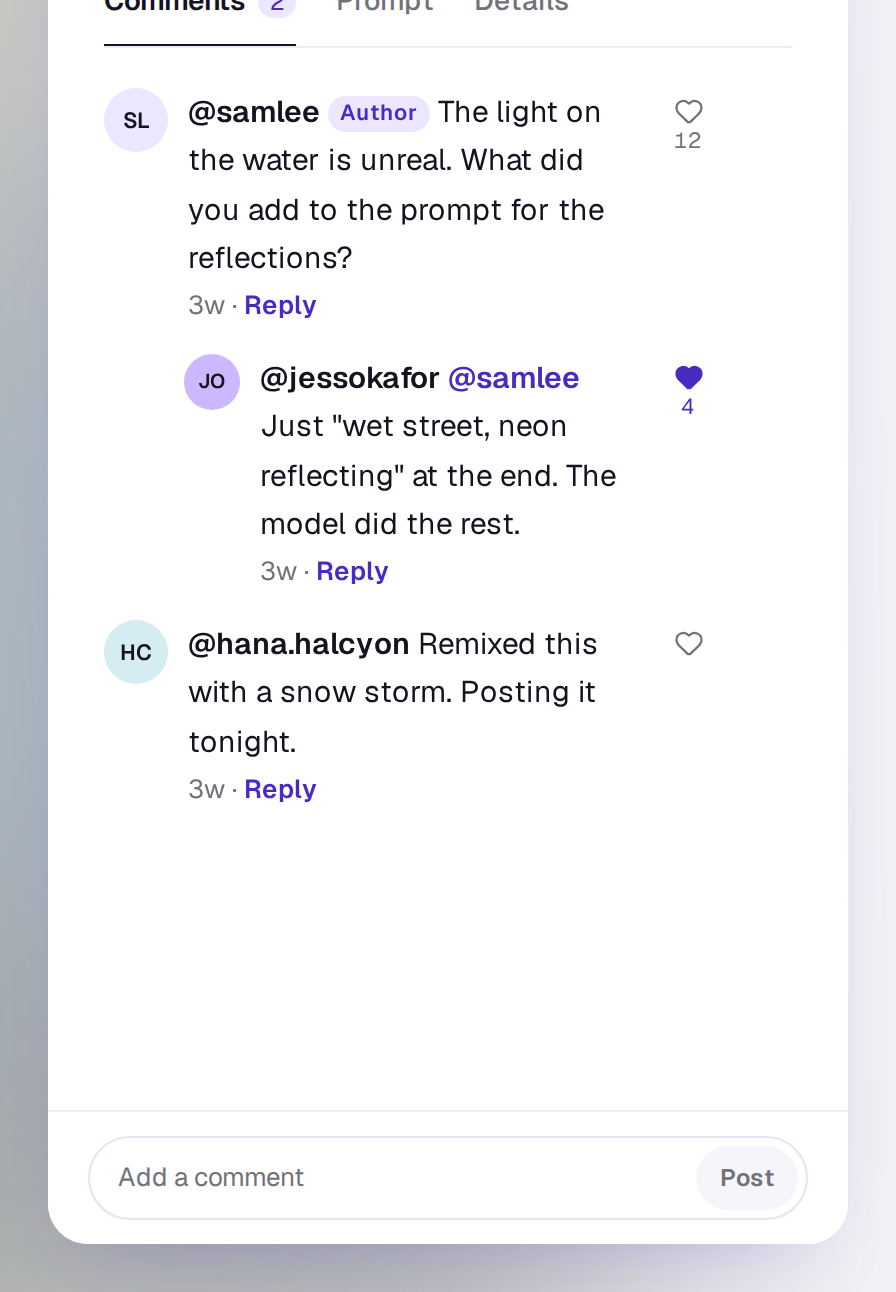
To answer someone, choose Reply under their comment; replies stay under the comment they answer, one level deep. The post’s author has an Author badge on theirs.
The author hears when someone comments, at most once an hour for each post, and you hear when someone replies to you.
What’s allowed
- Up to 500 characters a comment, and up to 30 comments an hour. Deleting a comment doesn’t give one back.
- No links.
- Be kind. An AI reads each comment as it’s sent. Most go up at once. One that may not be fine for everyone is kept so only you can see it, and says Only you can see that comment for now. One that reads as harmful or spam doesn’t go up: That comment can’t go up. It reads as harmful or spam.
While a comment is still being checked, you see it with Checking it. Others see it once it’s through.
Delete, report or block
Choose ⋯ beside a comment (it shows when you point at it on a desktop). You can delete your own comments, and any comment on your own post. To report someone else’s, choose Report and say what’s wrong; it goes from your view, and an AI looks at it again. Choose Block to stop seeing anything from that person and stop them commenting on your posts; see Block someone in the community.
Turn comments off on your post
From your post’s ⋯ menu, choose Turn comments off. Nobody can add new ones, and people see Comments are off where the box was, and you see You turned them off for this post. under it. Comments already there stay; delete any you don’t want. Choose Turn comments on to open them again.
A real person in Melbourne will write back, usually within one business day.