Find files in your Library
Search for what’s in your media, and filter or sort by kind, model, element, date or shape.
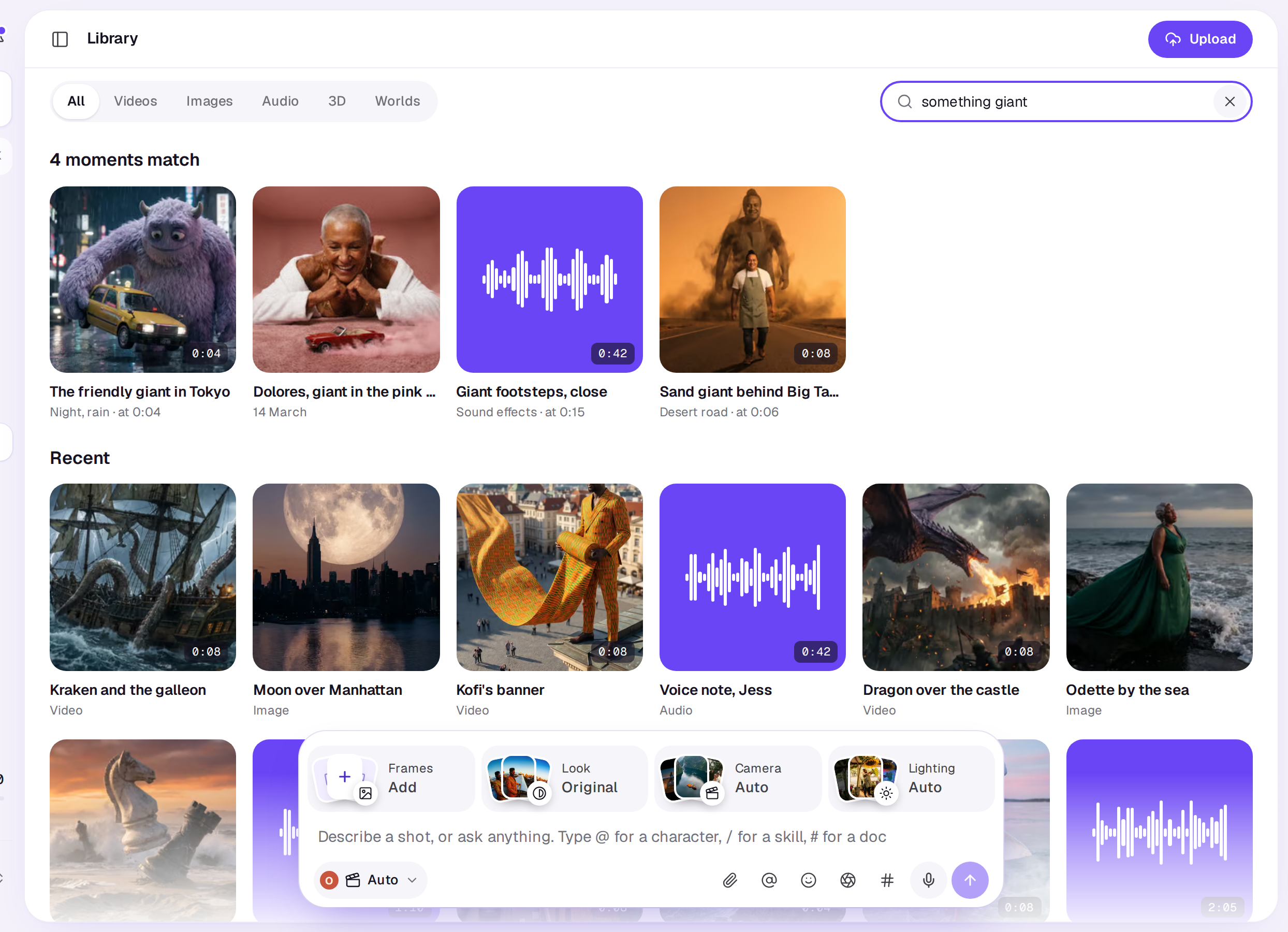
Search in Library looks inside your media, not just at file names. On a computer it’s the round search button at the right of the toolbar: choose it, or press /, and a search box opens in its place. Esc, or the close button, shuts it again. On a phone the box sits under the tabs.
What search looks at
- File names.
- What’s in each shot, and the descriptions you write. On paid plans X-Ray describes videos moment by moment and images as a whole once they’ve processed, so you can type what you’re after: “dog on a beach”, “close-up of hands”.
- The tags on each file, which you can add and remove yourself on any plan.
- Your own Library fields, such as a SKU or product name, matched anywhere in the value: “ab-12” finds SKU AB-1234.
- What it looks and sounds like. On paid plans, describe the moment in your own words and X-Ray finds it in your videos, even if nobody wrote those words down.
- What was said, from the transcript of any video or audio with speech.
- What’s filled in on its Library fields, such as a SKU or a product name.
- The people in it, by the names you gave them. Part of a name is enough, and so is a name inside a longer search, such as “nick at the beach”. People whose names match also show in a People row above the results; choose one to see every file they’re in. See X-Ray.
The last word you type can be unfinished: “capy” finds a file tagged capybara.
Matching moments come first, each with the time it happens, such as at 0:04. On a desktop, open one and it plays from that moment. Files that match as a whole follow. A file that’s still processing turns up once its description and transcript are in.
Filters
- All, Videos, Images, Audio, 3D and Worlds narrow the Library to one kind. A generated video is one of the Videos, a generated picture one of the Images. To see only what a model or tool made, choose Filter, then Made and Generated. In a workspace with more than one person, Added by and You in the same menu shows only the files you added or made.
- People, the last tab, lists everyone X-Ray found in your files. It’s there while face recognition is on, and the filters and Sort step aside while it’s open.
- On a desktop, one Filter button sits beside the search button, with Sort and the tile shape, and they hide while the search box is open. The button turns violet and counts the filters that are on. On a phone, a round Filter and sort button sits beside the search field. It turns violet and shows a count while any filter is on, and opens the same pages in a sheet, with Sort after the filters. Show files used in elements is also in the ⋯ menu.
- Choose Filter to see a row for each filter, with what it’s set to on the right. Used in an element is a single row that turns on and off: it shows only the photos and clips your elements are made from. The others open their choices on a page of their own. Pick one and the files change at once and you’re back on the list. Choose Back to leave a page without changing anything.
- Model shows only the files one model made, or Any model. It lists the models your Library’s files came from, most files first, each with its file count. Tools gathers files made by tools such as Upscale, Dub and Remove background. It appears once some of your files were generated.
- Made with shows only the files made with one of your elements tagged in the prompt, or Any element. Each element is listed with its photo and file count. It appears once some files were made with an element.
- Added narrows by when a file was added: Any time, Today, Past week, Past month or Past year.
- Each of your Library fields has a row too, named after the field. A field with choices lists them, a yes or no field offers Yes, No and Not set, and any other field offers Has and No with its name, such as Has SKU.
- Sort lists the files as Newest, Oldest or by Name. On a desktop it’s beside Filter; on a phone it’s a row in the Filter and sort sheet. The heading above the files follows it: Recent, Oldest first or By name.
- Tile shape (desktop) is the small grid icon after Sort. It changes the grid between Square, 9:16, 16:9 and 4:5 tiles, each with a small outline of its shape. It doesn’t change the files.
- Your folders are tiles above the files. Choose one to open it on a page of its own. See What you can do with a file.
Filters combine with the kind tabs, and work the same inside a folder. Each filter that’s on shows as a chip under the toolbar, such as Made by a tool, Made with Kofi or Angle: Front. On a phone the chips sit in one line that scrolls sideways. Choose a chip to take that filter off, or Clear all once two are on. If nothing matches, the page says No files match these filters and offers Clear filters.
Everything else is listed under that heading, newest first unless you’ve chosen another sort. When you’re looking at the newest files, with no folder, search or filter on, takes still being made lead the grid, with Making under them (or Waiting for a turn, if one has queued for more than about ten seconds). They turn into files when they land. Older files load as you scroll down. If a page doesn’t load, choose Try again at the bottom. Search looks across the whole Library, even from inside a folder.
A real person in Melbourne will write back, usually within one business day.