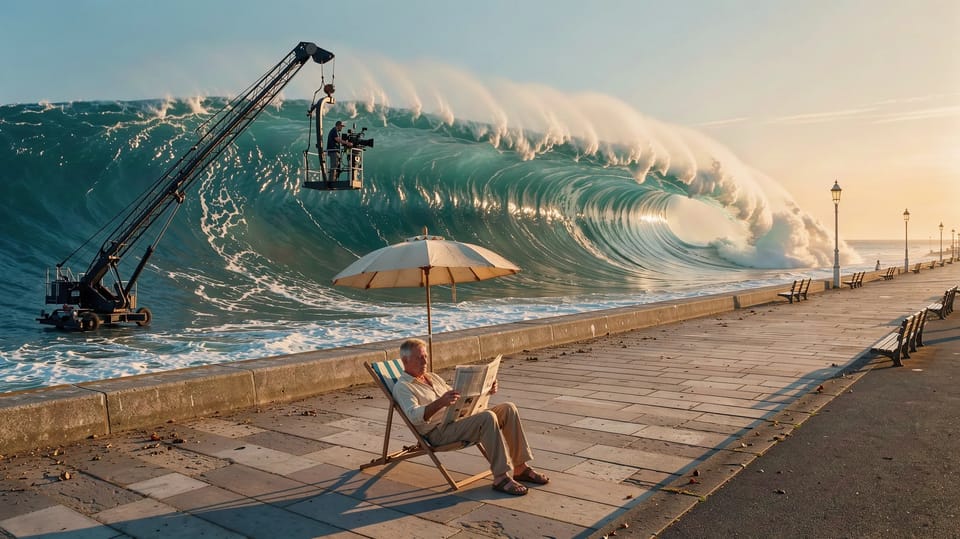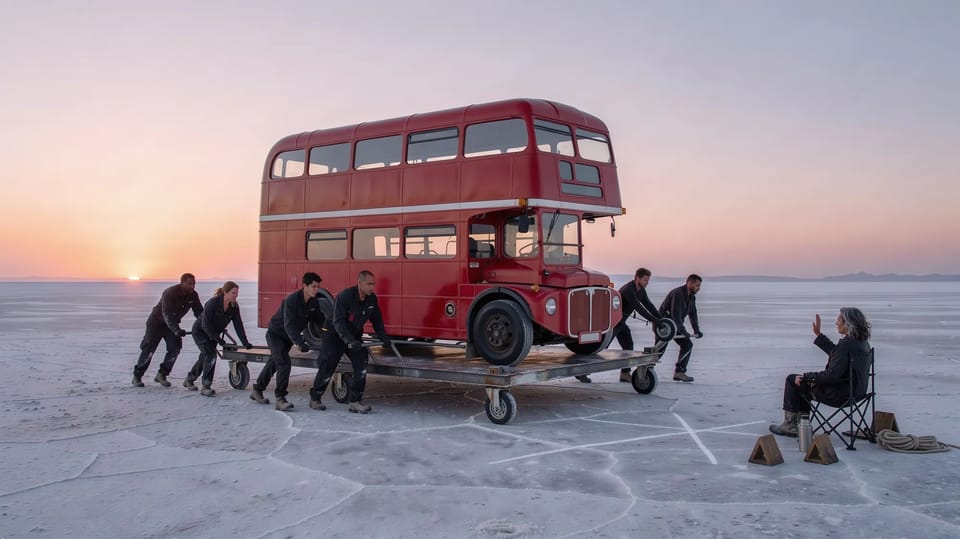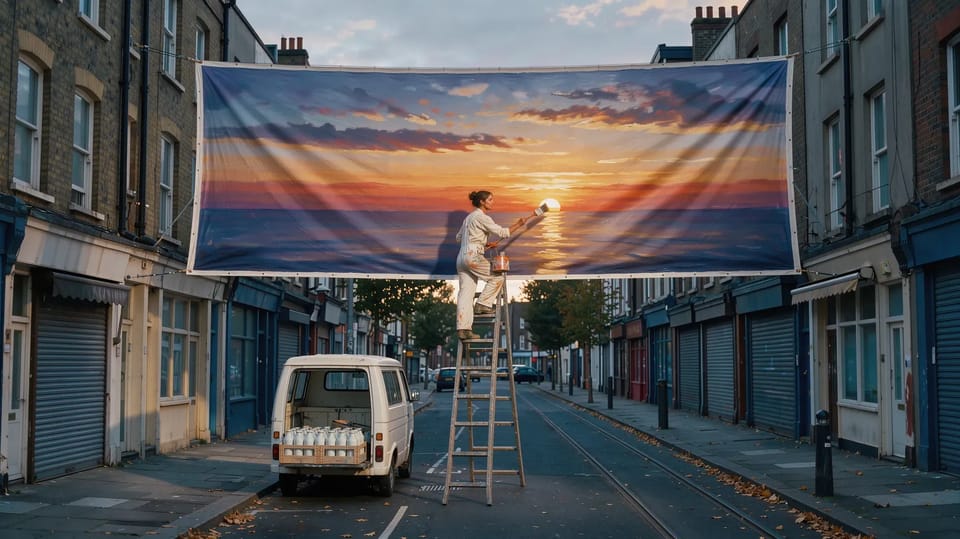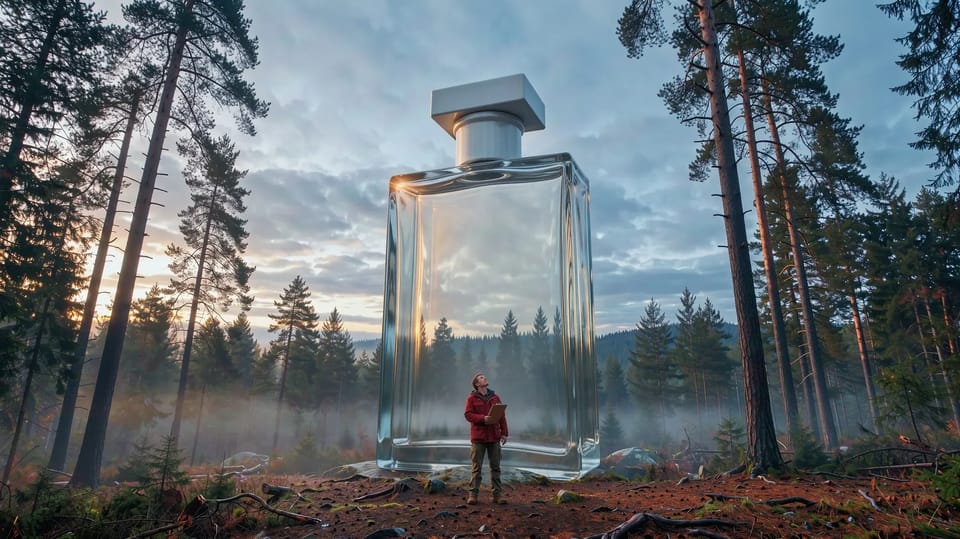
A product shot has one job the others don’t: the product has to be the product. The same shape, the same colour, the same cap. Ask an image model for “a green mug on a headland” and you get a green mug. It just isn’t yours.
The fix is to send the product every time, and to say what may change and what may not.
Start with one clean photo
Photograph the product on a plain background in soft, even light, filling most of the frame, any label facing the camera. Add the back and a side if they matter. A busy background teaches the model the background.
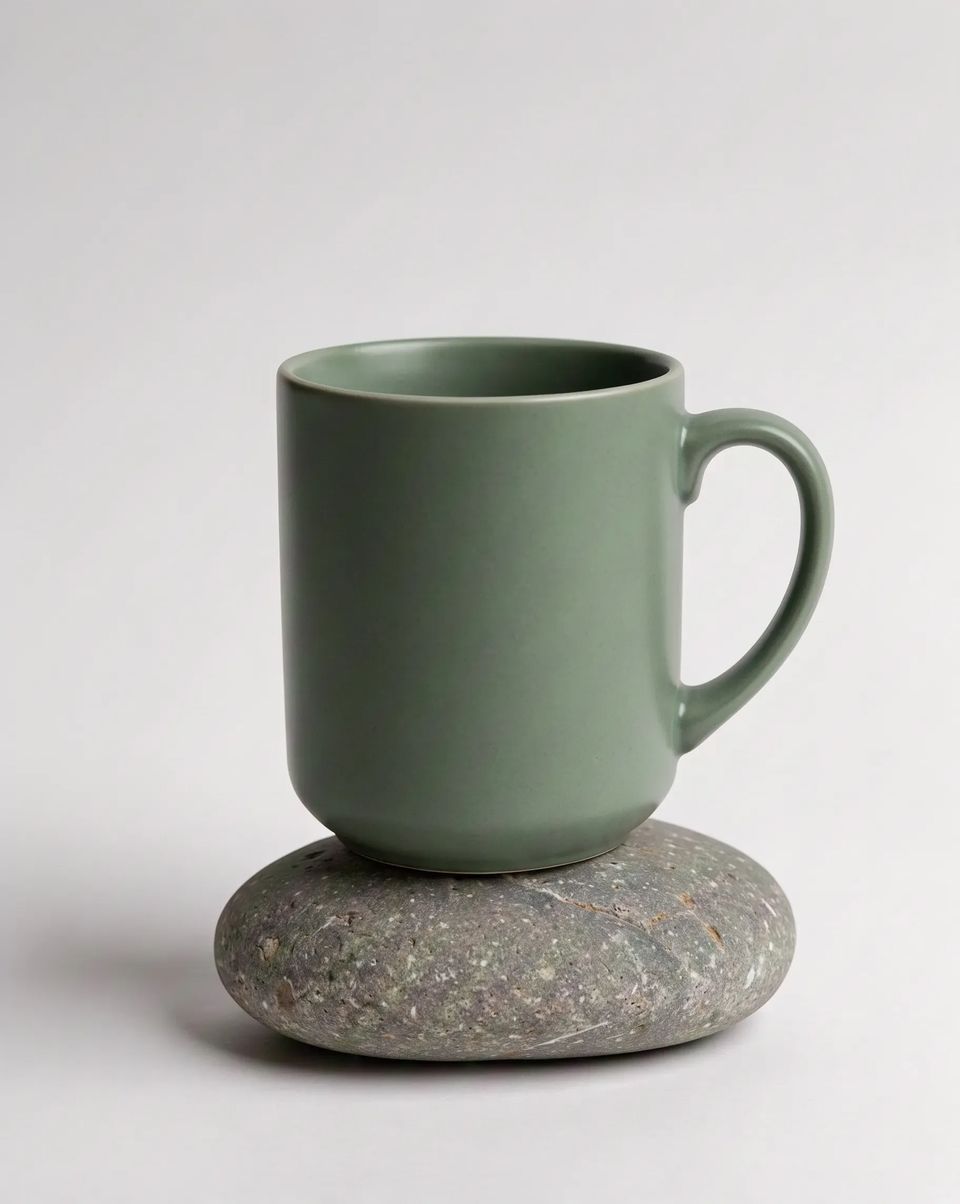
A plain matte sage-green ceramic coffee mug with no logo, standing on a smooth grey stone on a white studio background in soft even light, centred, a gentle shadow beneath.
Make it an Element
In Elements, make a product from those photos, up to twelve, and give it a name. Now its @handle in any prompt sends them along. Two or more photos go to the model as one reference sheet, up to six to a sheet, with no words drawn on it, so nothing from the sheet turns up in the shot. The prompt tells the model it’s one subject: match the likeness, not the layout.
Pick the model
Three image models suit this best, and they’re the three the Ad creator uses. Nano Banana Pro is the default image model, makes up to 4K and takes up to four reference images. GPT Image 2.5 Flare is the one for exact edits and text that reads right, and Seedream 5.0 Pro handles dense layouts; both take up to six. With references, all three work on their edit endpoints, so your product is something to keep, not something to reimagine.
Say what stays
Write the scene, then say what can’t change: the same shape, glaze and handle. Shotz names your element in the prompt by the image it’s in, so the model knows which picture you mean. Never ask for a logo or label the product doesn’t have; describe what’s really on it.
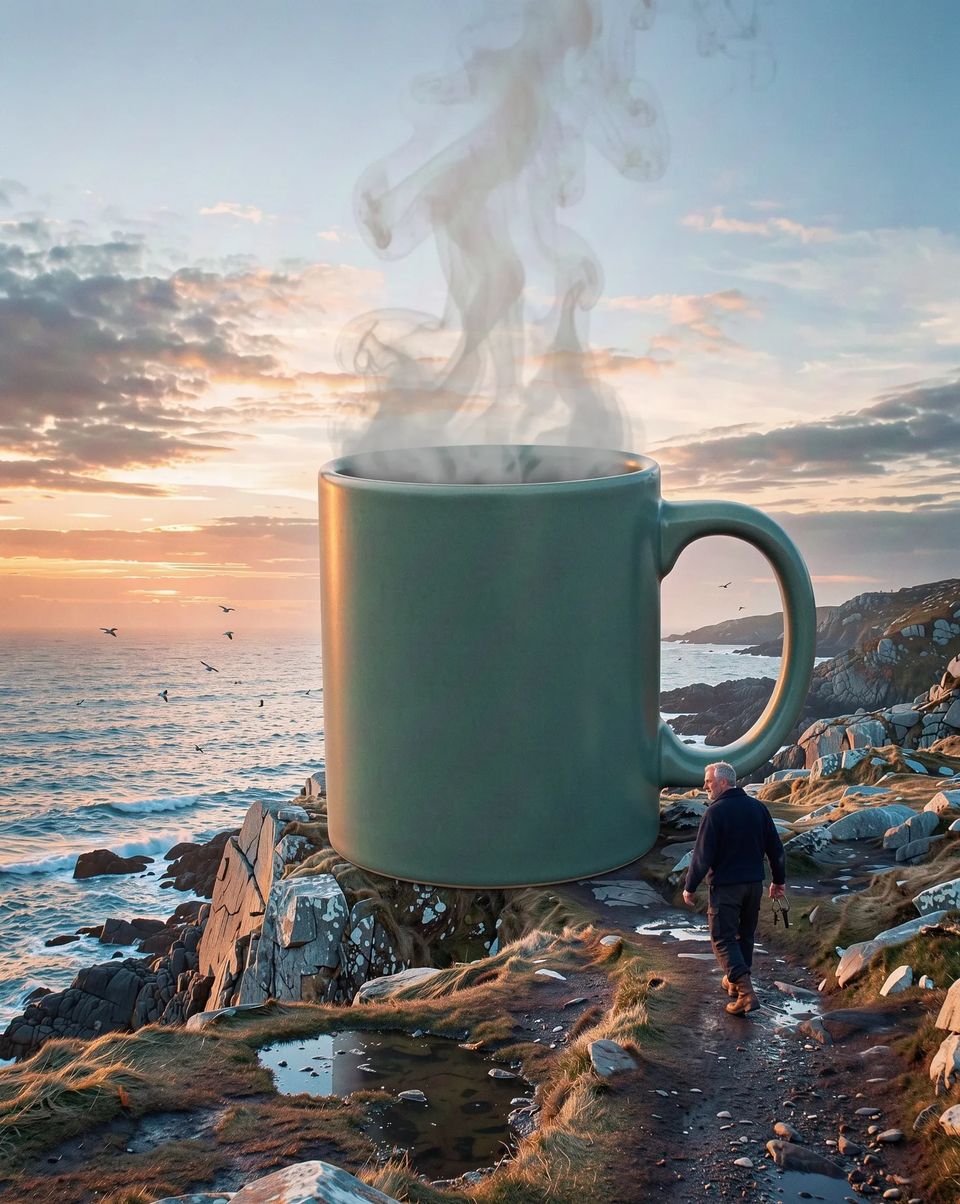
A plain matte sage-green ceramic coffee mug with no logo, as big as a lighthouse, standing on a rocky headland at sunrise with steam curling from it into the clouds, a tiny keeper in a navy jumper walking up a path to its handle.
To change only the background, open the photo in Studio. Remove cuts the product out, and AI backgrounds put a new one behind it as a layer of its own, the product left exactly as it is. Make several and switch between them.
Photograph your product once, properly, and make it an Element. Then make three scenes and put them side by side.